The Relay workspace
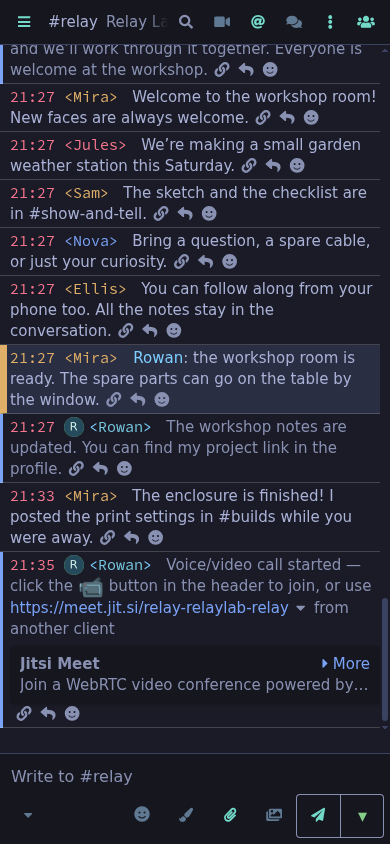
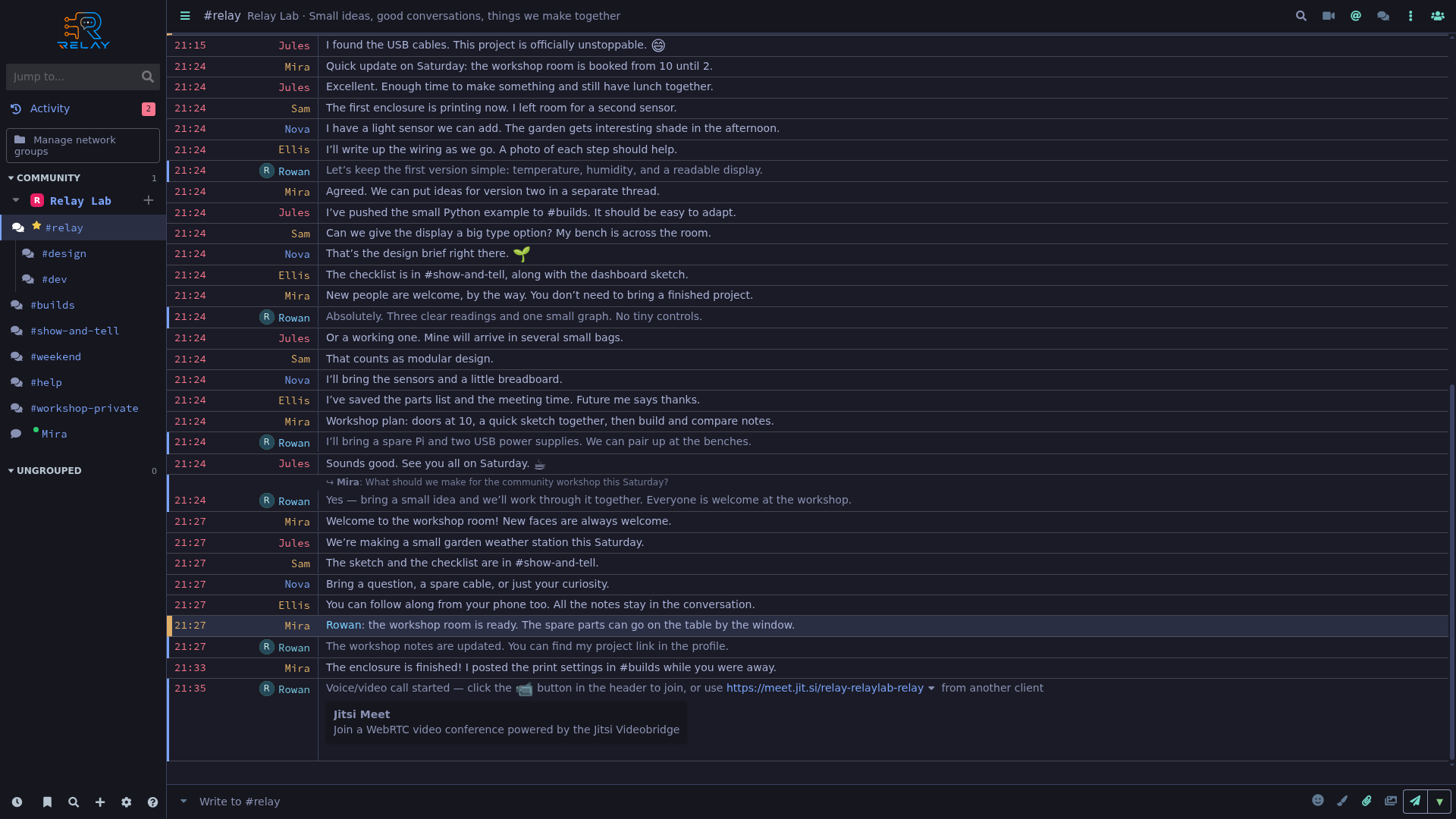
A workshop conversation in the standard message layout, with channels and members nearby.
Relay screenshots
Explore the same conversations and tools on desktop and phone, using the standard message layout.
These are real captures of Relay 0.11.6 source on a private demo network, with fictional participants and workshop conversations. Every example has a 1920 × 1080 desktop capture and a 390 × 844 phone capture. Message bubbles appear only in the optional comparison.
Configuration examples are identified in their captions; they do not imply that an external sign-in, email recovery, or multiparty call was completed. Open any image to inspect the full capture.
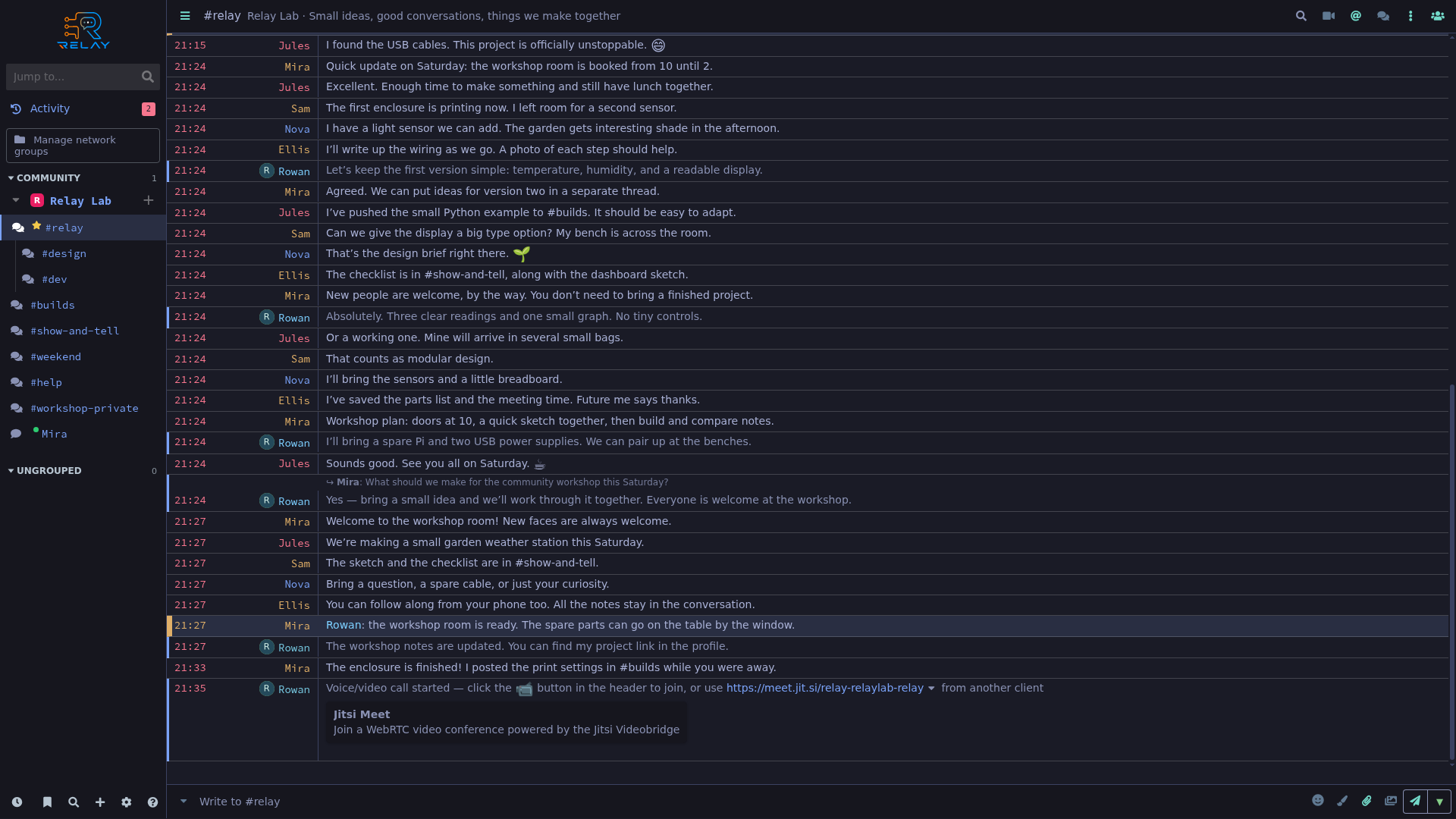
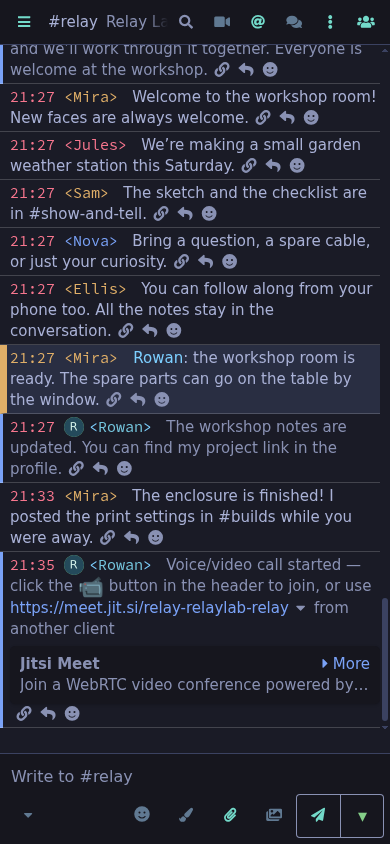
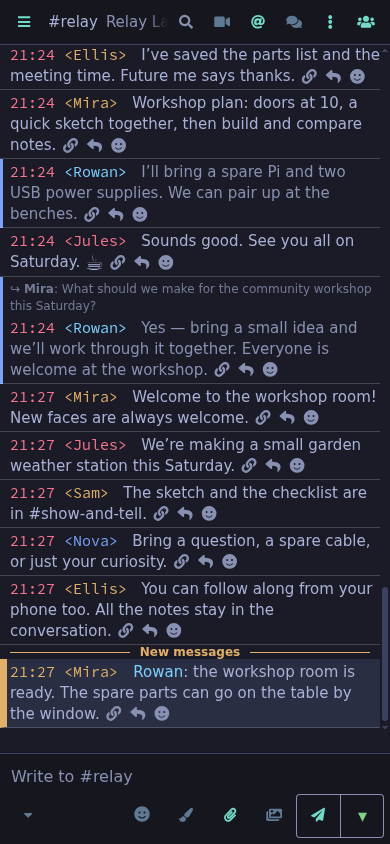
Standard message rows, with the same workspace on a phone.
A workshop conversation in the standard message layout, with channels and members nearby.
A workshop update retained while the browser was disconnected and shown after signing in again.
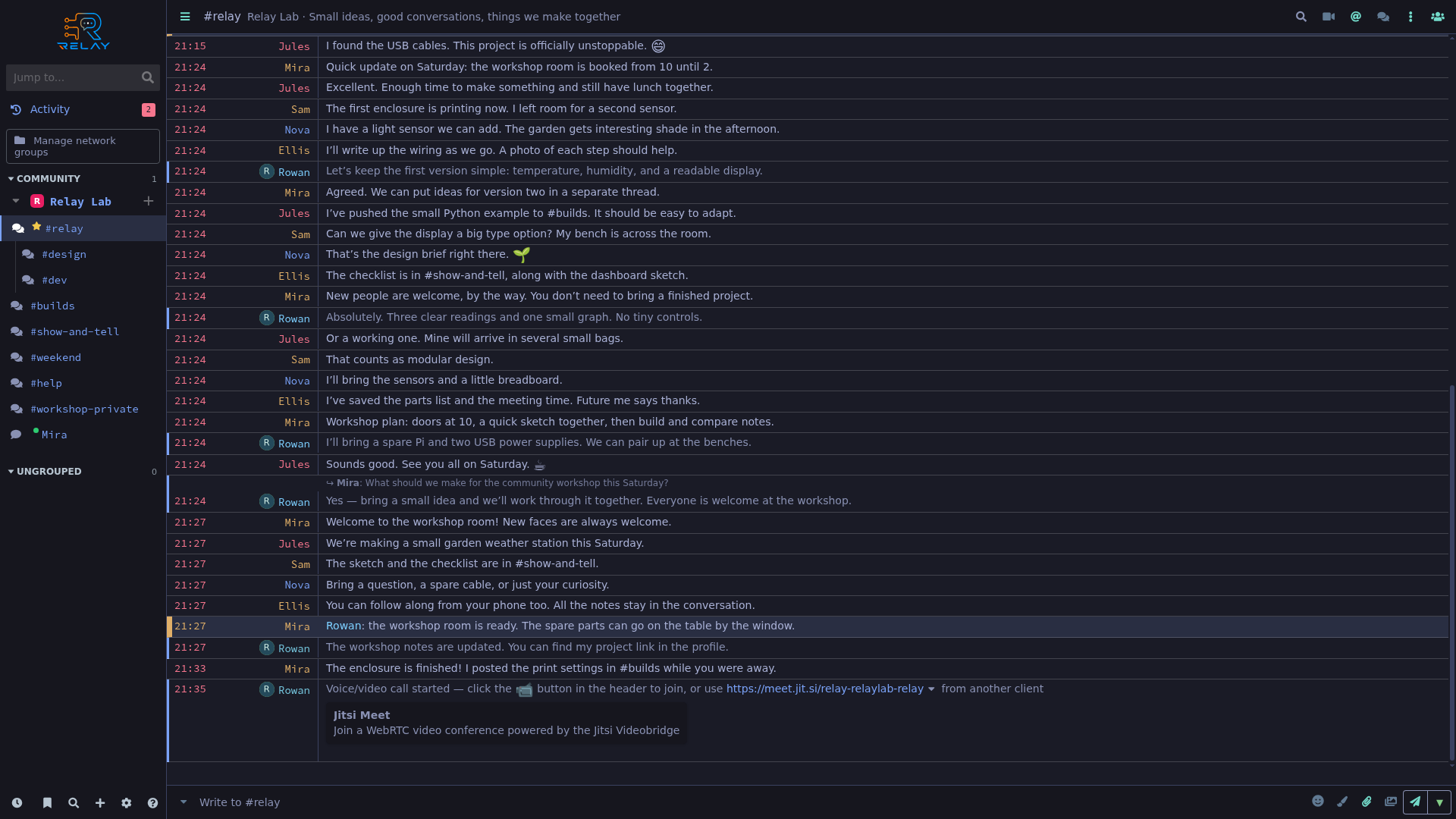
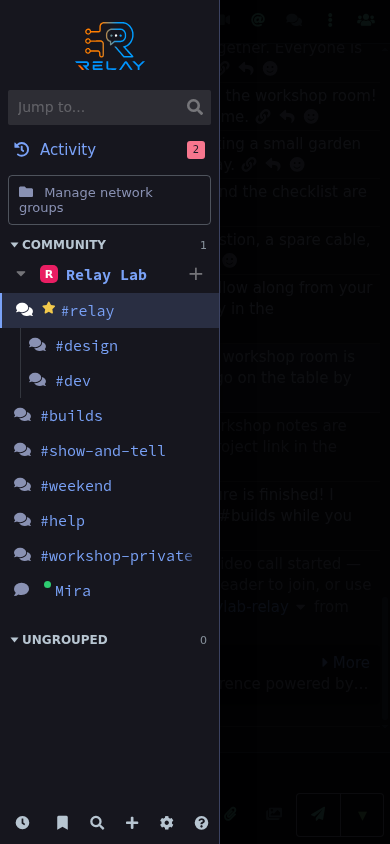
The workspace sidebar on desktop and the opened channel drawer on a phone.
Follow context, find messages, and choose what to keep or share.
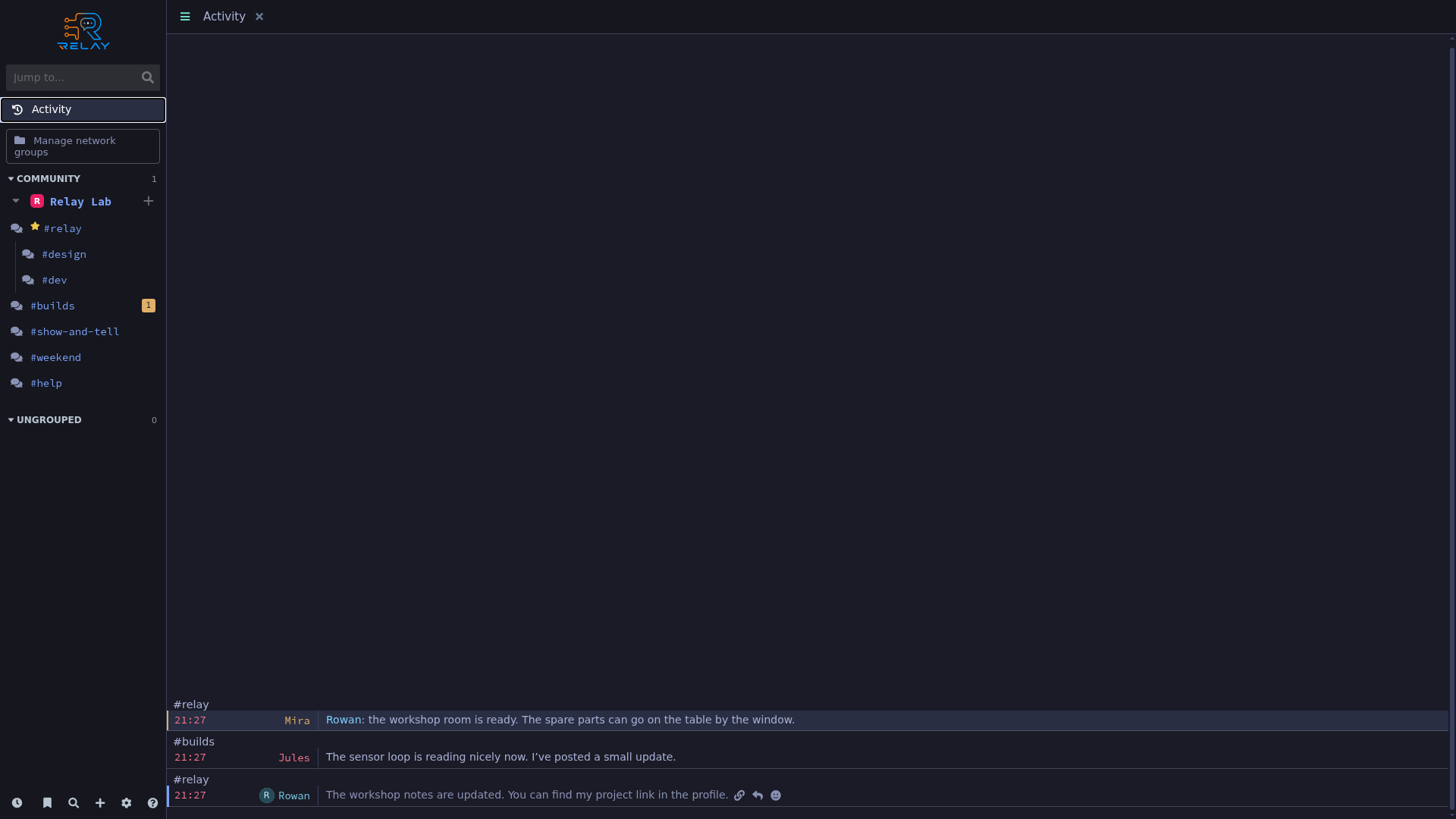
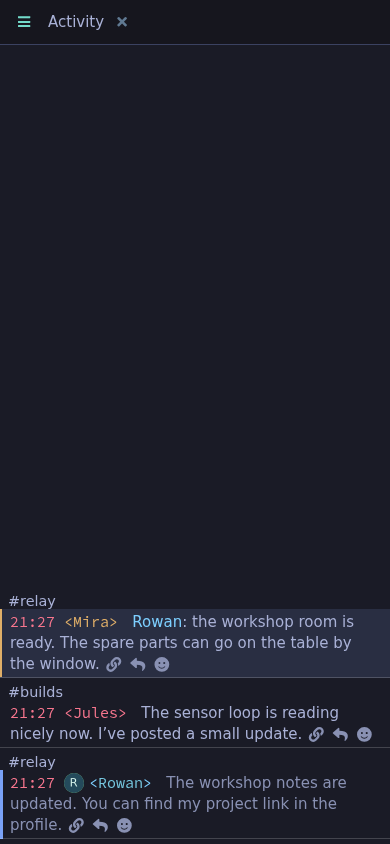
The Activity view brings together messages from the workshop channels.
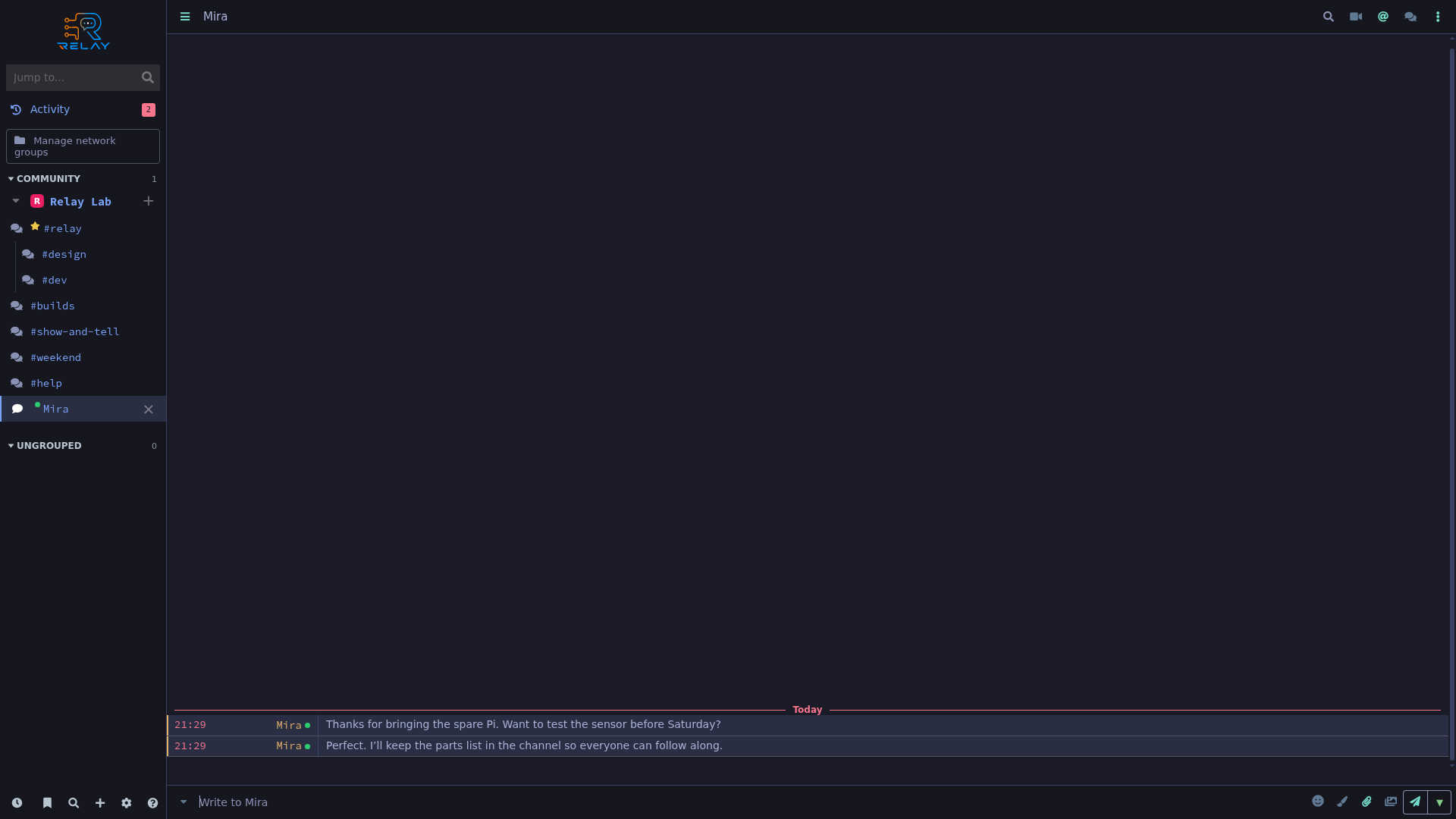
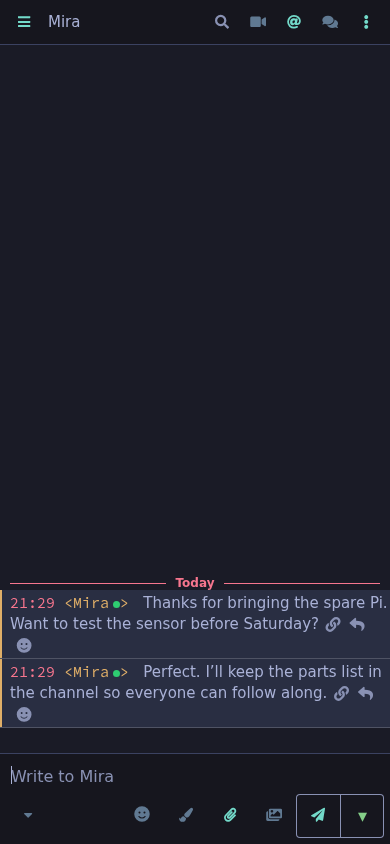
Rowan and Mira coordinate the workshop in a direct-message buffer.
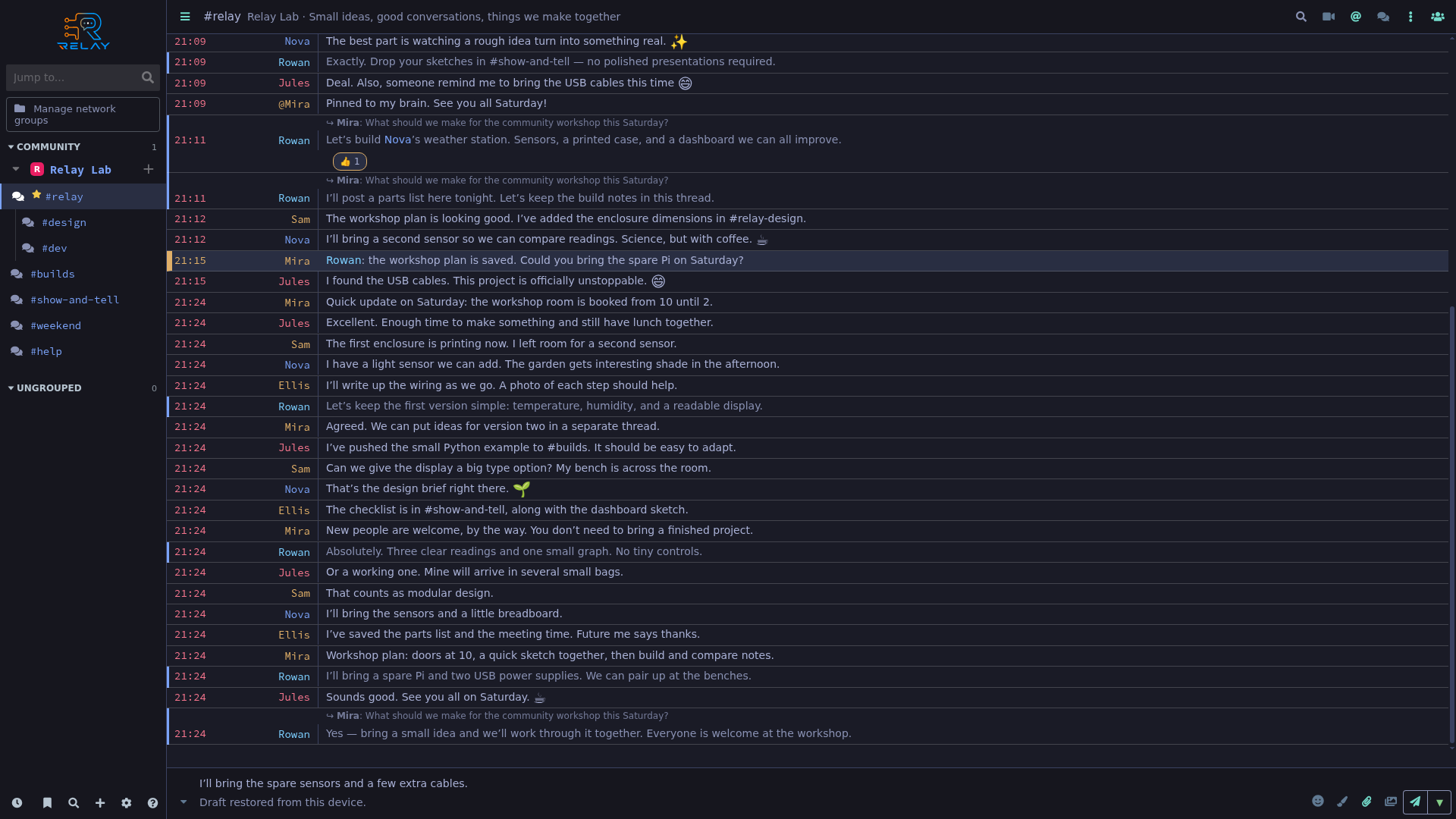
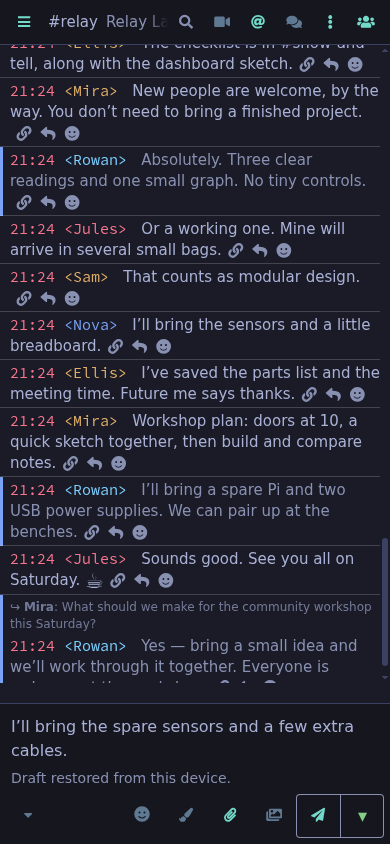
An unsent workshop message restored after reloading the browser.
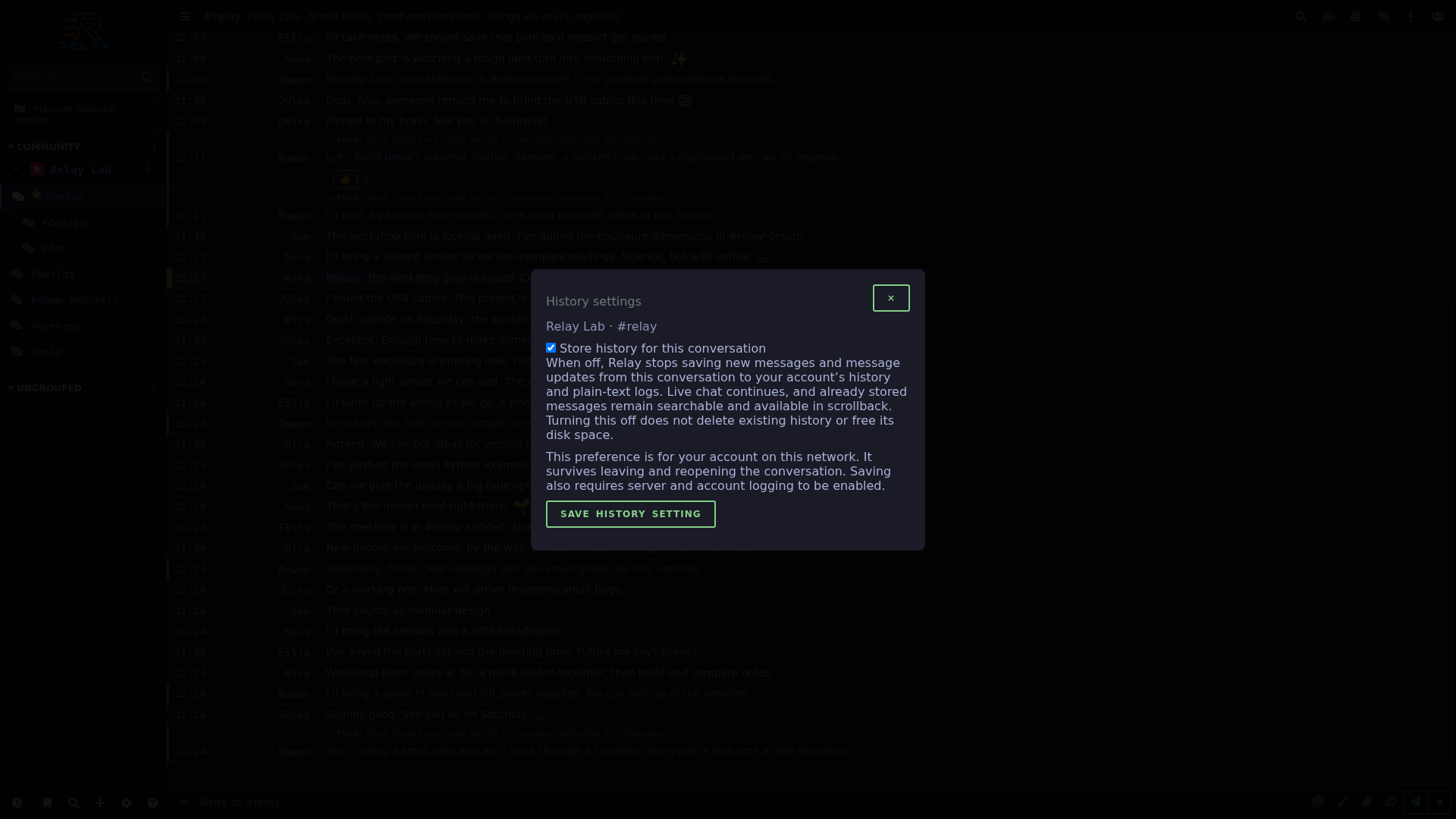
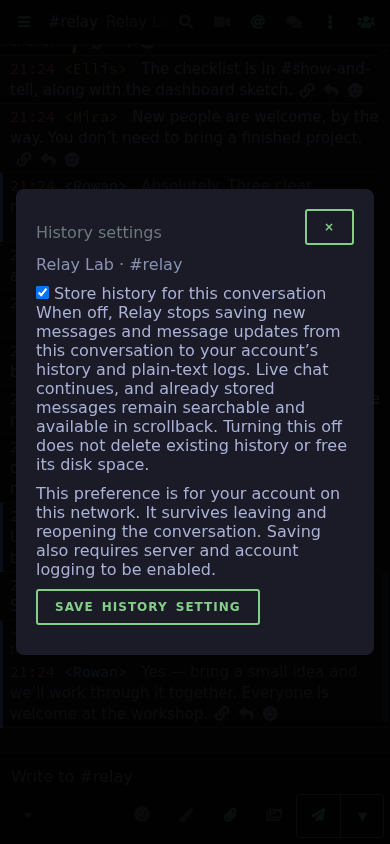
The per-conversation history dialog controls whether new messages are stored.
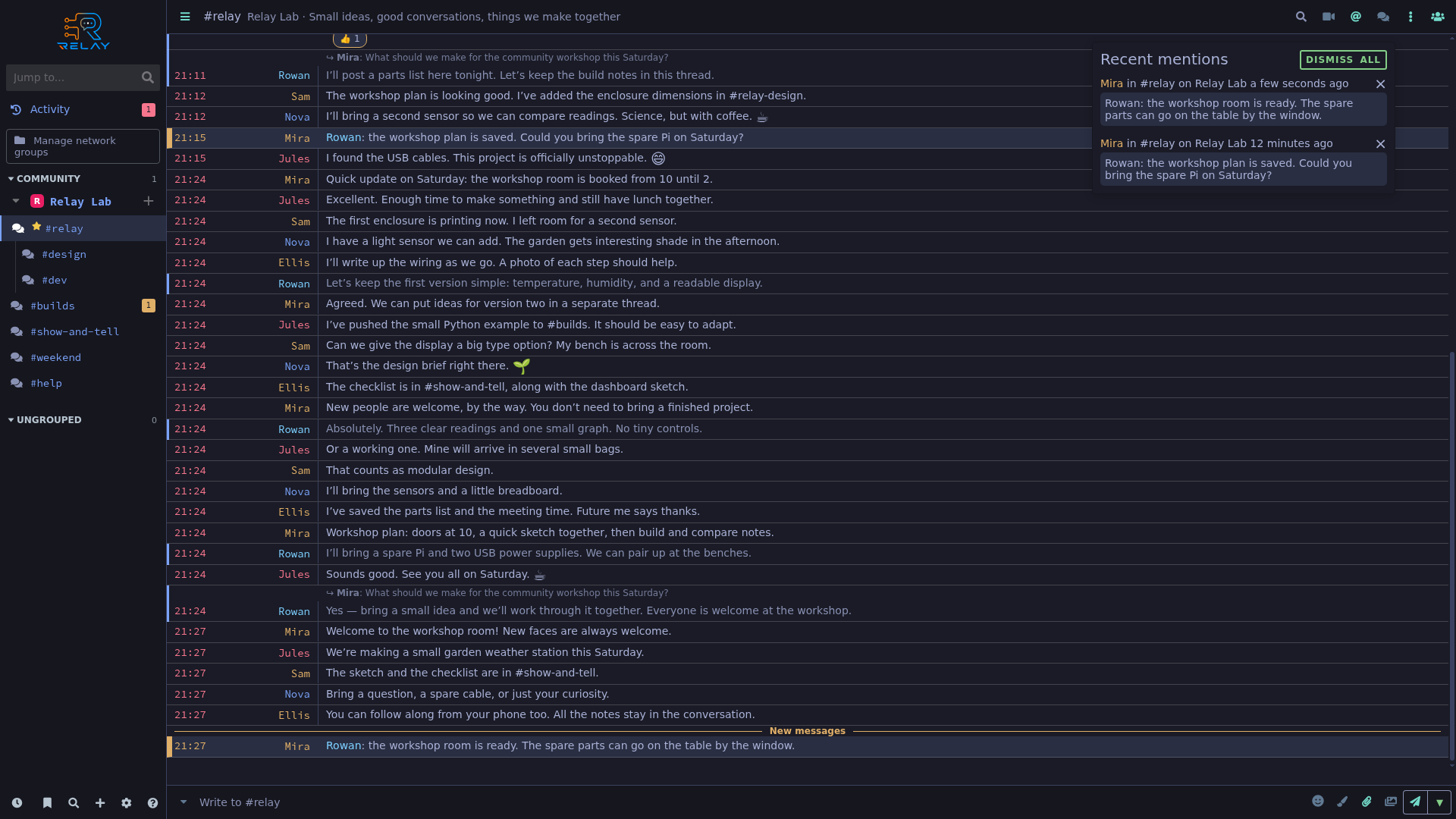
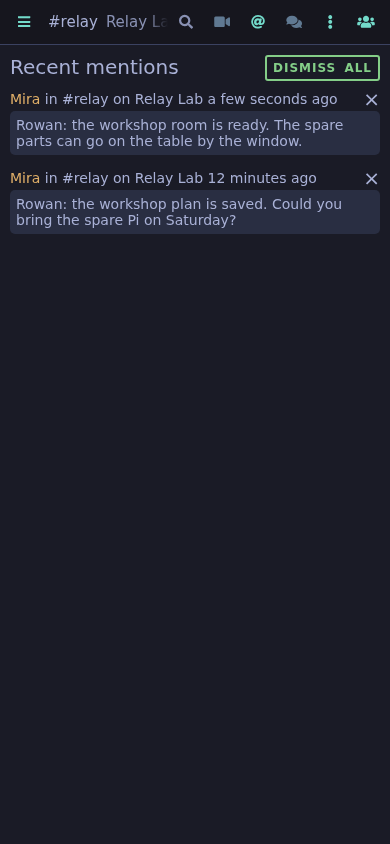
The mentions panel collects messages addressed to Rowan.
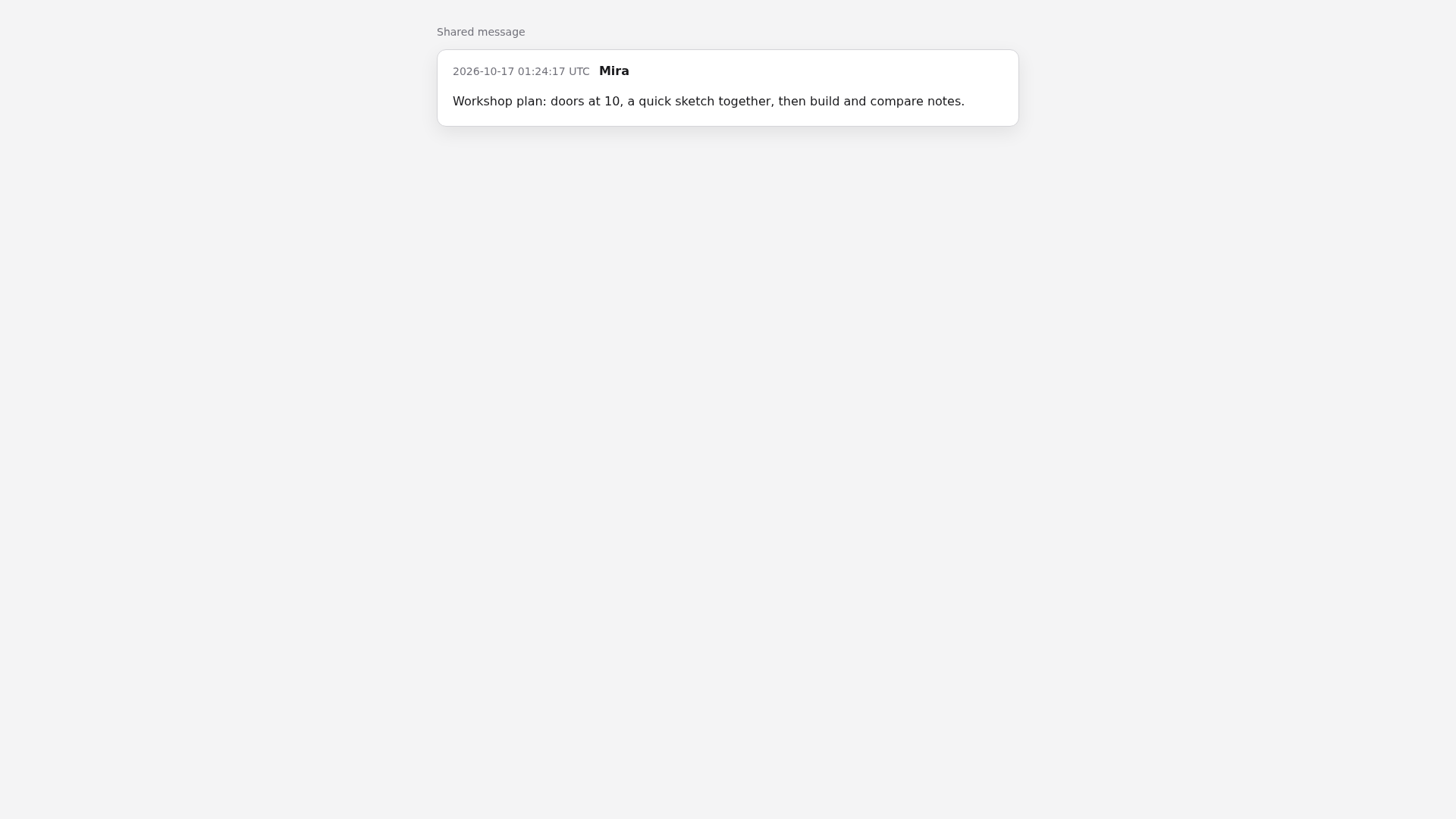
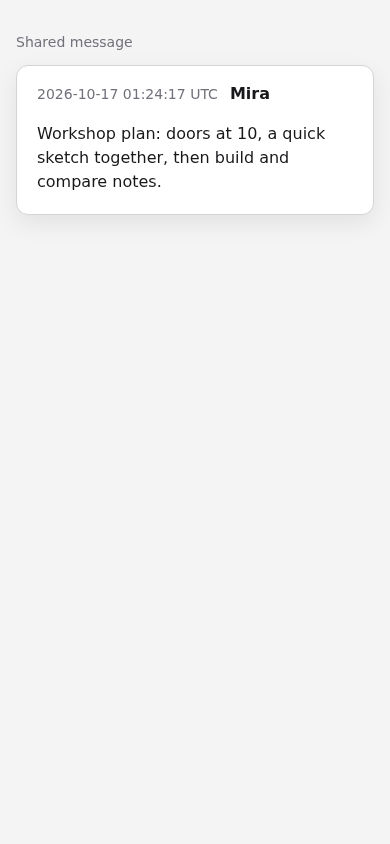
A real expiring message link opens a read-only workshop message.
A reaction attribution popover identifies the participant behind a thumbs-up.
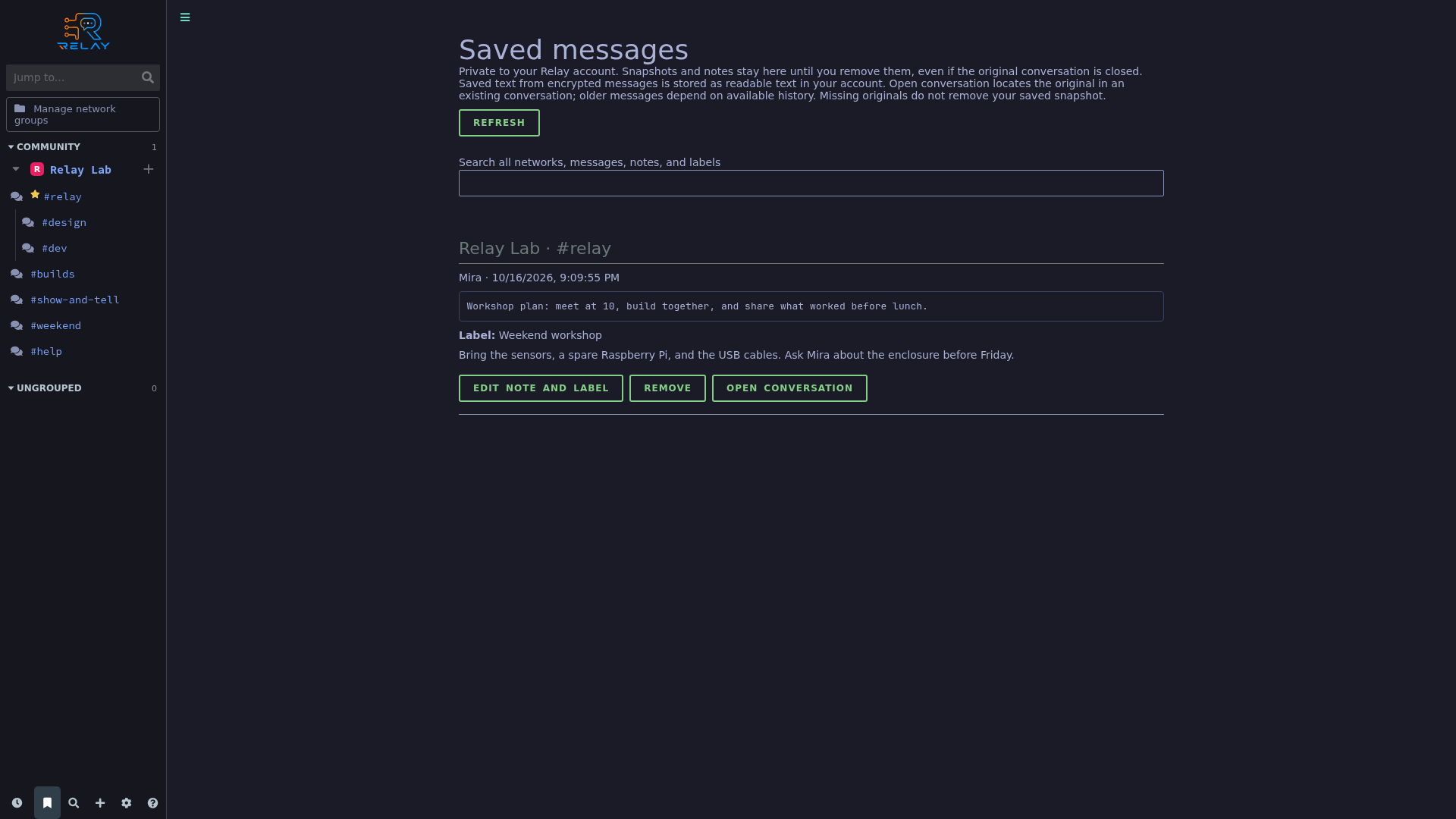
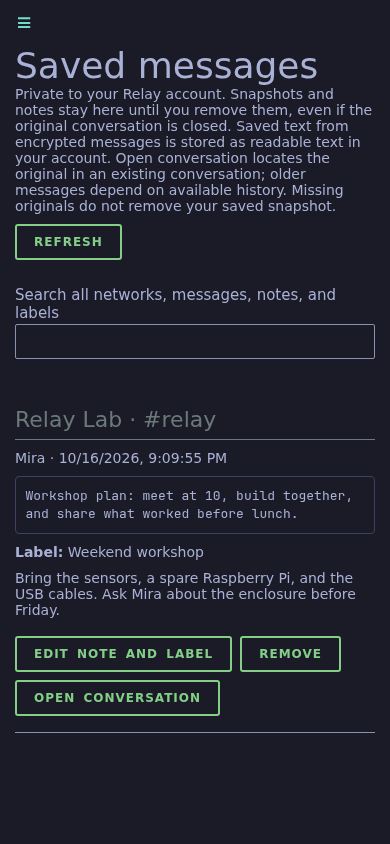
A saved workshop plan has a label and Rowan’s private note.
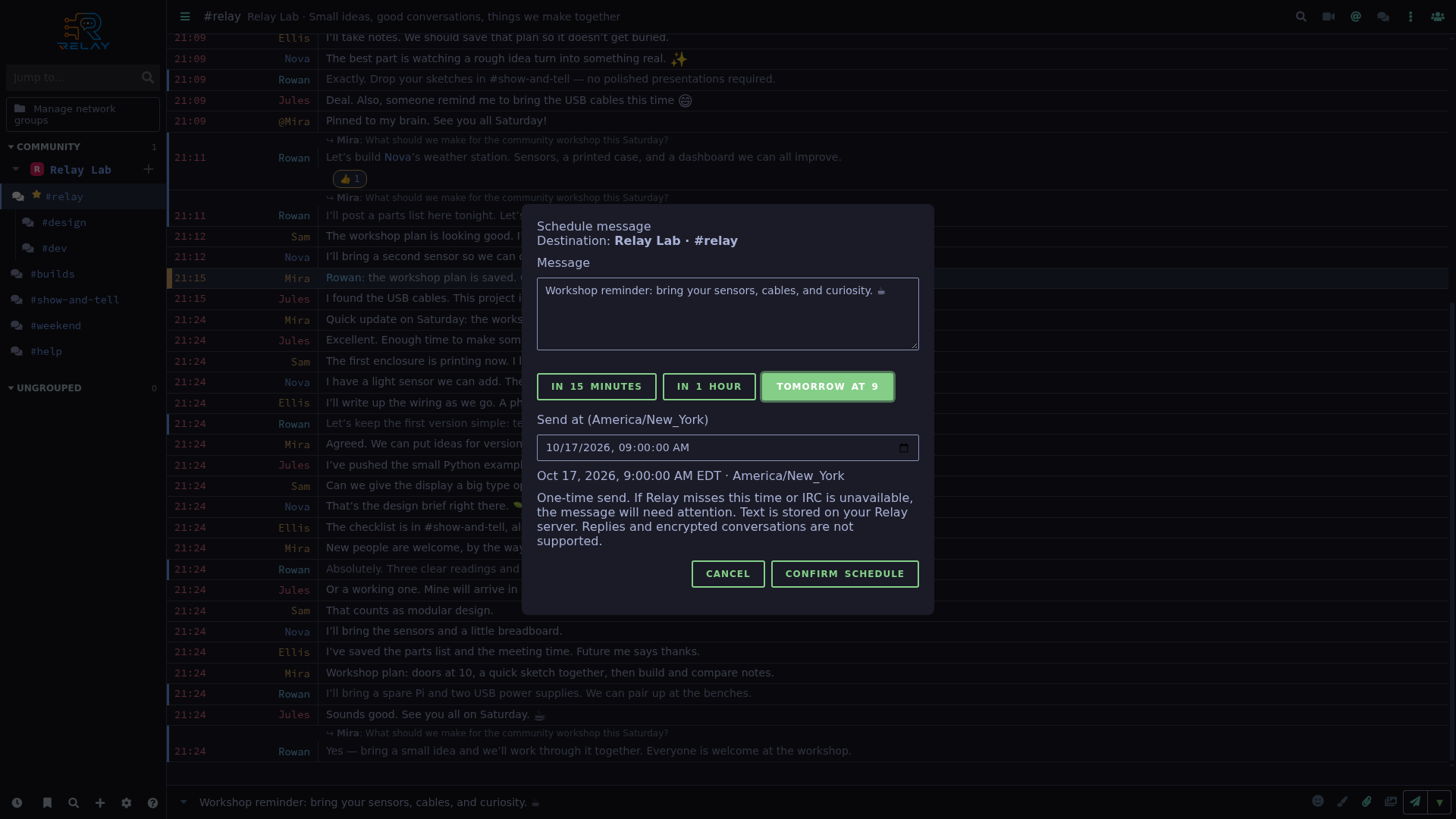
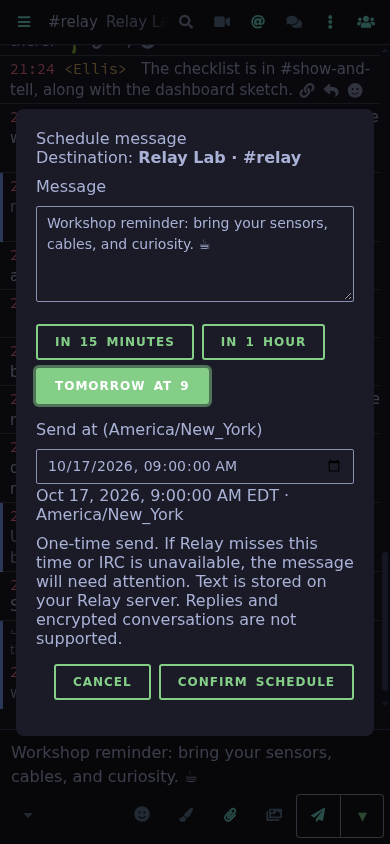
The scheduling dialog holds a workshop reminder for tomorrow at 9.
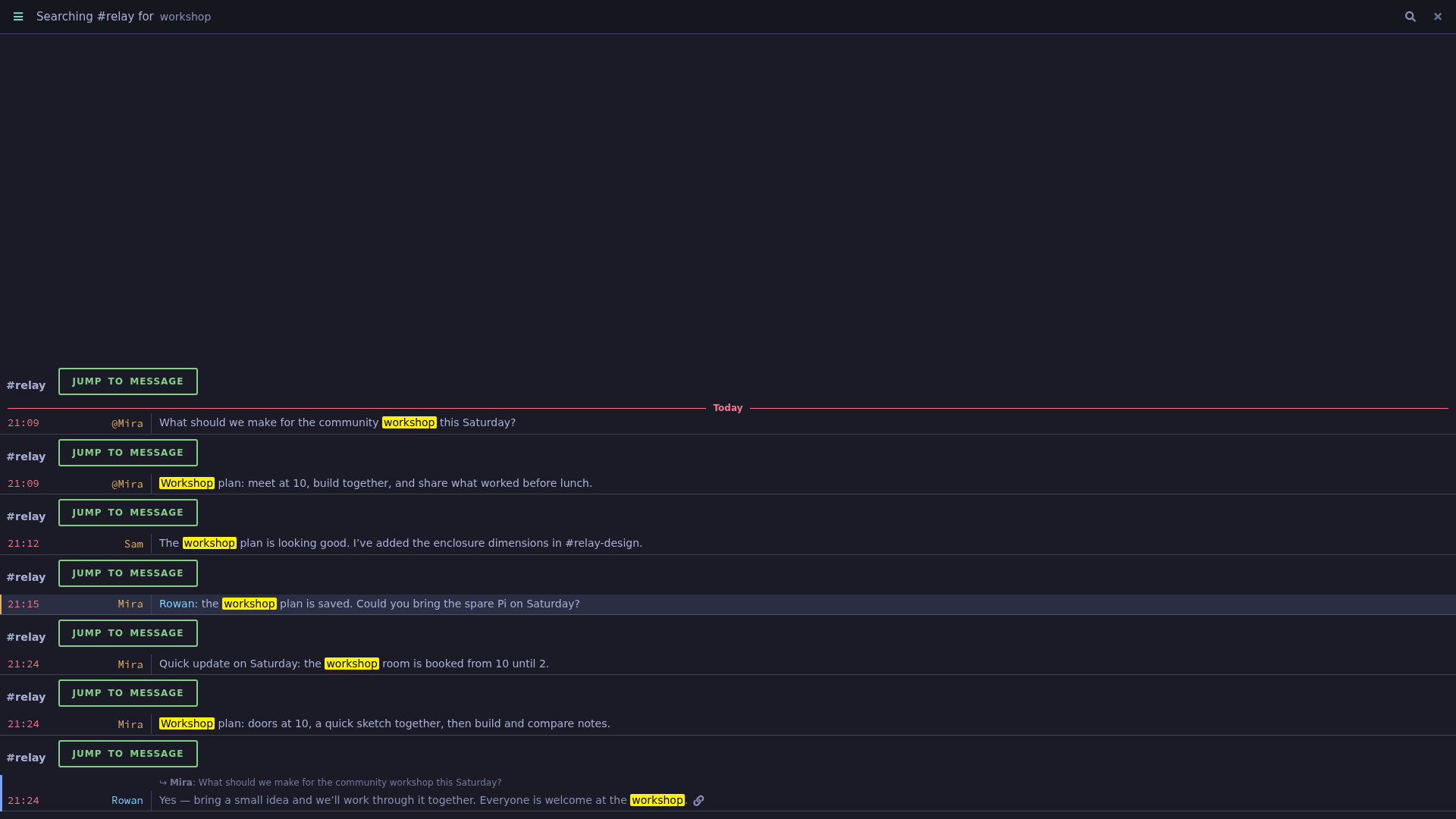
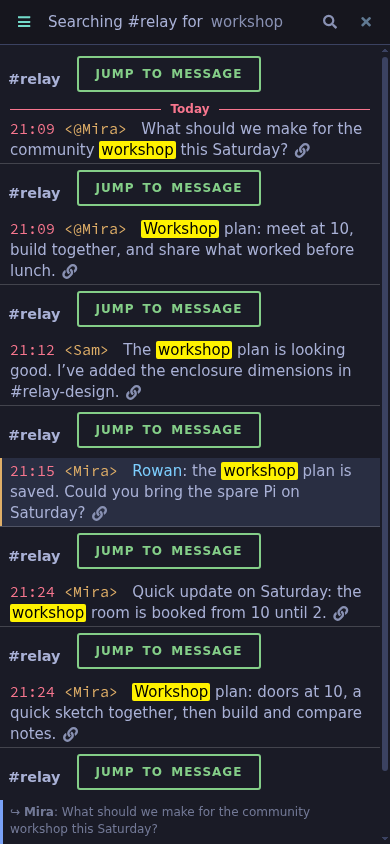
Stored workshop messages appear in message search results.
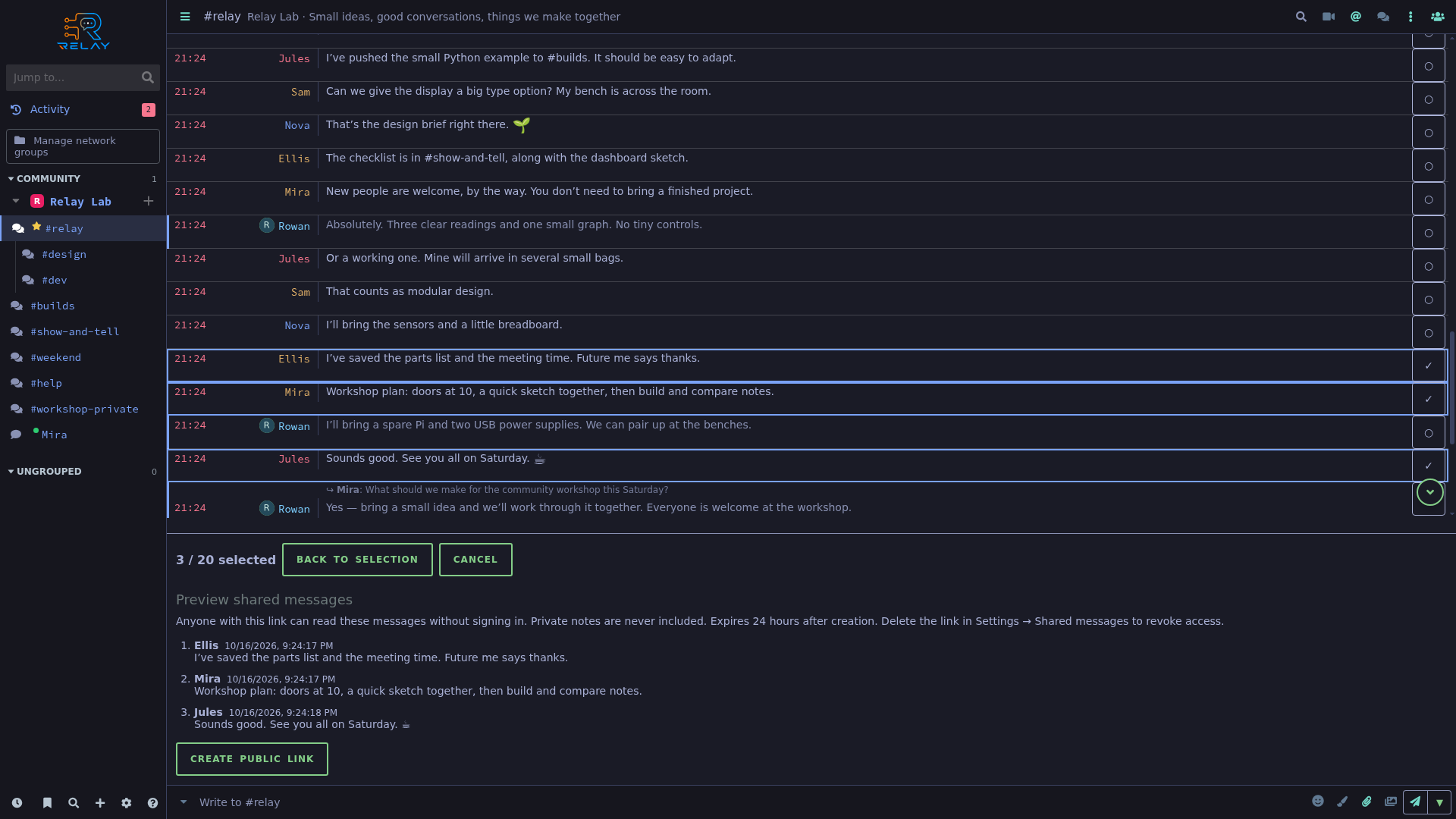
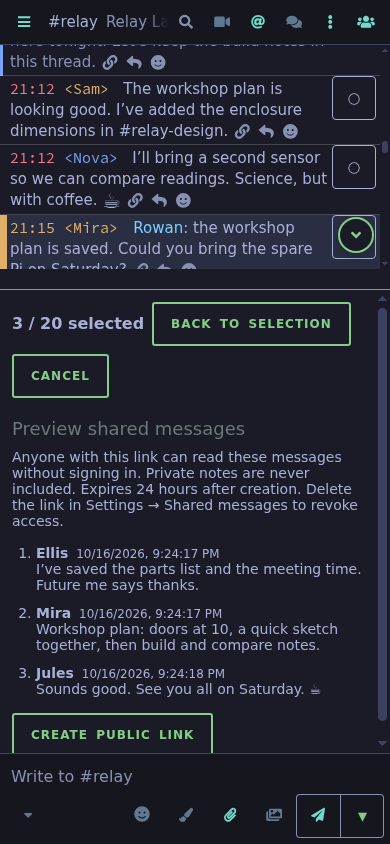
Three selected workshop messages are reviewed before creating a public excerpt link.
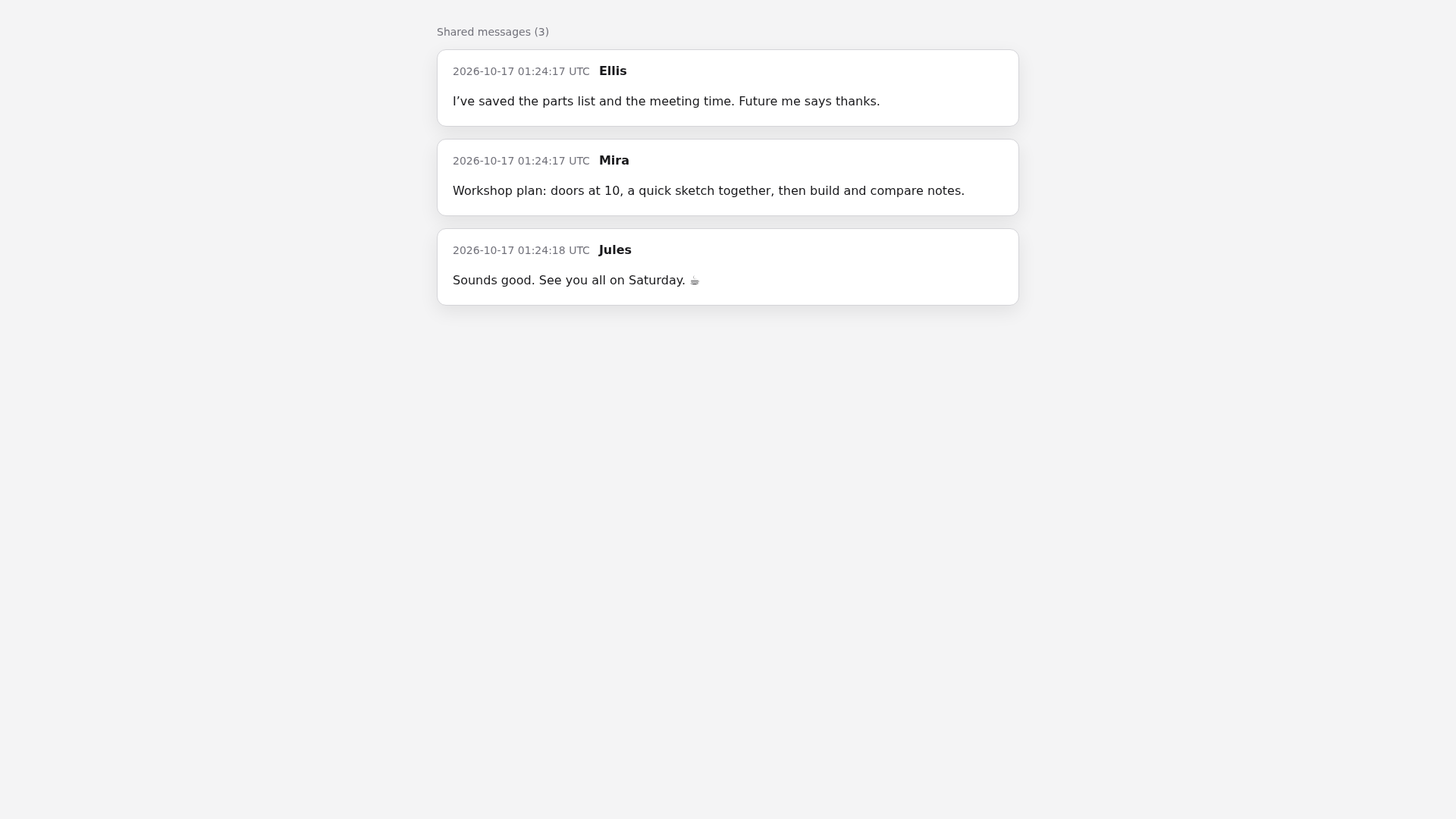
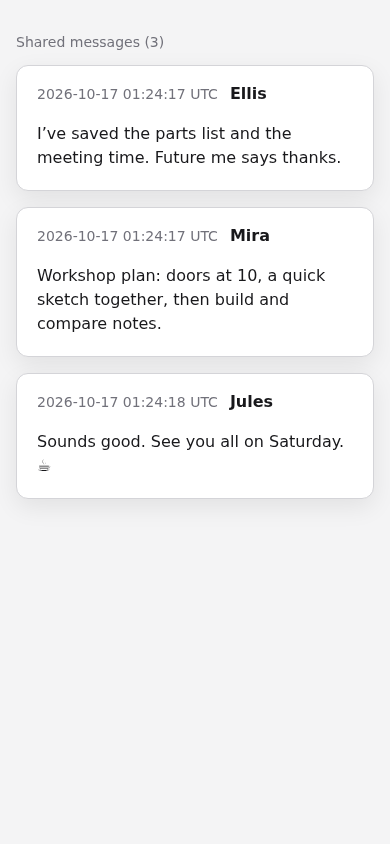
The public read-only view of the selected workshop conversation.
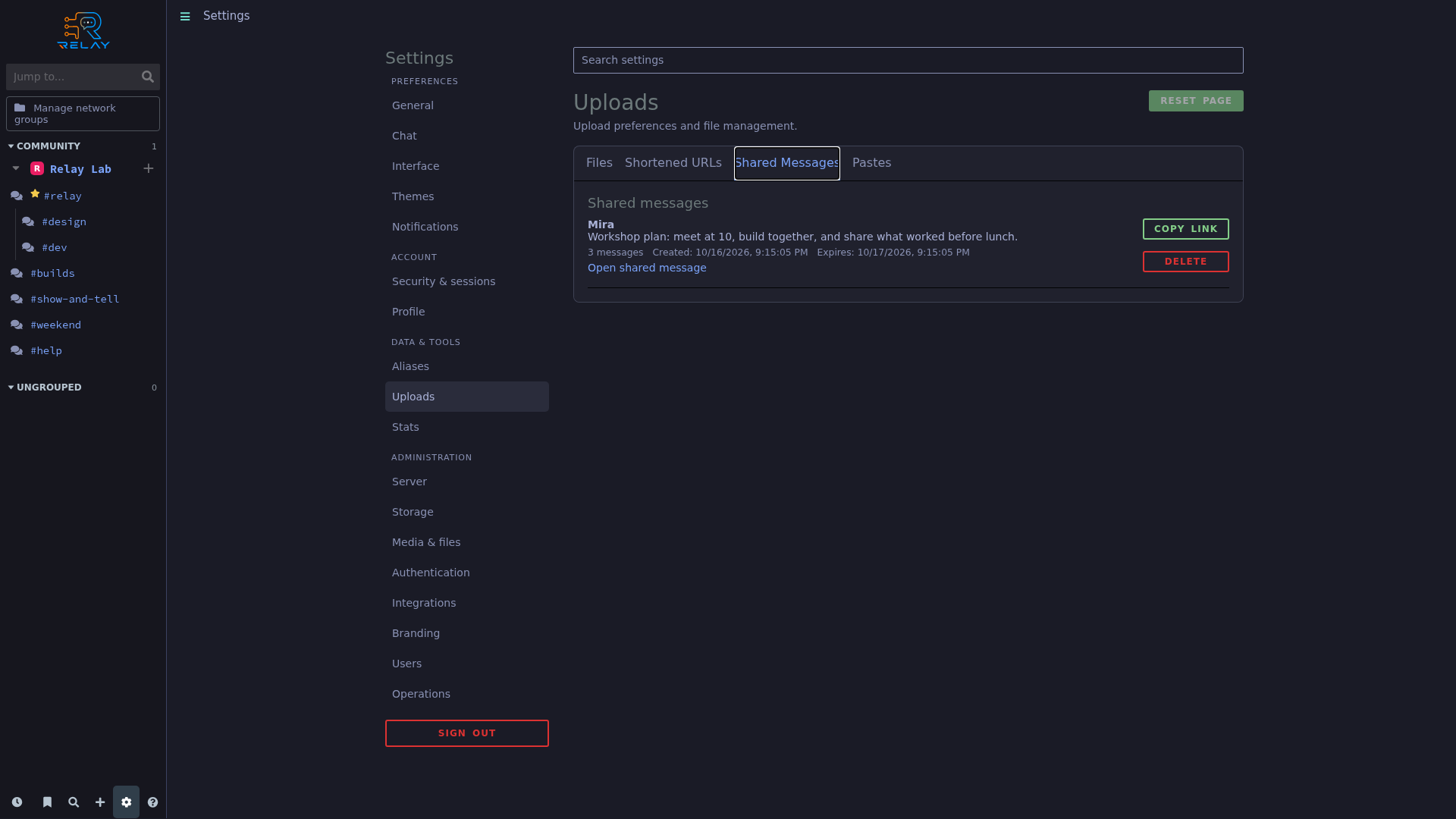
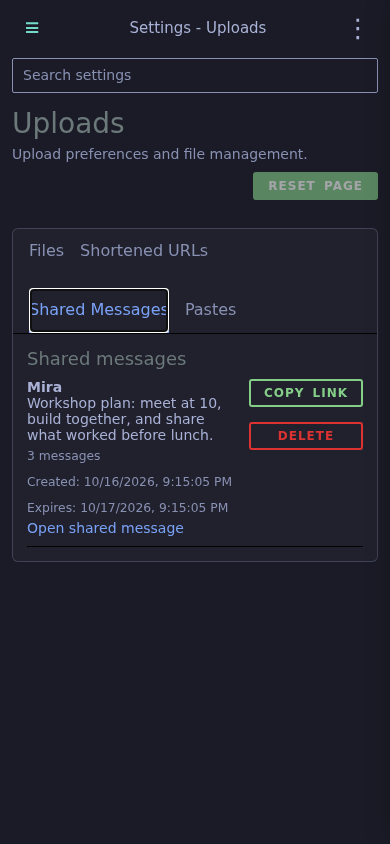
Shared message links can be reviewed and revoked from upload management.
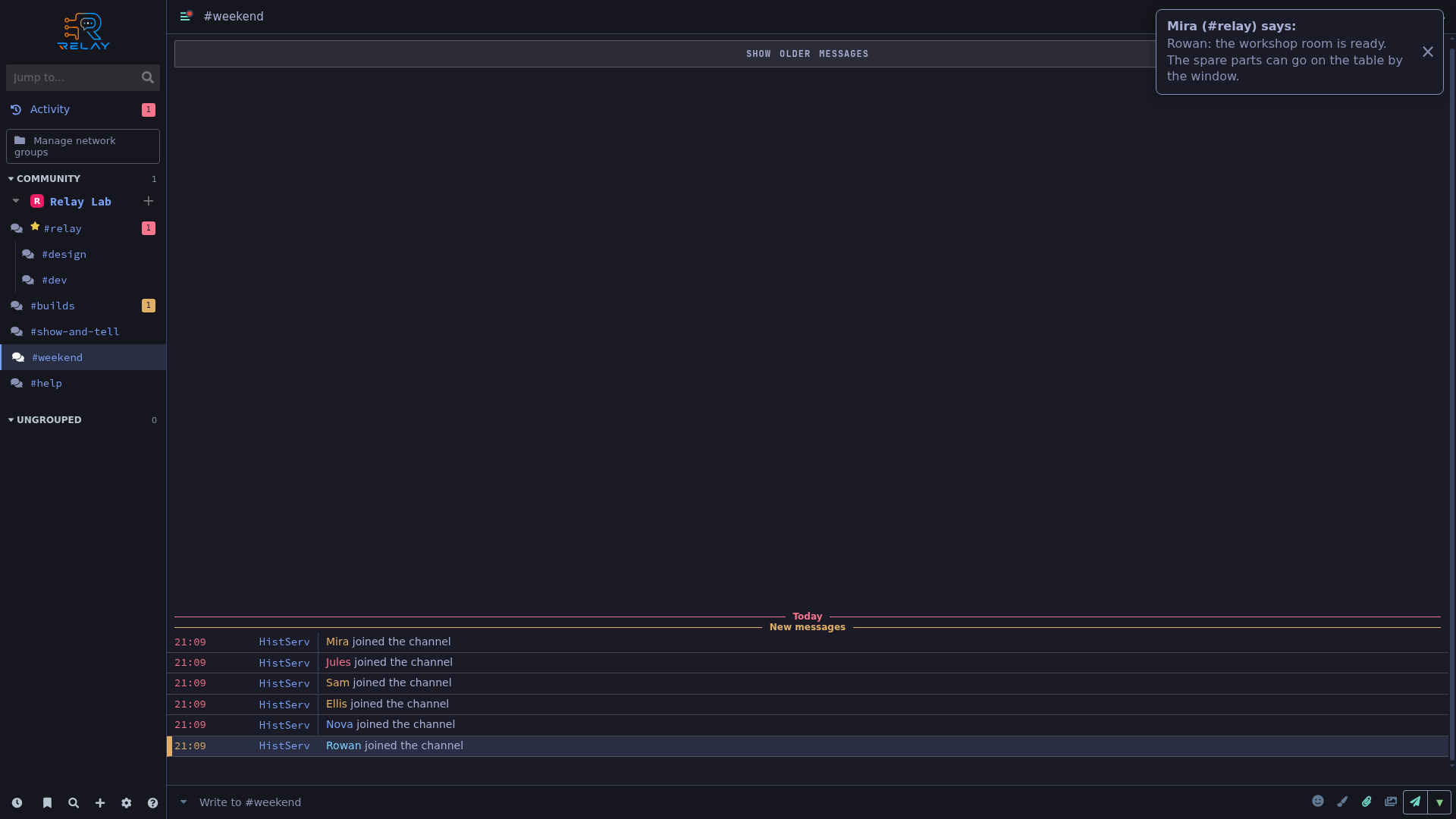
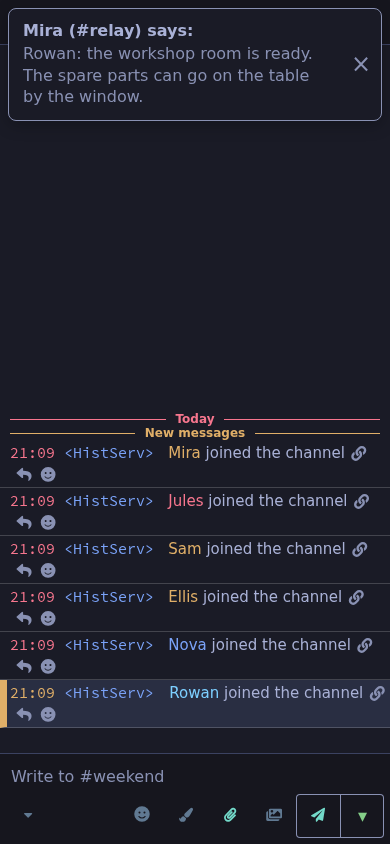
A live in-window notification appears while another channel is open.
Notification settings offer delivery, sound, and highlight preferences.
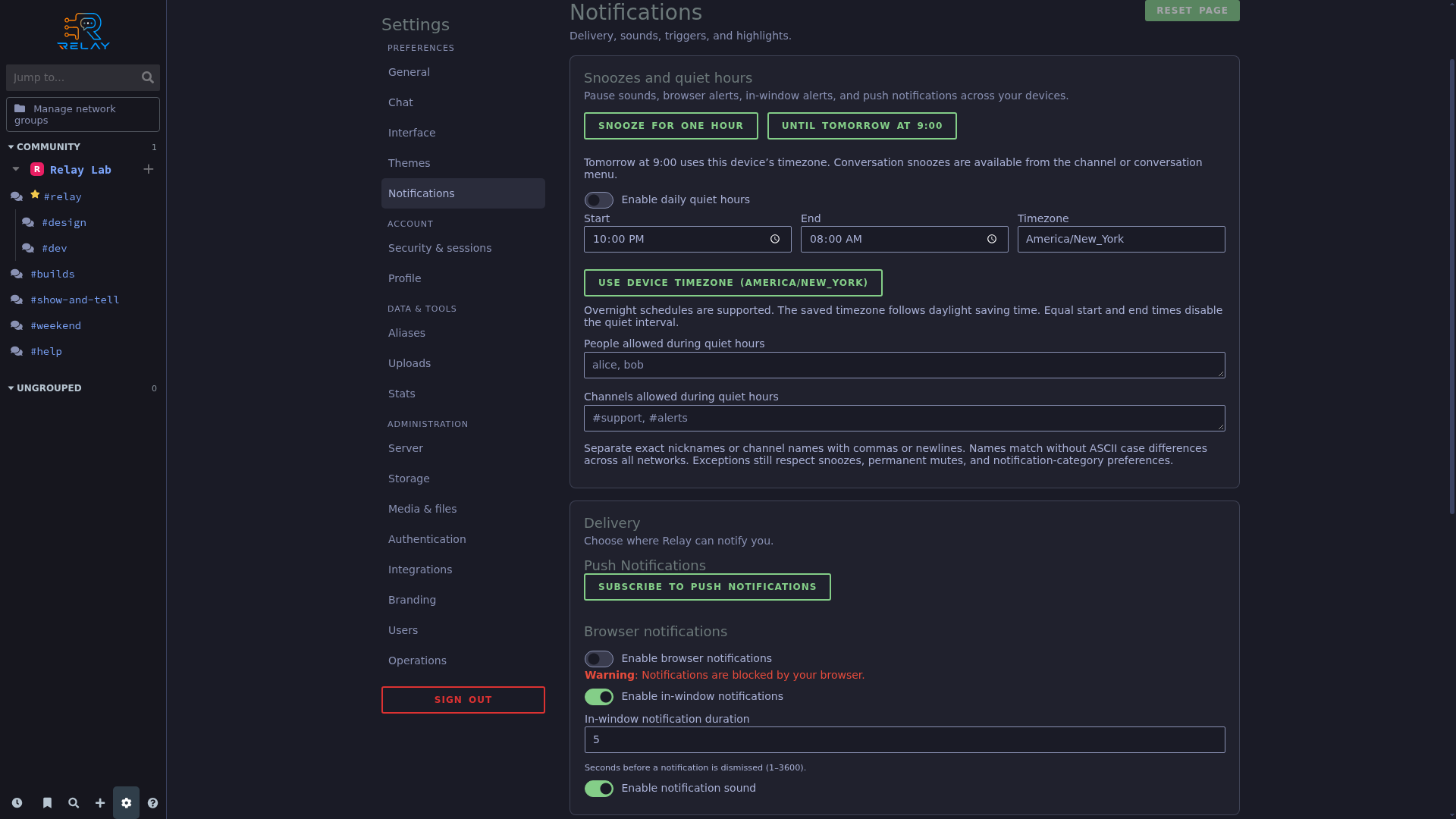
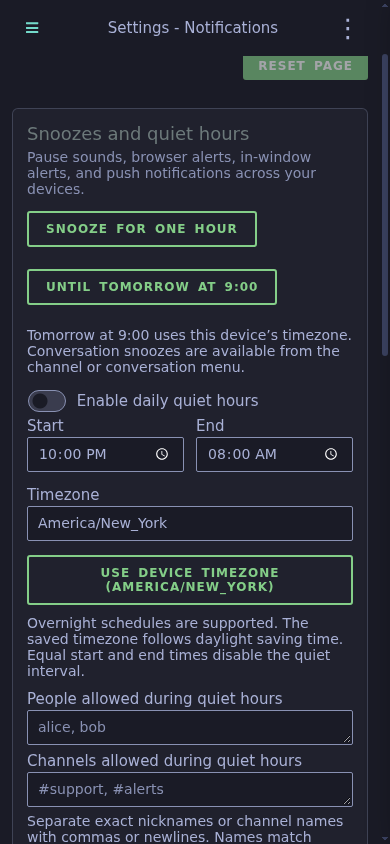
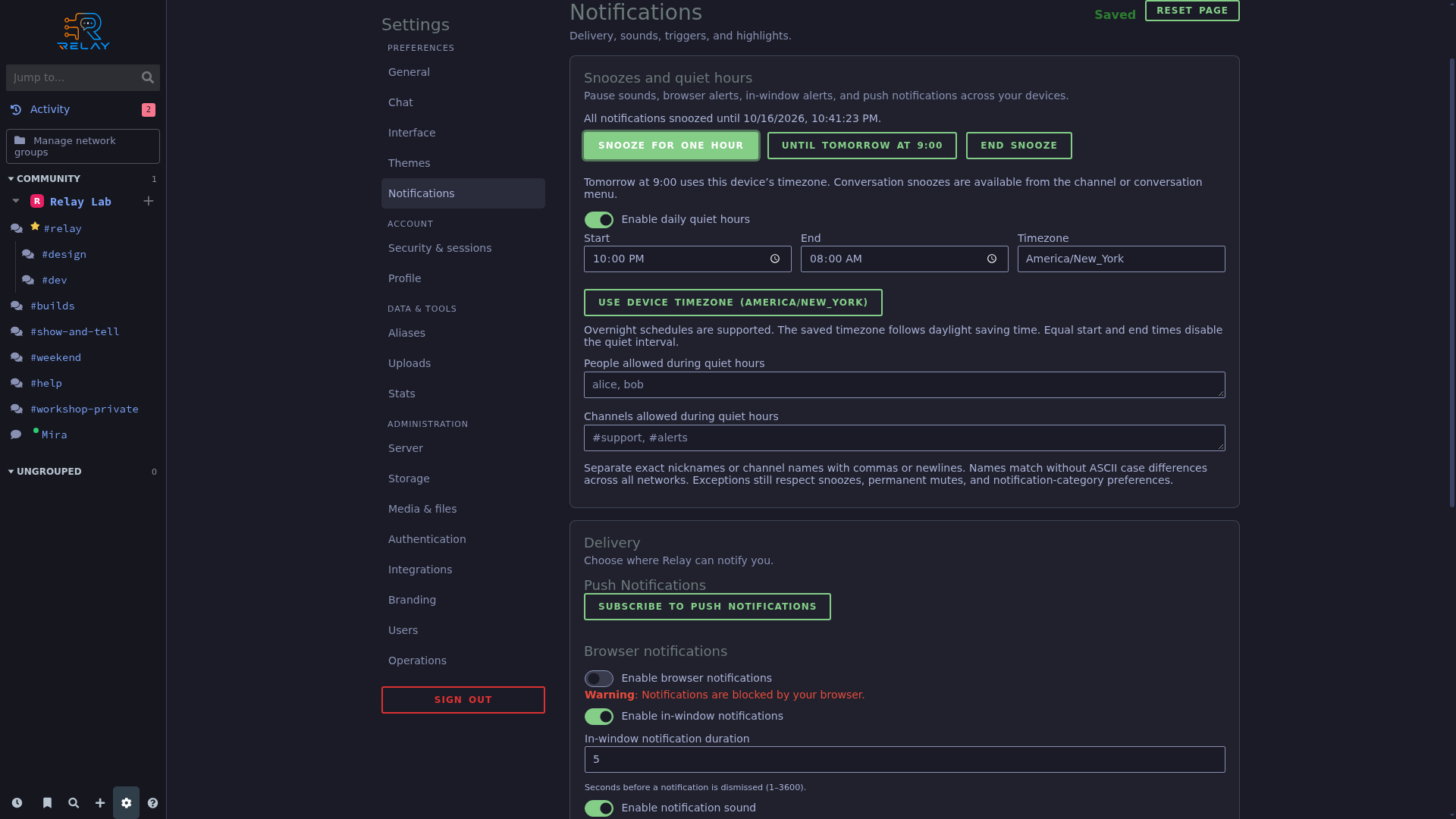
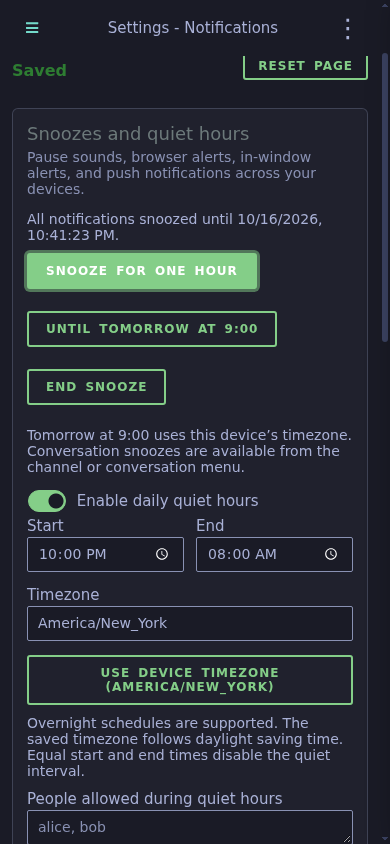
An active one-hour snooze and daily quiet-hours controls appear in notification settings.
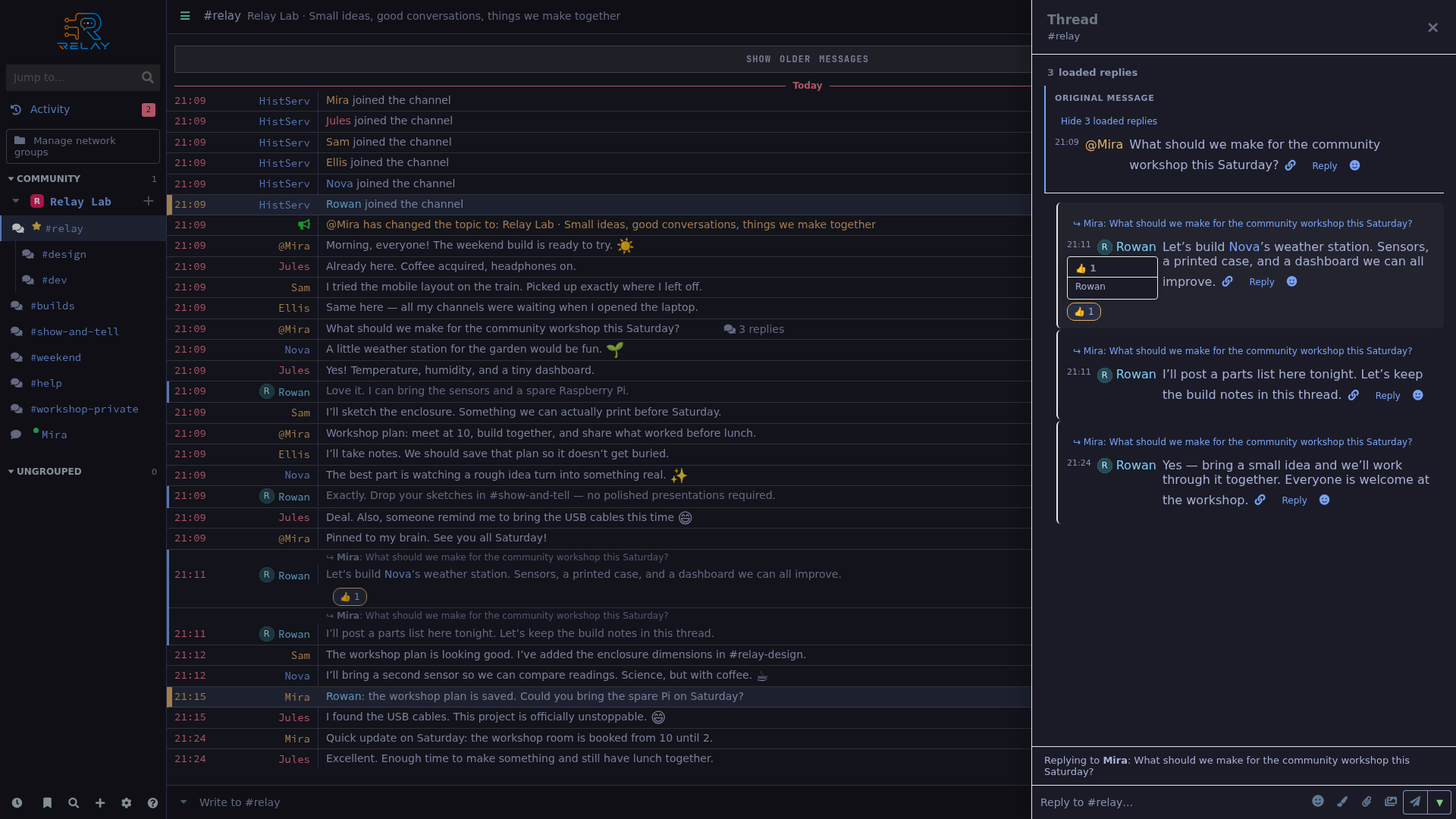
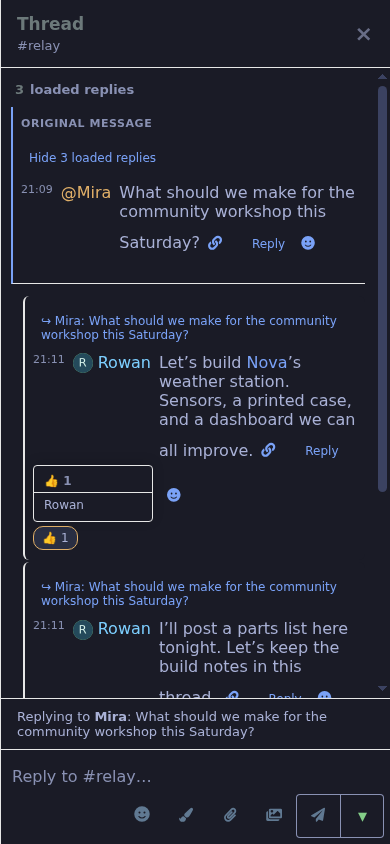
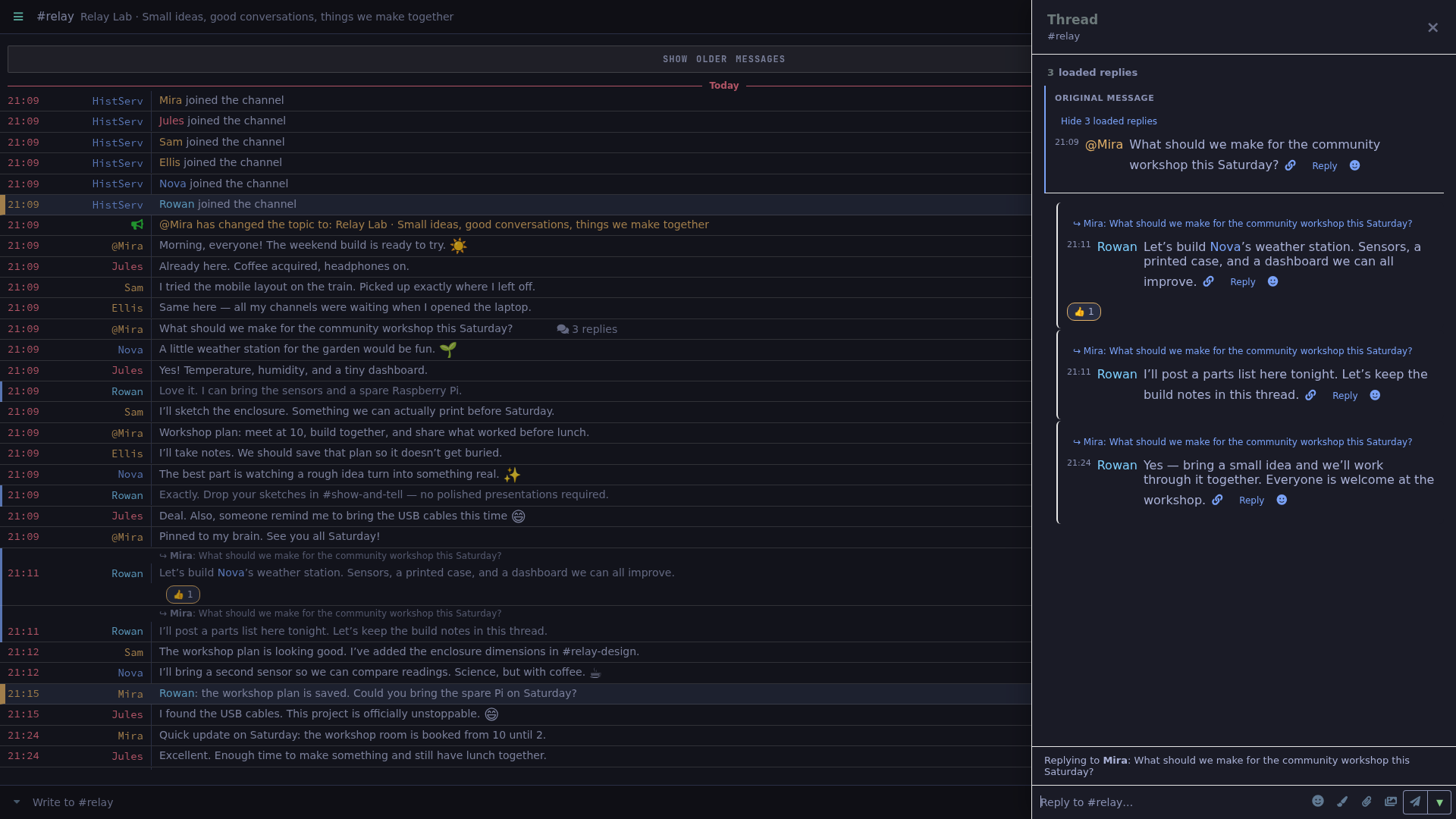
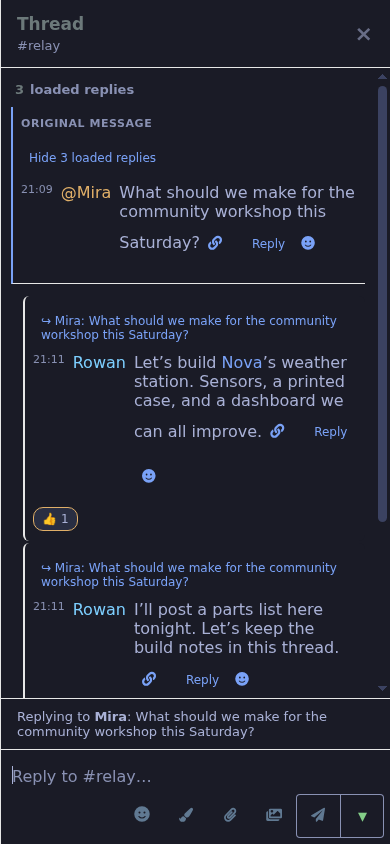
A workshop question and its replies appear together in a thread.
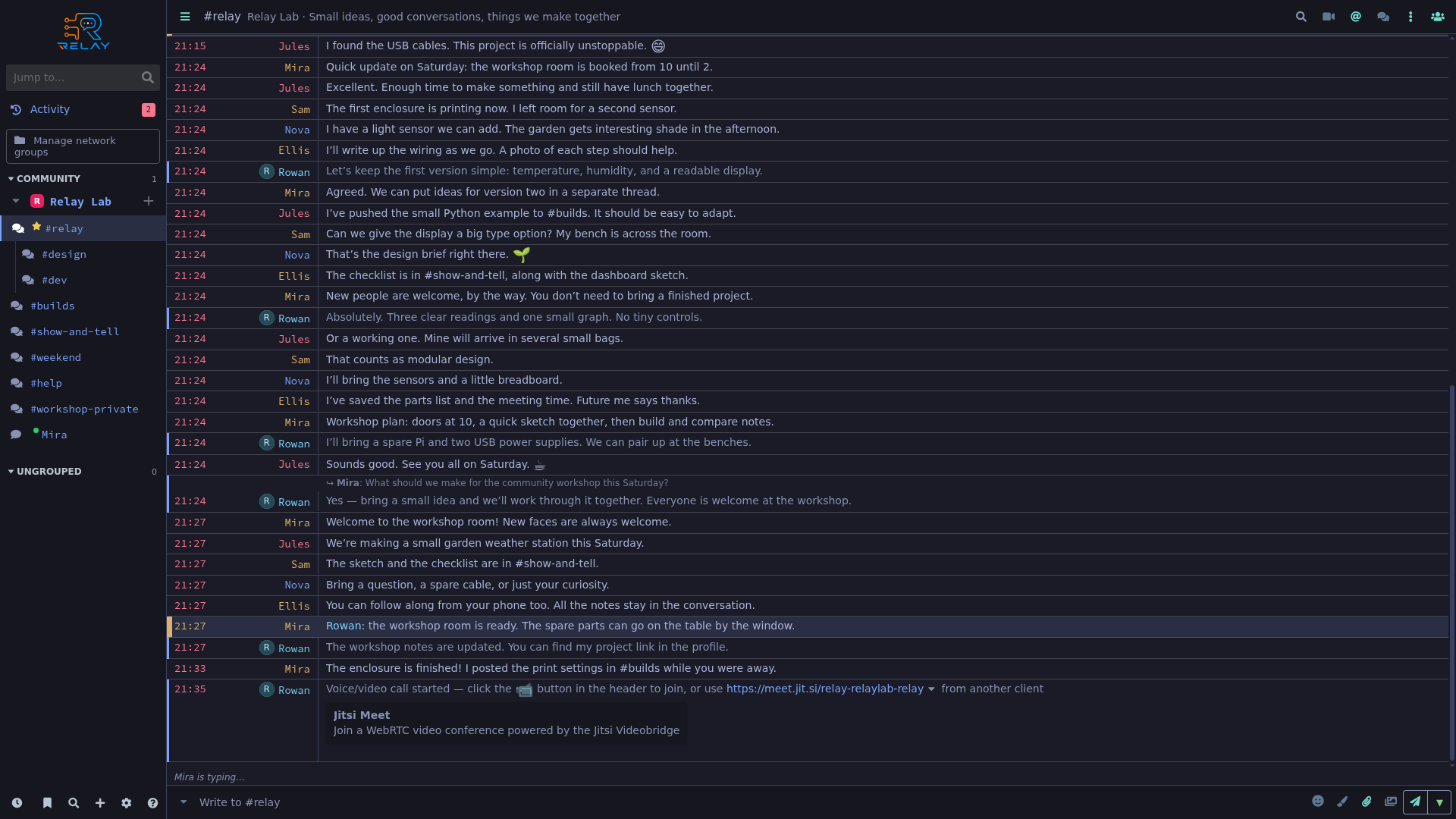
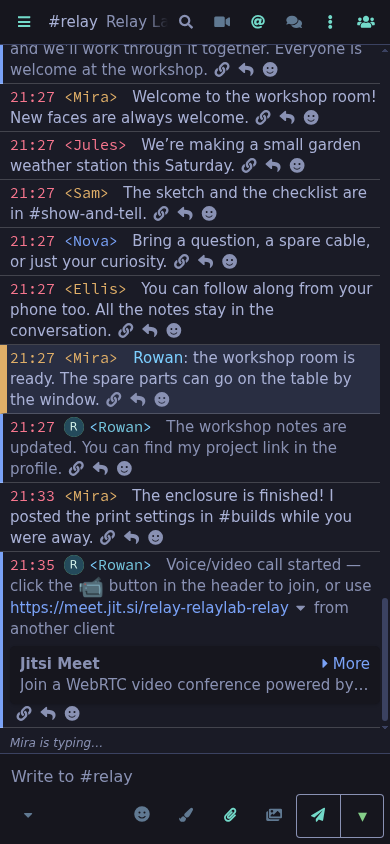
Mira’s live typing indicator appears beneath the workshop conversation.
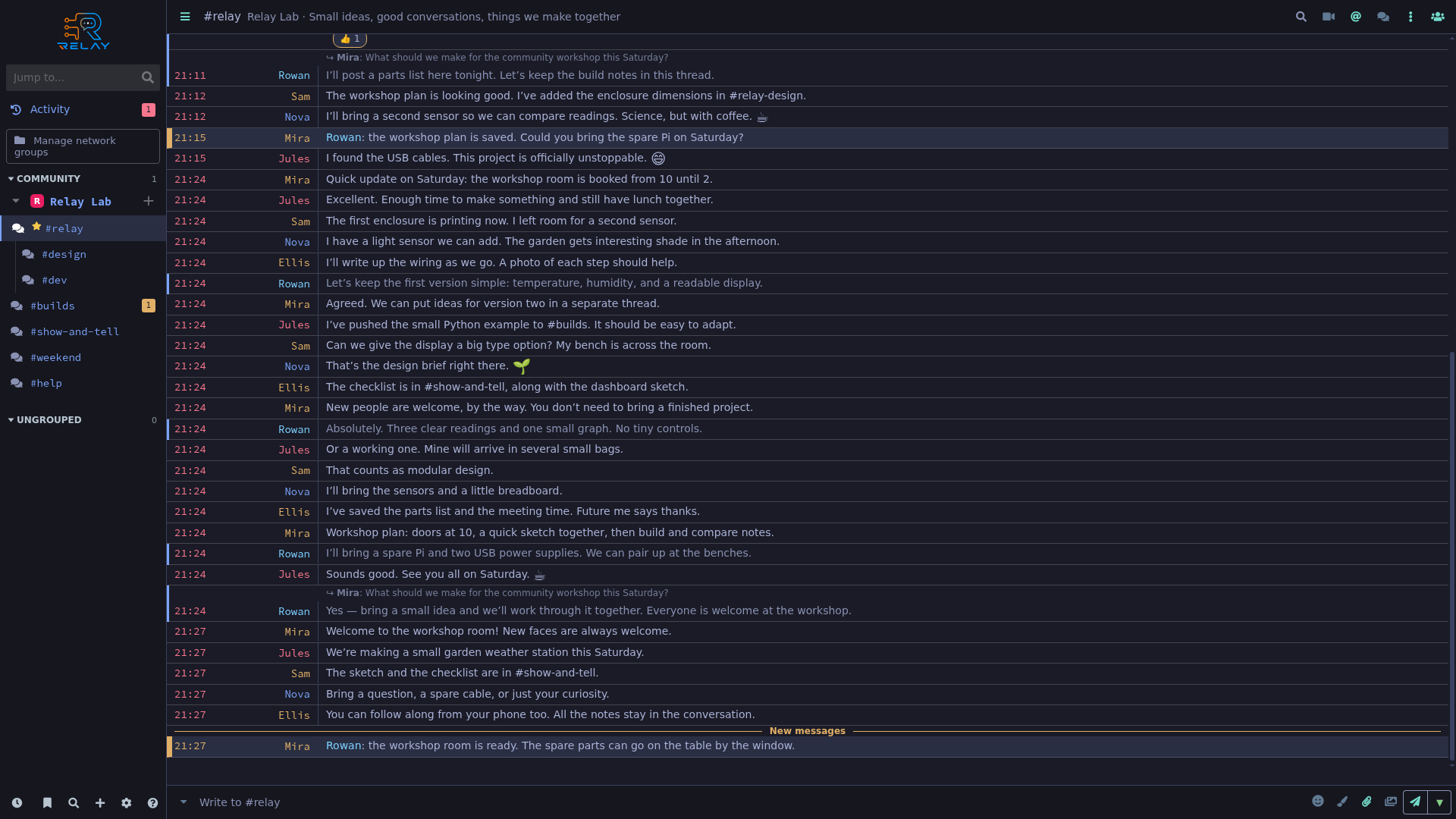
An unread boundary marks a new workshop mention.
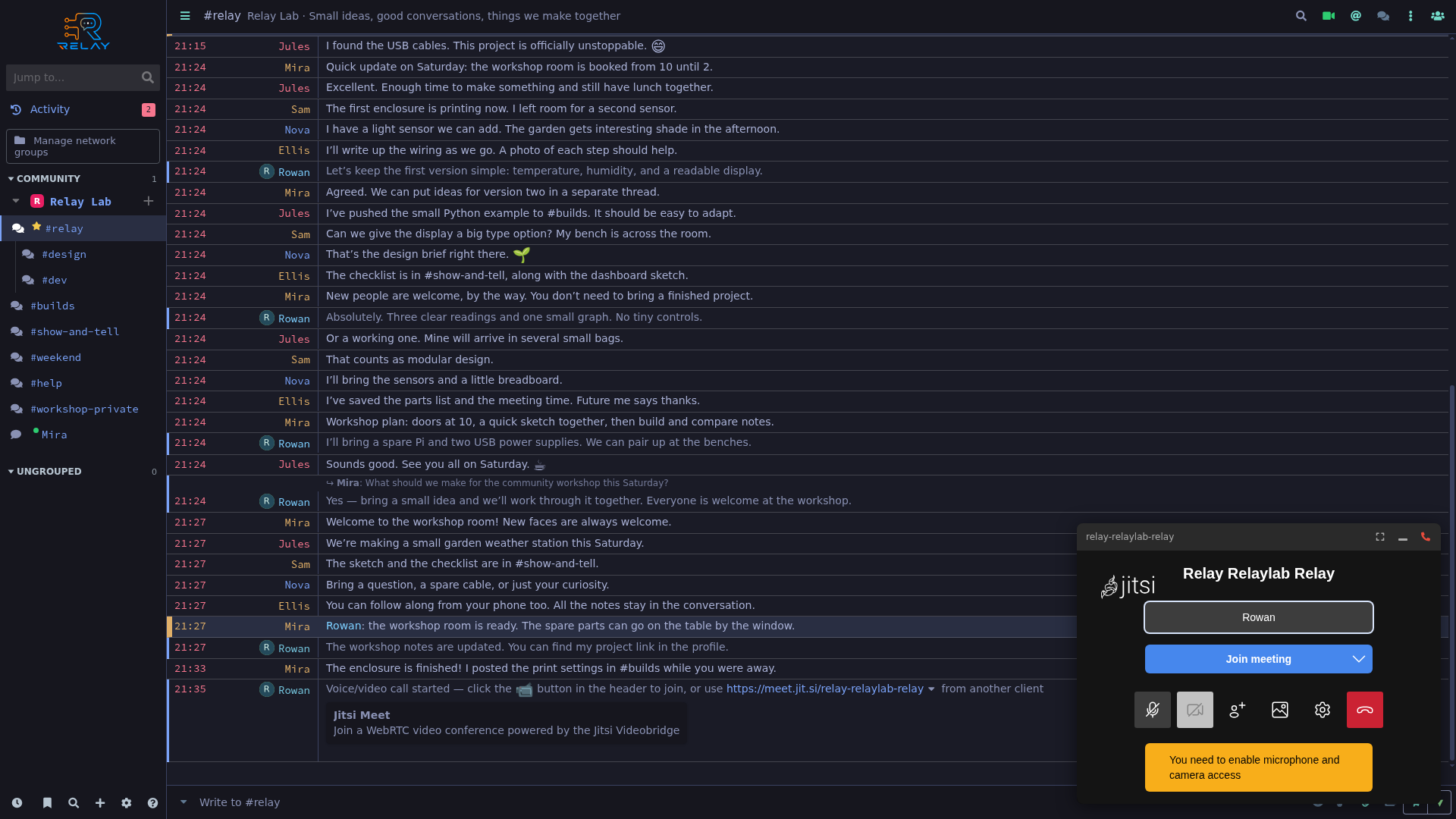
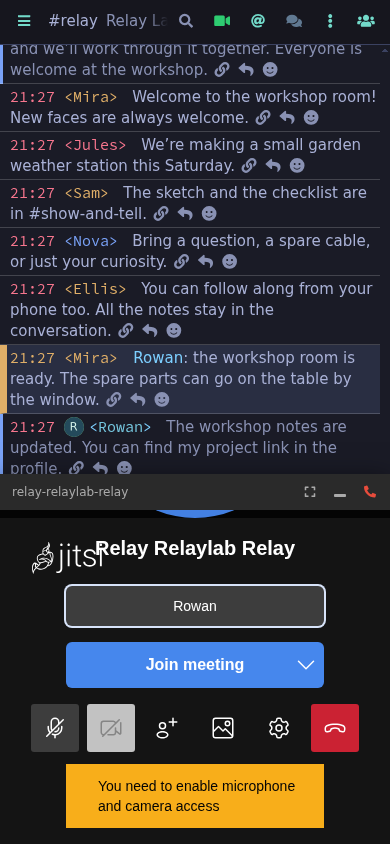
Upload files, preview media, start call setup, and work through formatted text.
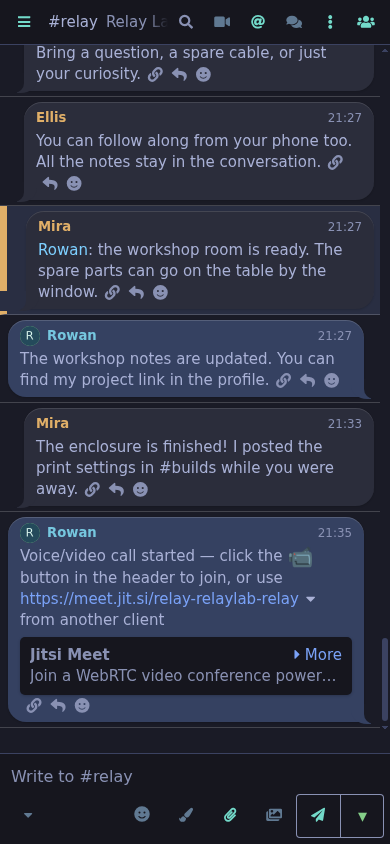
Relay opens Jitsi call setup and posts the meeting invitation; this is not a completed multiparty call.
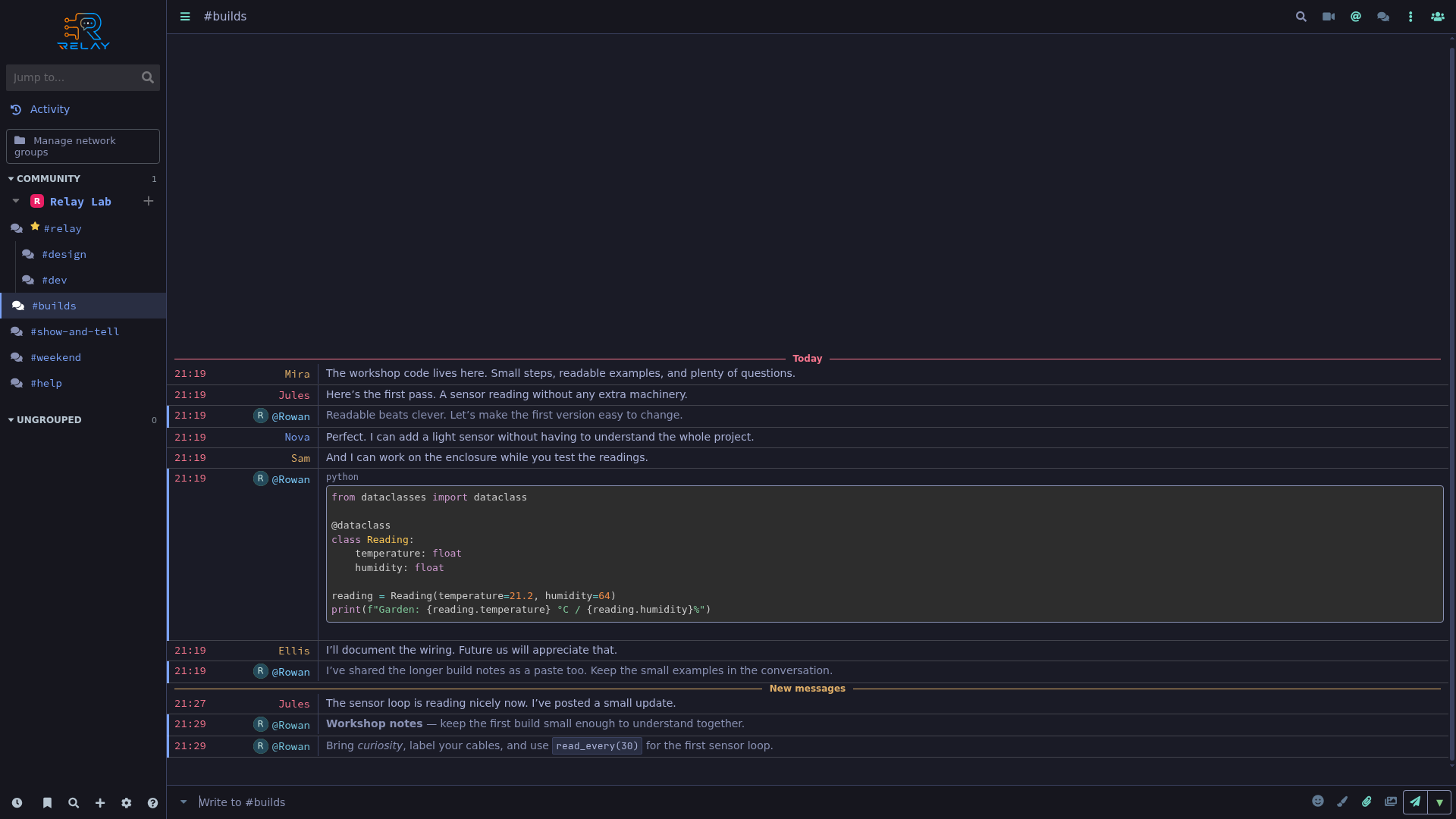
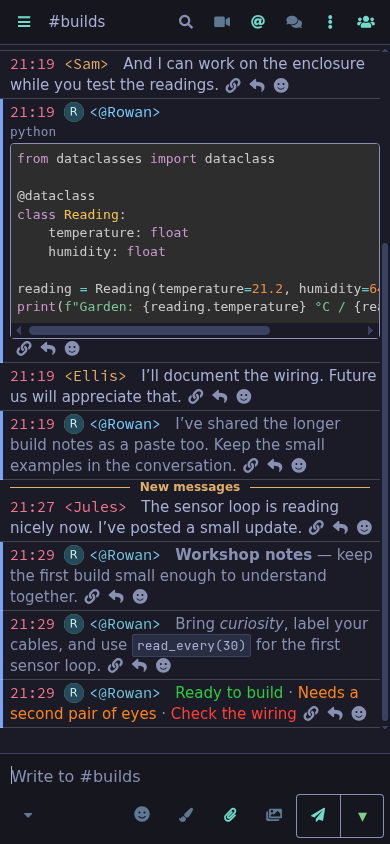
A syntax-highlighted Python sensor example is sent through the network’s multiline support.
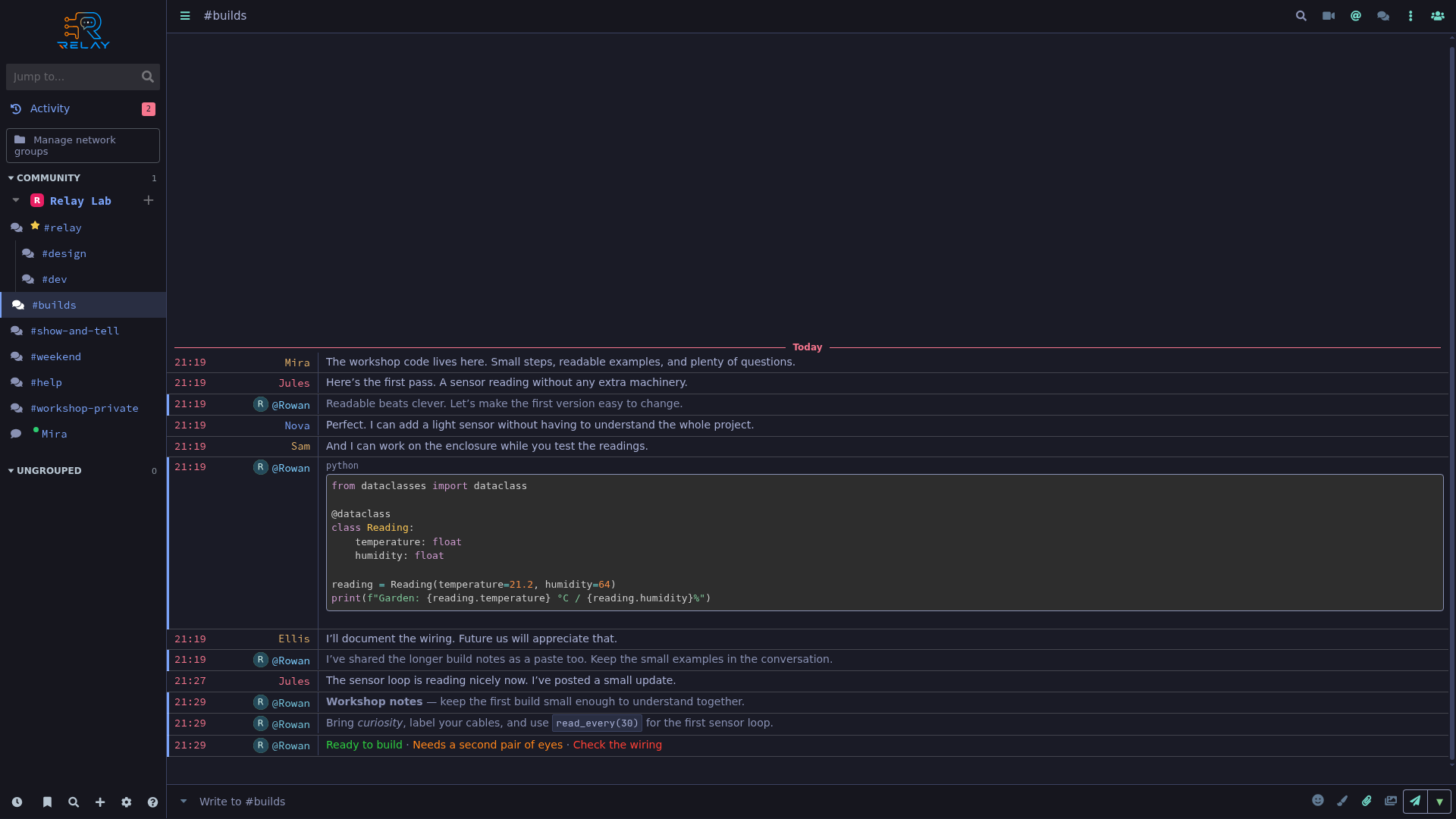
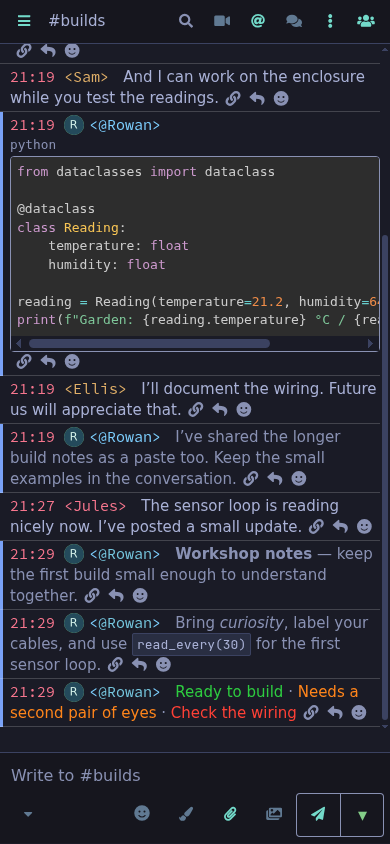
Workshop messages demonstrate bold, italic, monospace, and colored text.
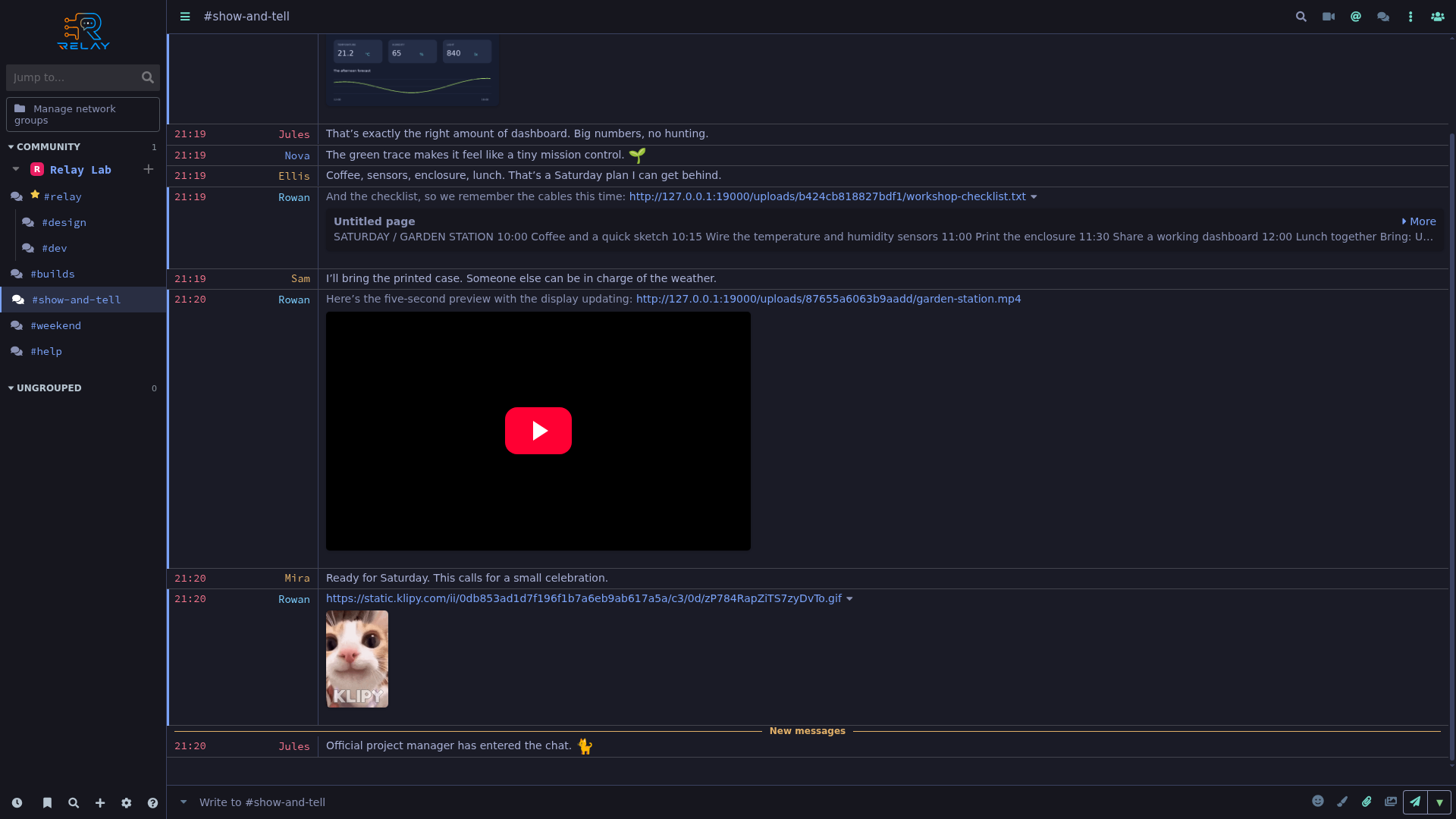
The workshop conversation includes an uploaded sensor dashboard and a text checklist.
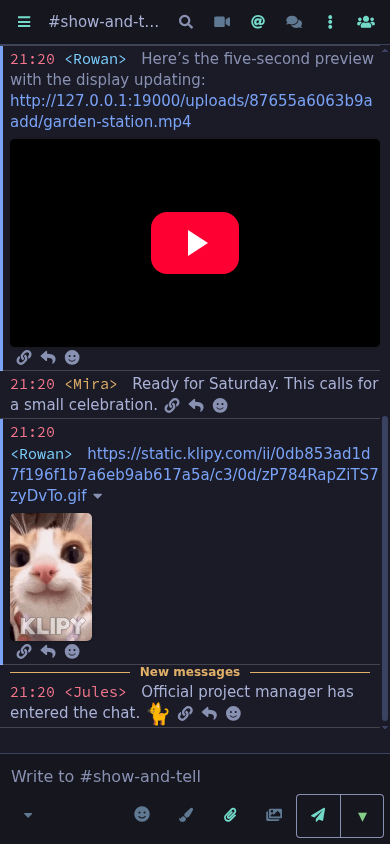
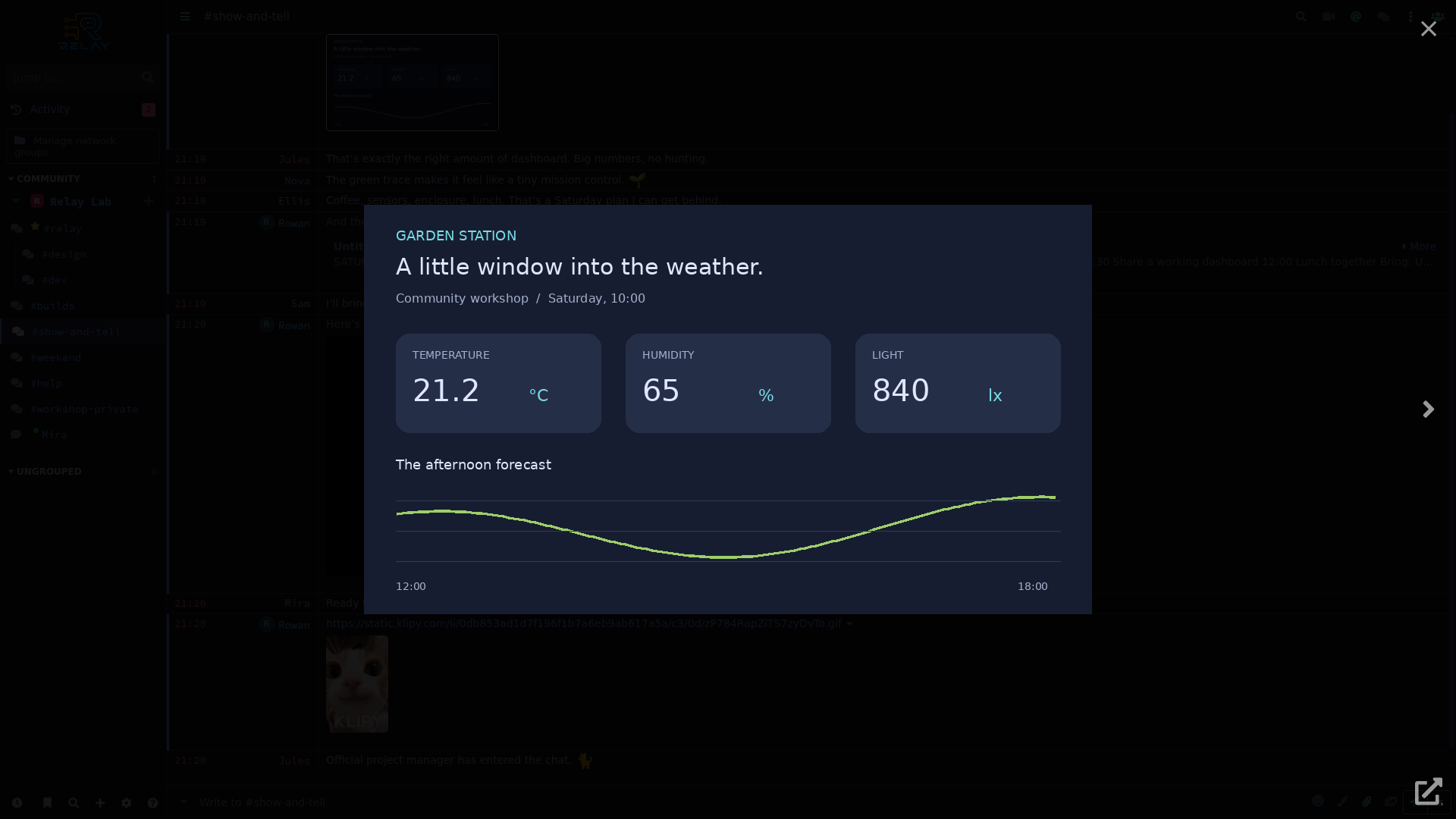
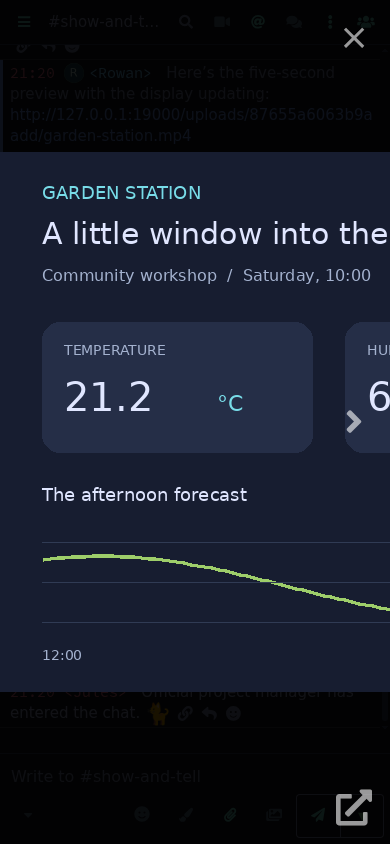
Relay’s image viewer opens the uploaded demo sensor dashboard.
The selected cat GIF is displayed inline with KLIPY attribution.
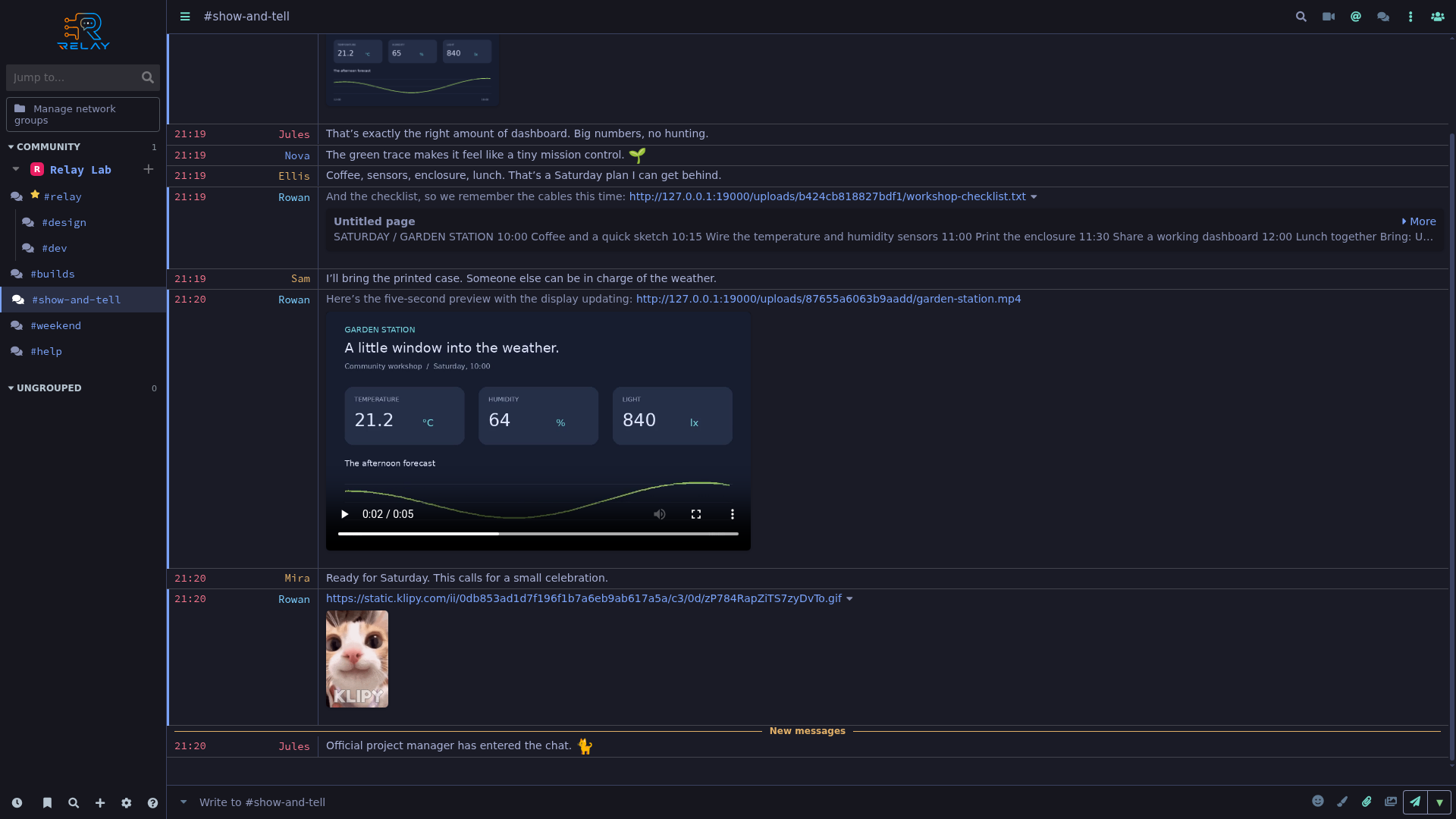
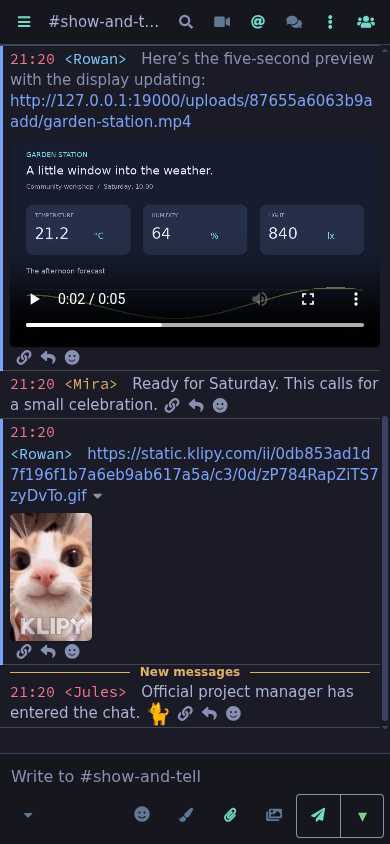
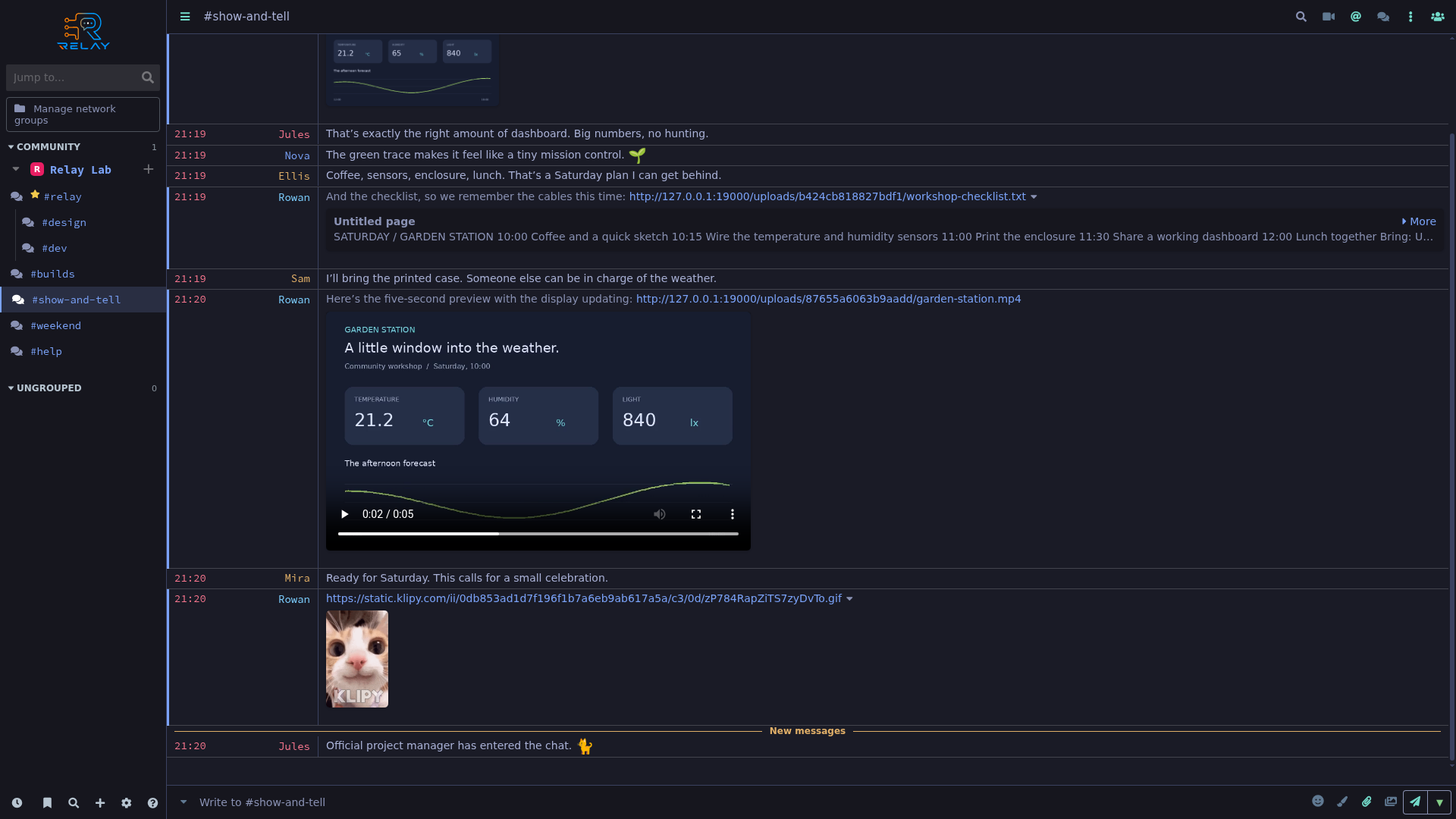
The uploaded dashboard video is loaded in Relay’s player.
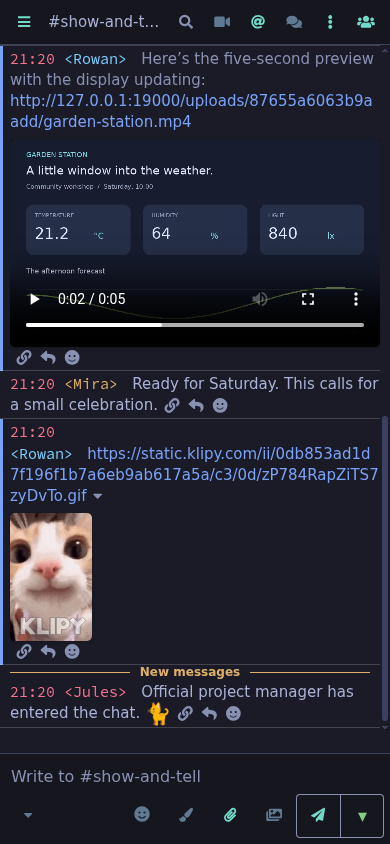
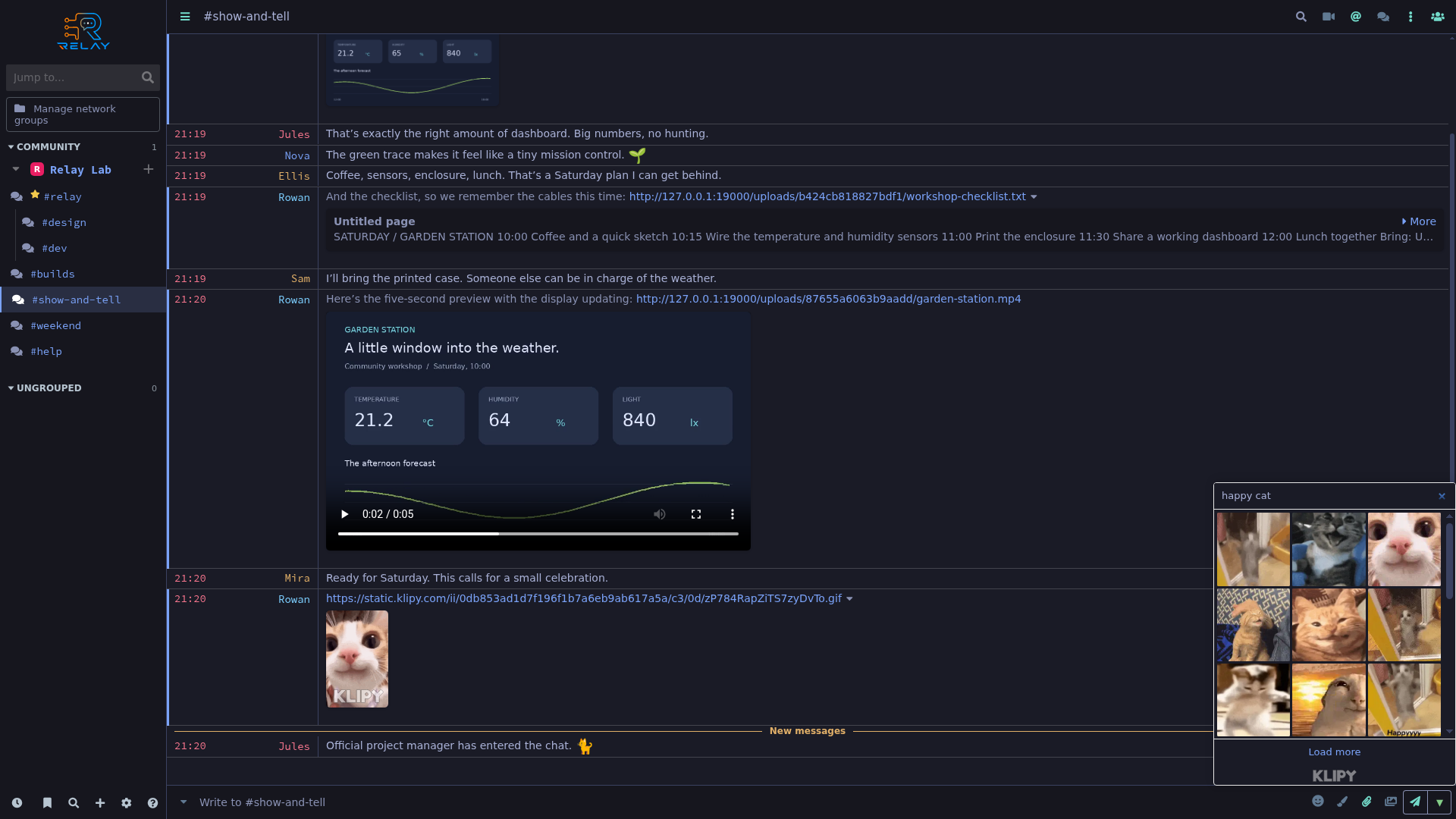
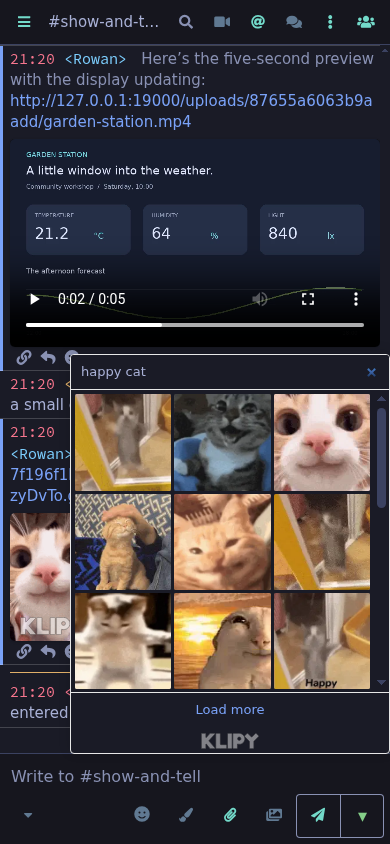
The optional KLIPY picker displays real happy-cat search results.
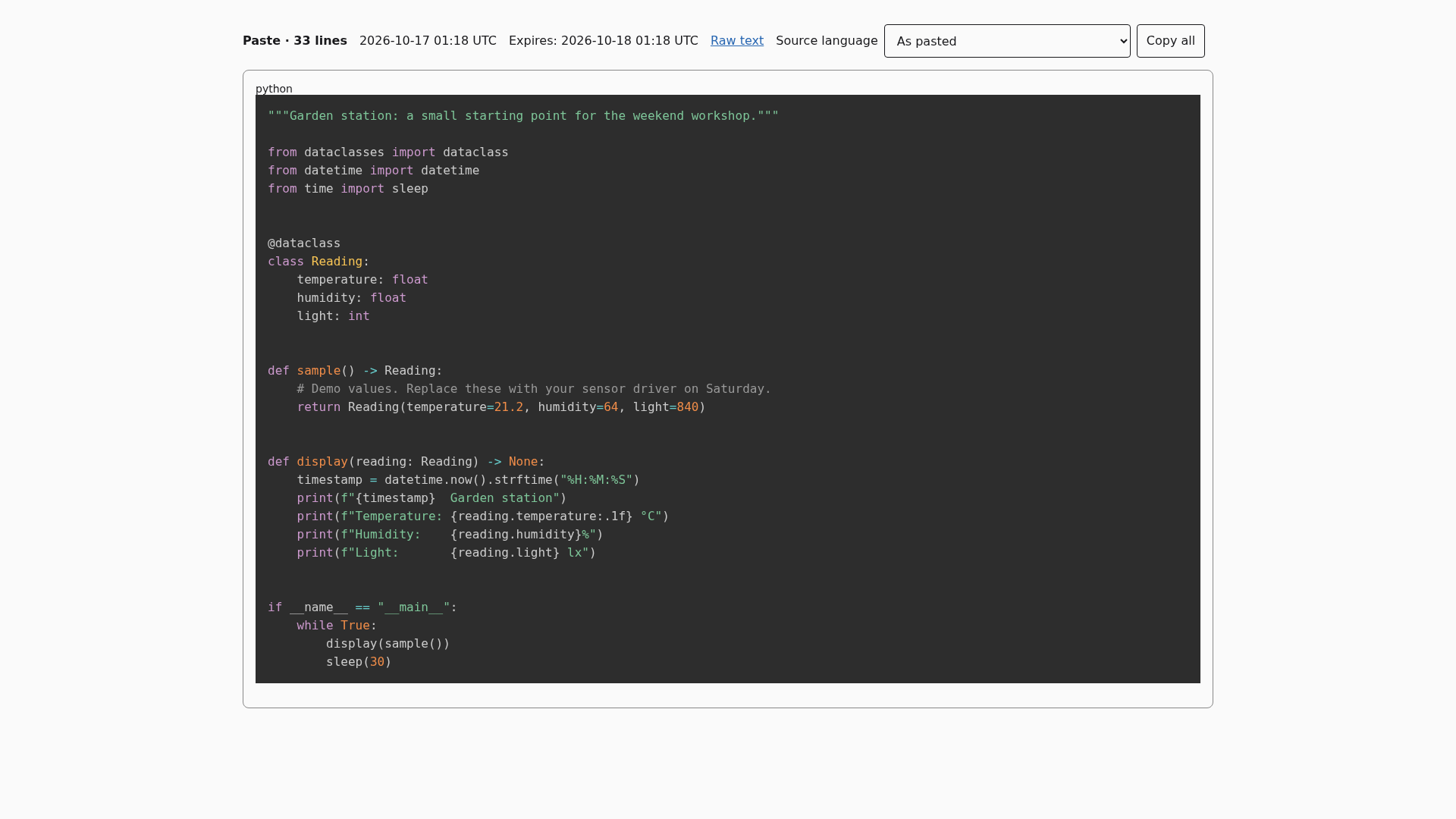
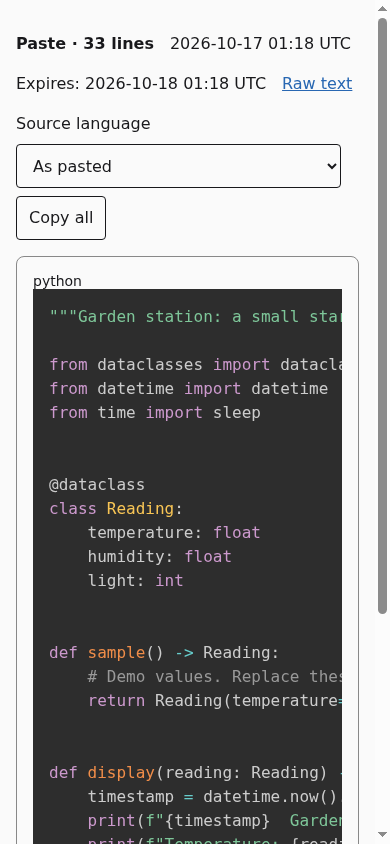
A real 33-line Python paste opens with syntax highlighting and raw-text controls.
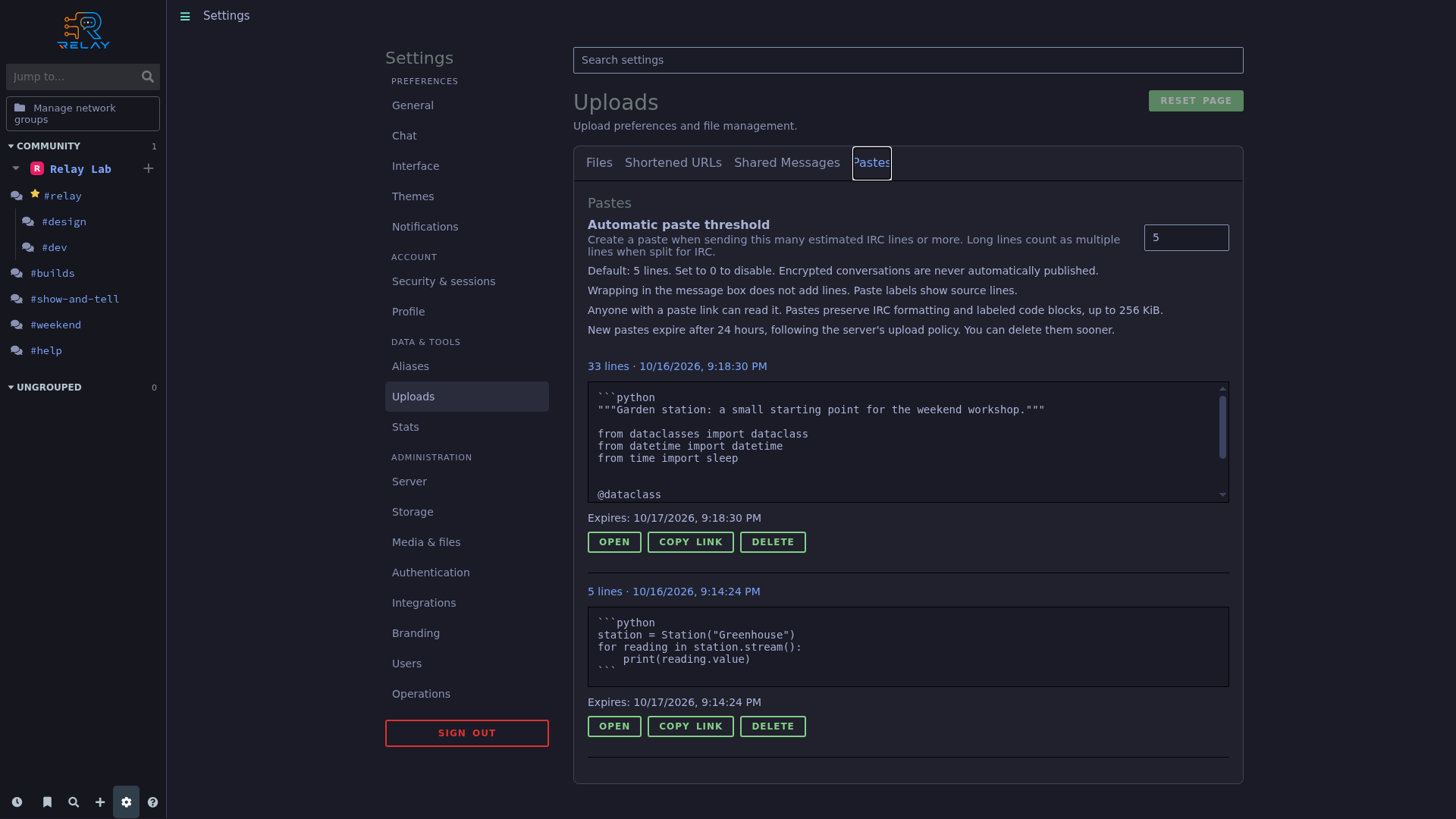
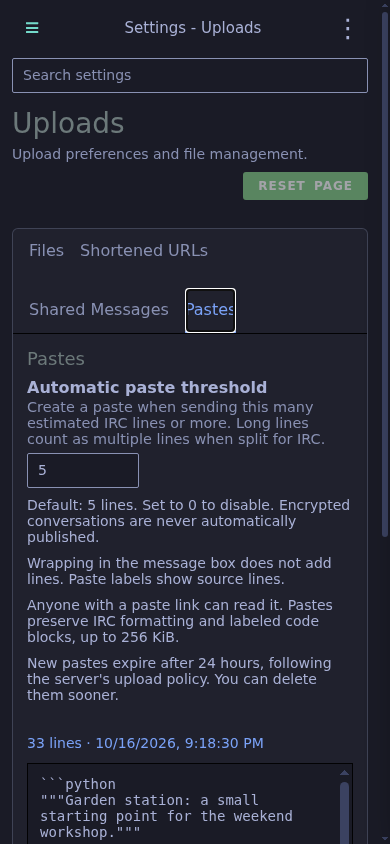
Paste management shows the automatic line threshold and stored pastes.
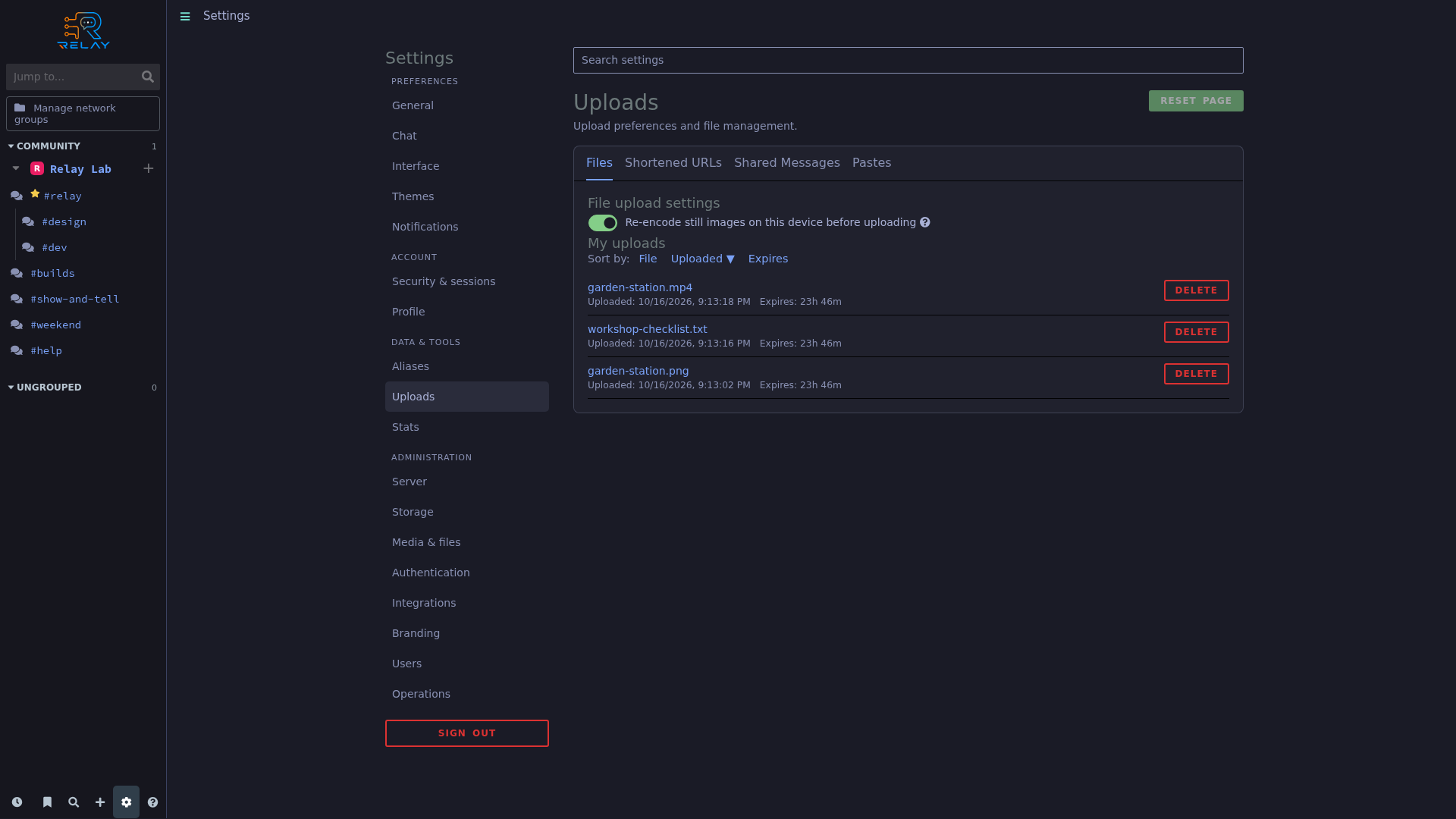
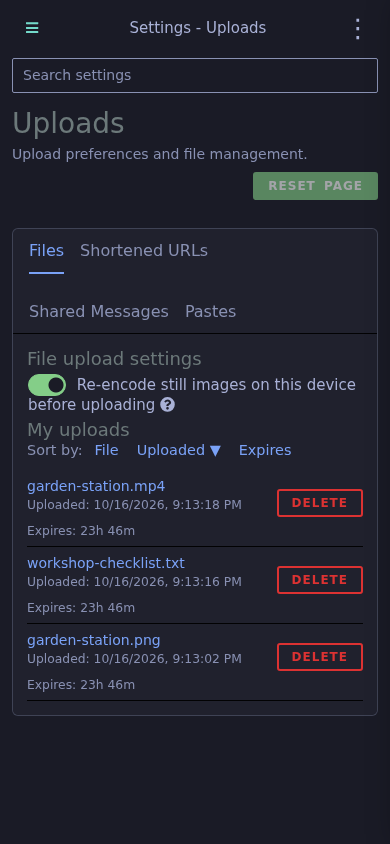
Uploaded images, text, and video are listed with expiry and deletion controls.
Organize channels and make the workspace yours.
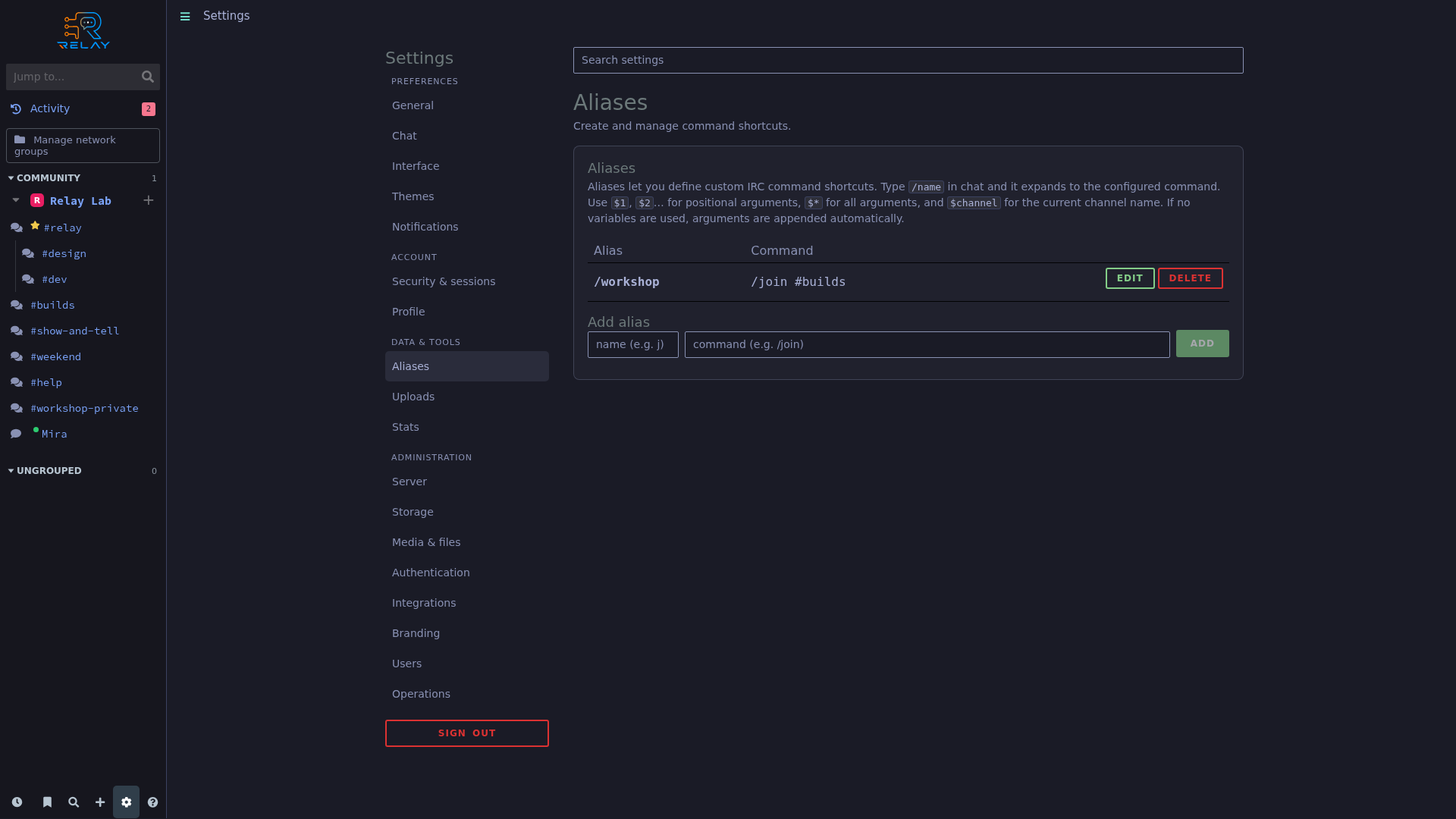
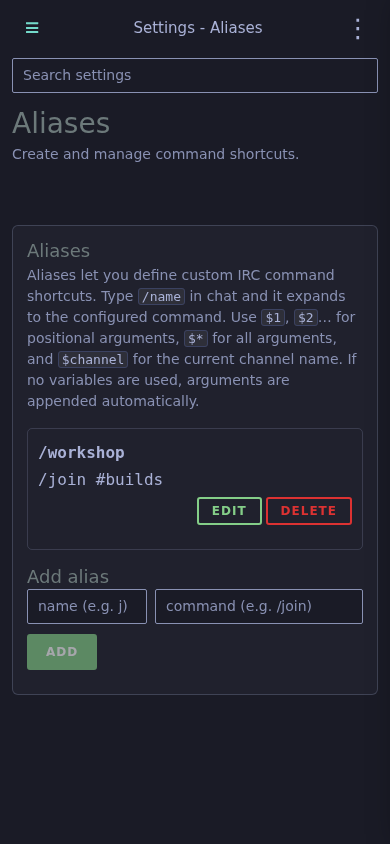
A workshop alias expands to the build channel’s join command.
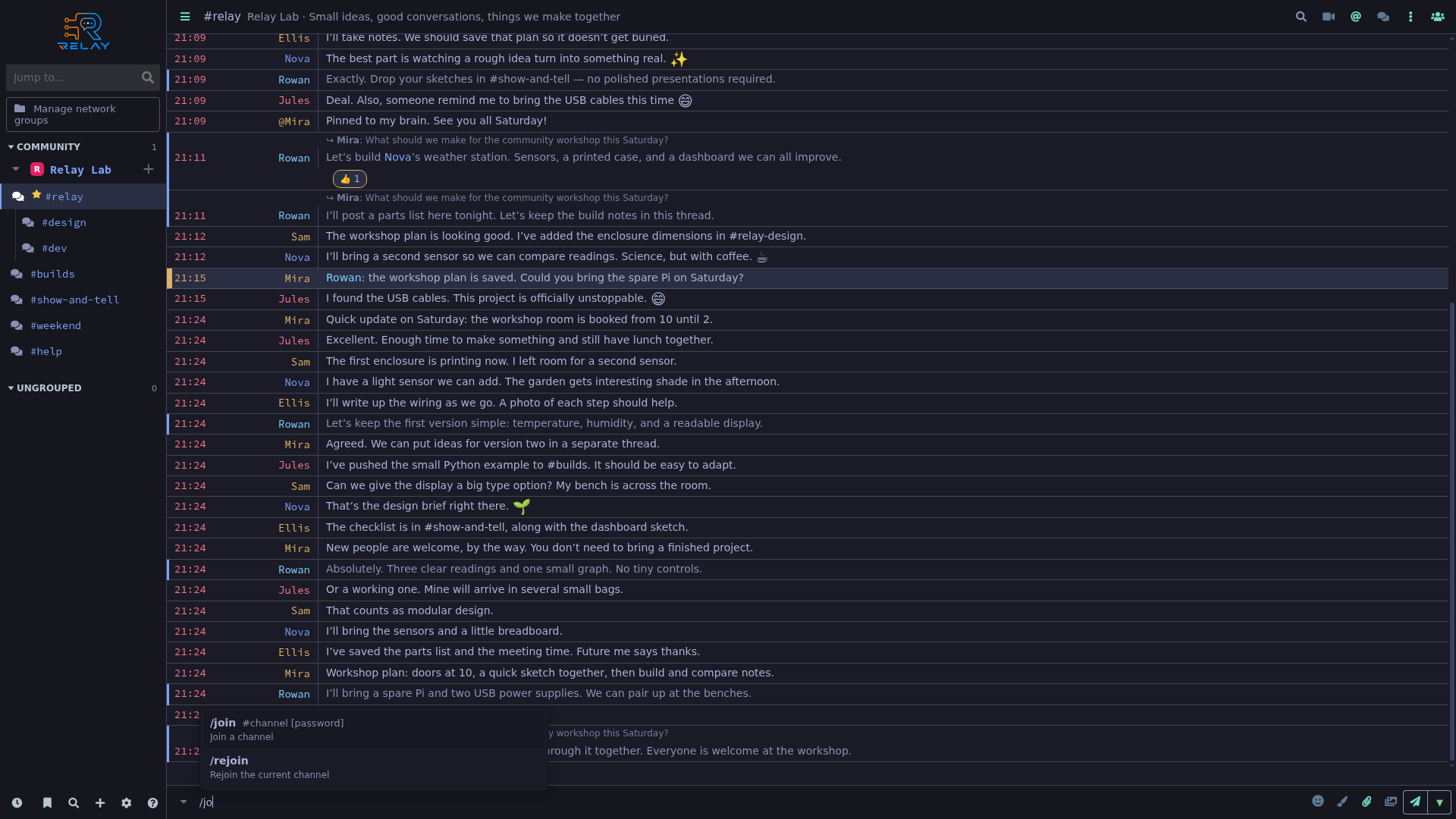
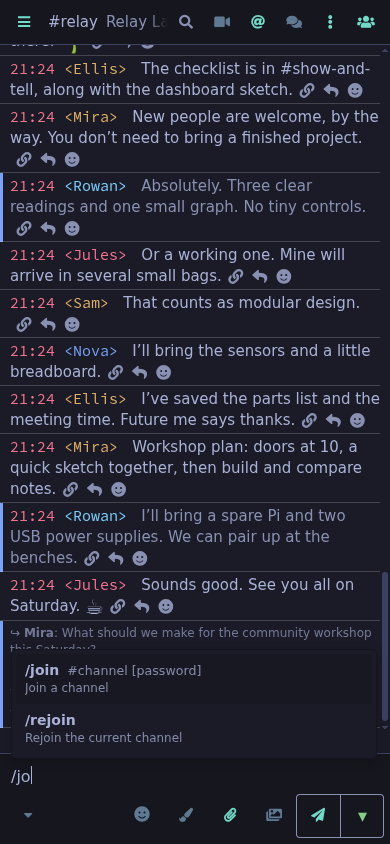
Typing an IRC command opens context-aware completion suggestions.
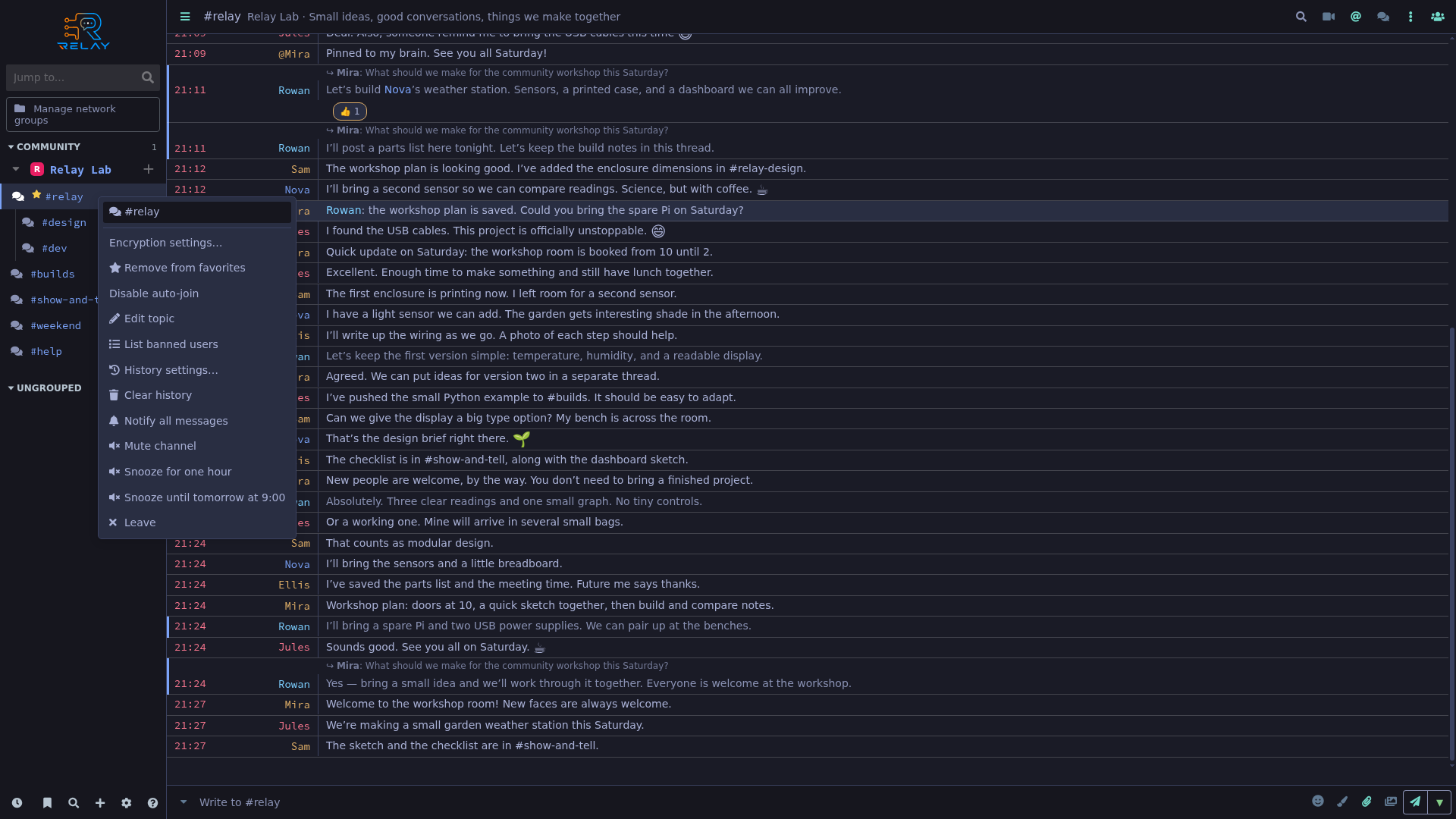
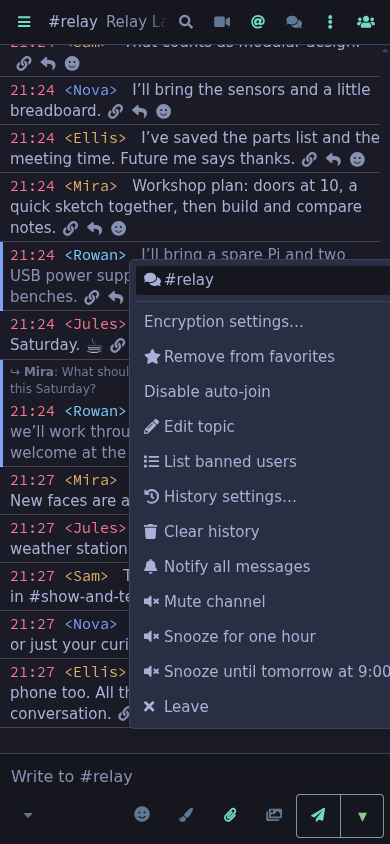
The channel menu offers favorites, history, notification, and snooze controls.
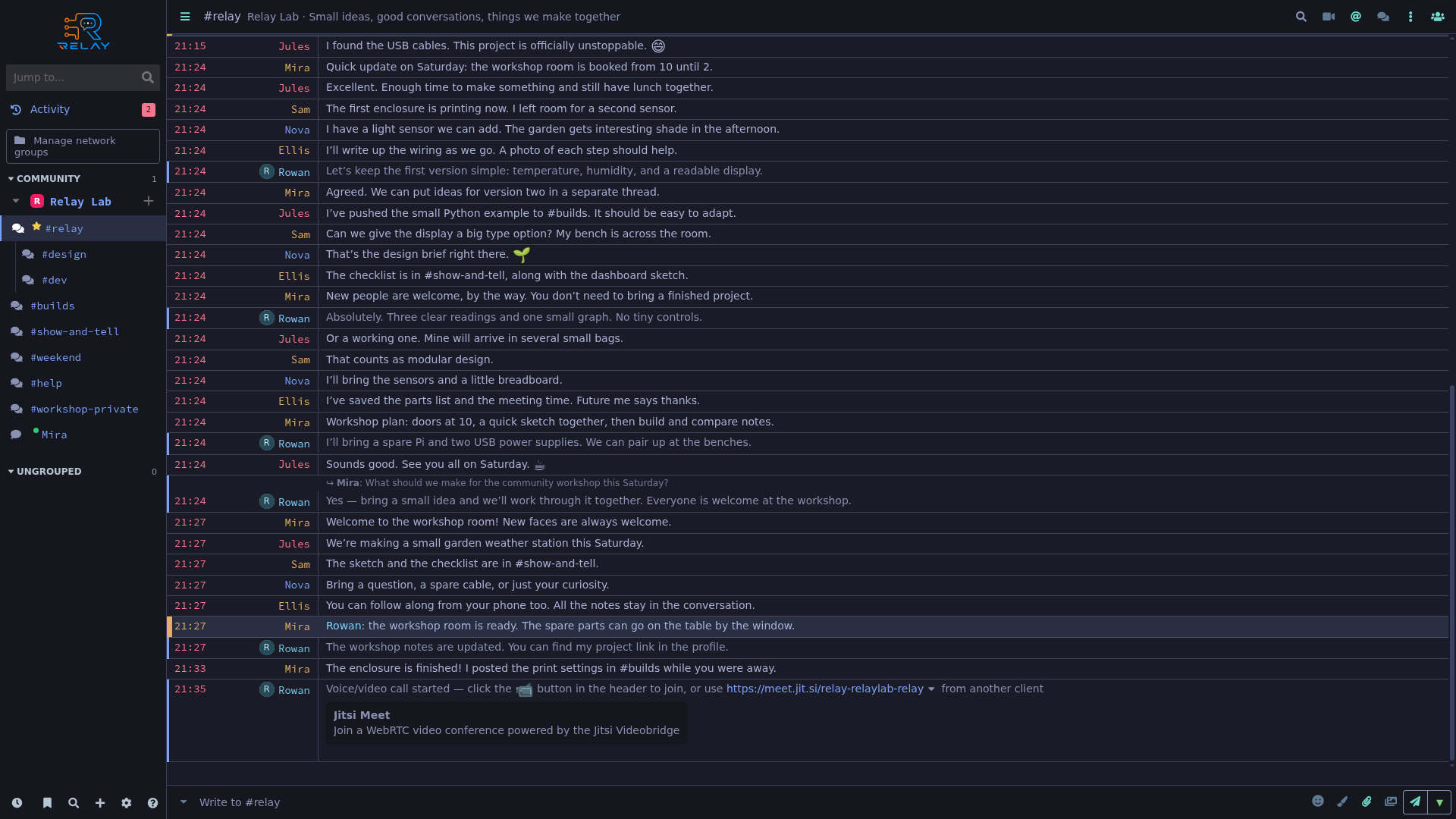
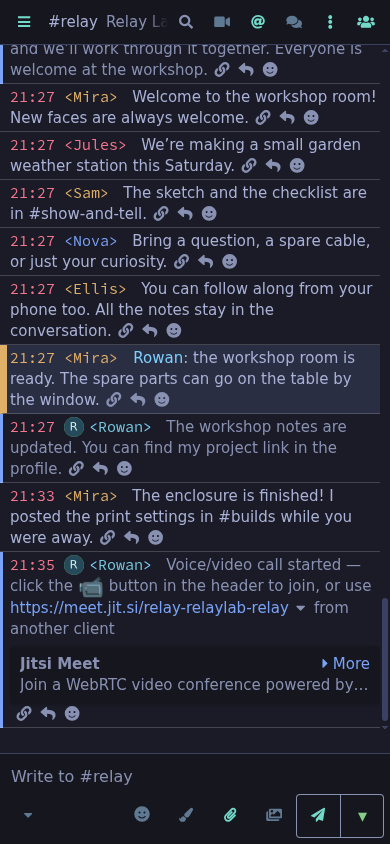
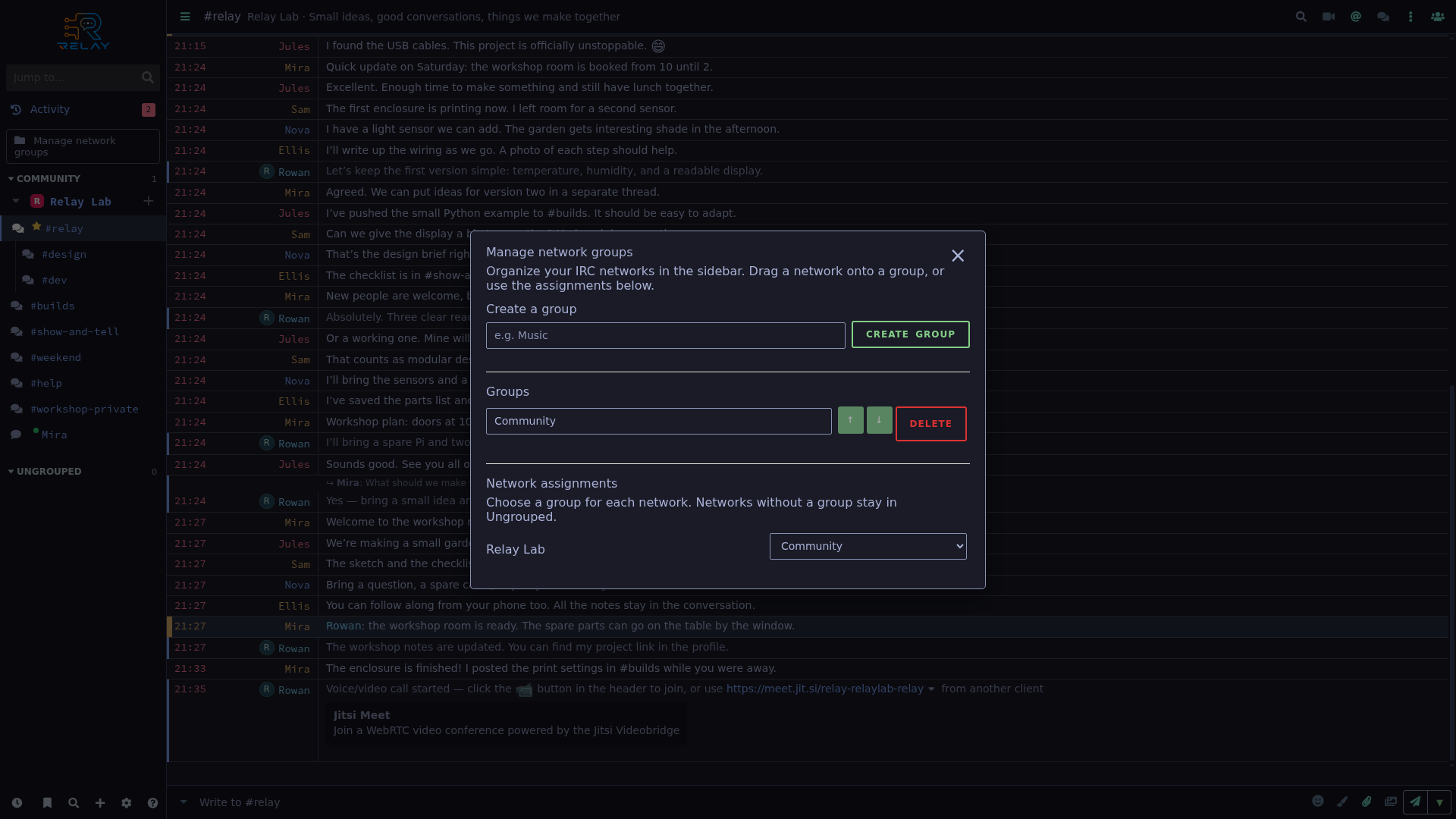
Relay Lab belongs to Community, with a favorite channel and nested design and development rooms.
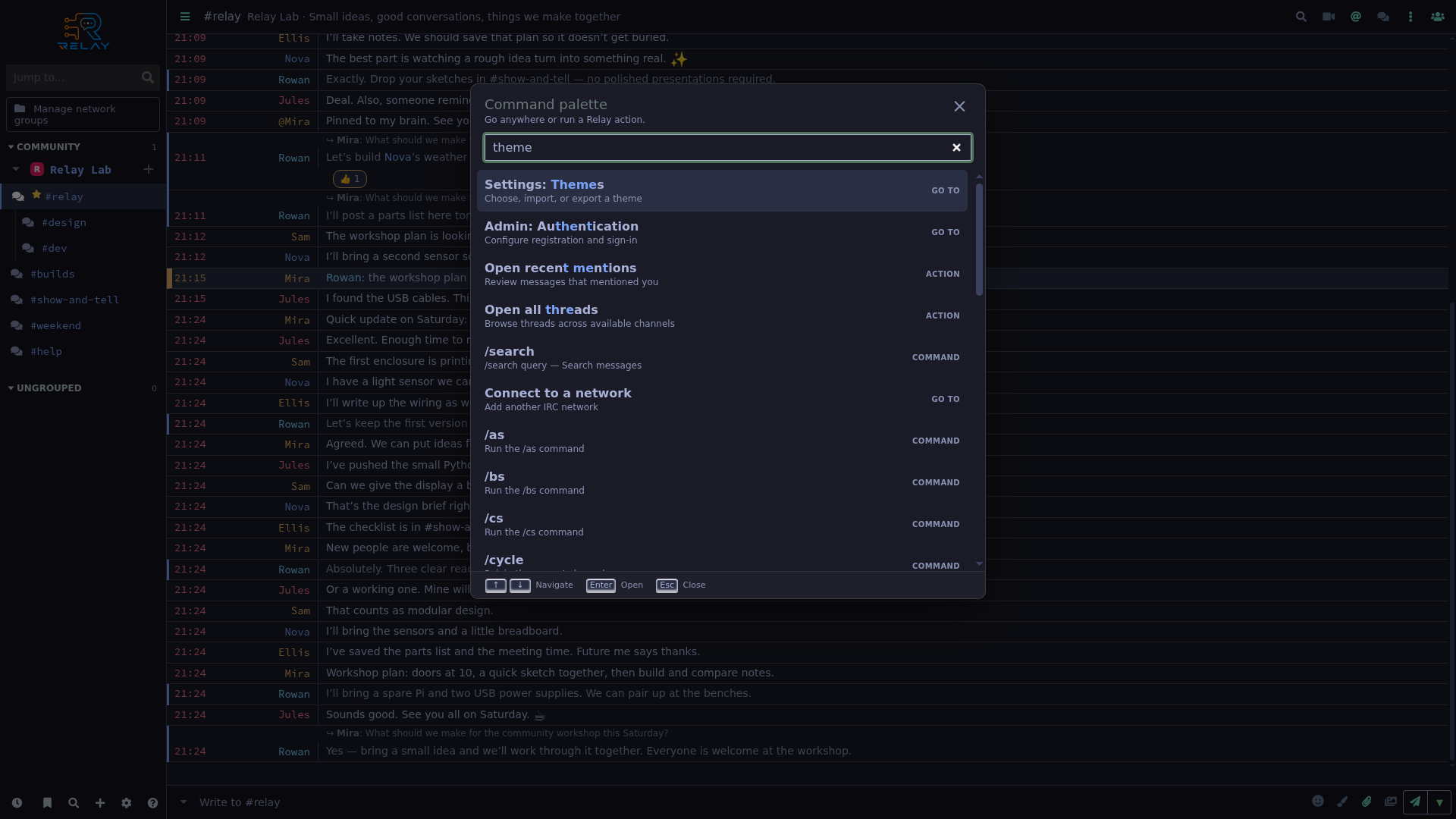
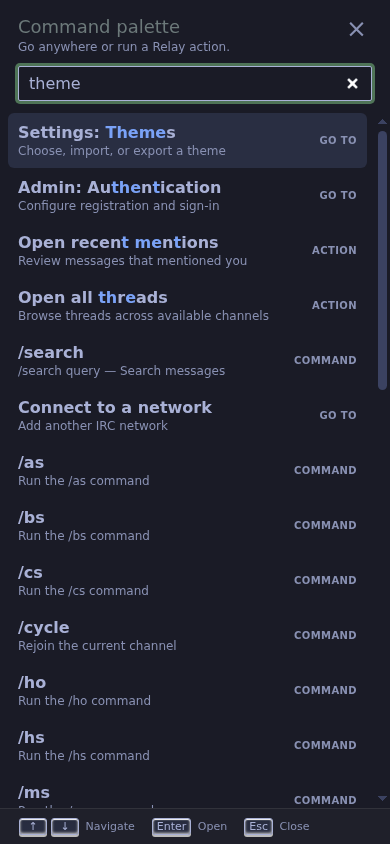
The command palette searches settings and actions related to themes.
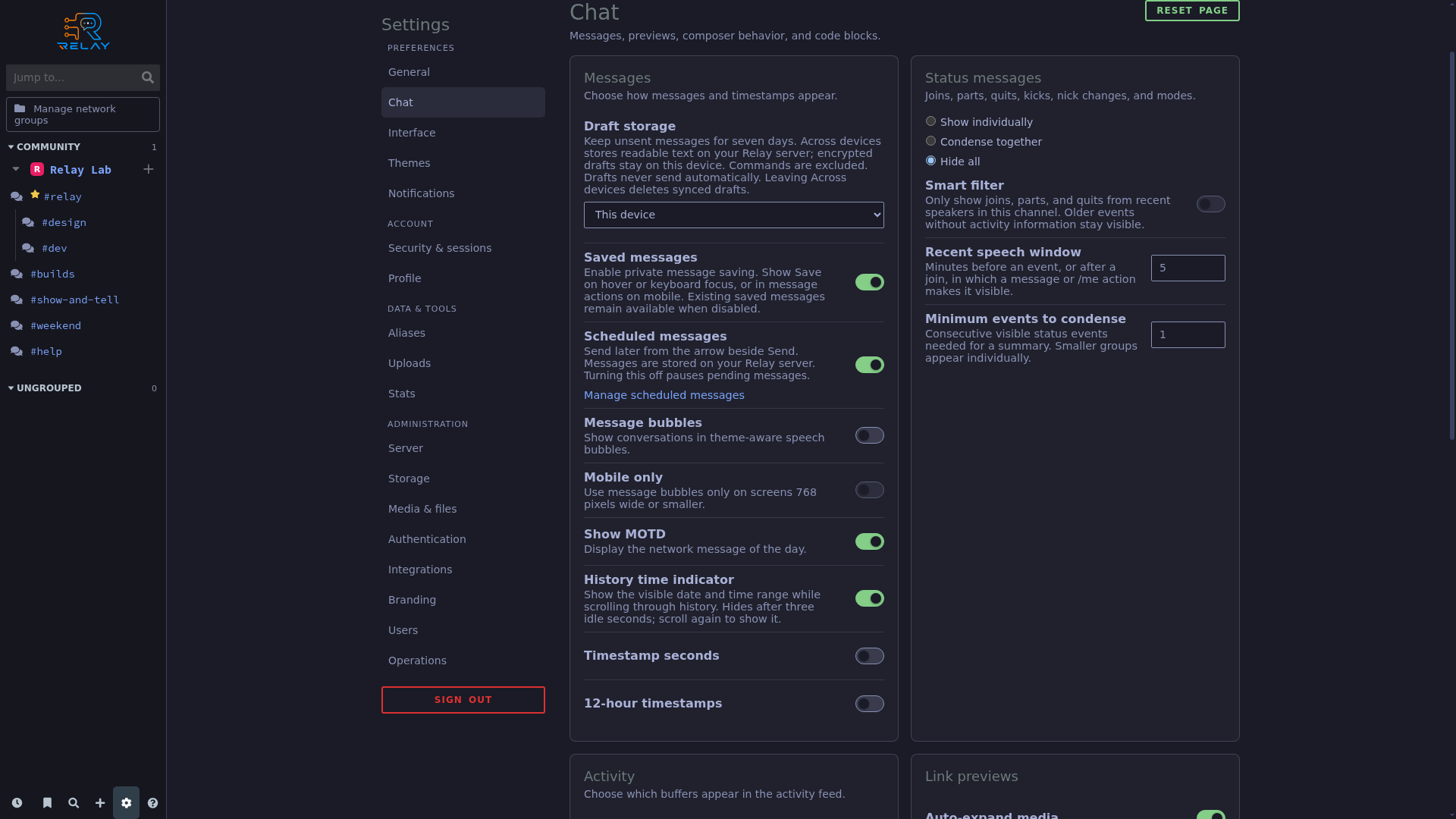
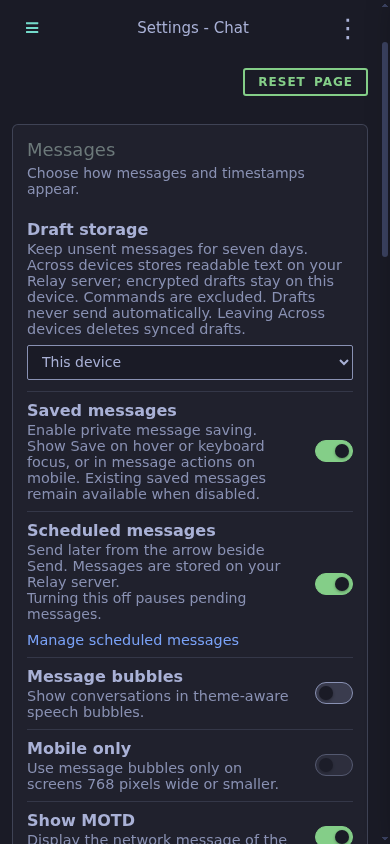
Chat settings include drafts, saved messages, scheduling, and message appearance.
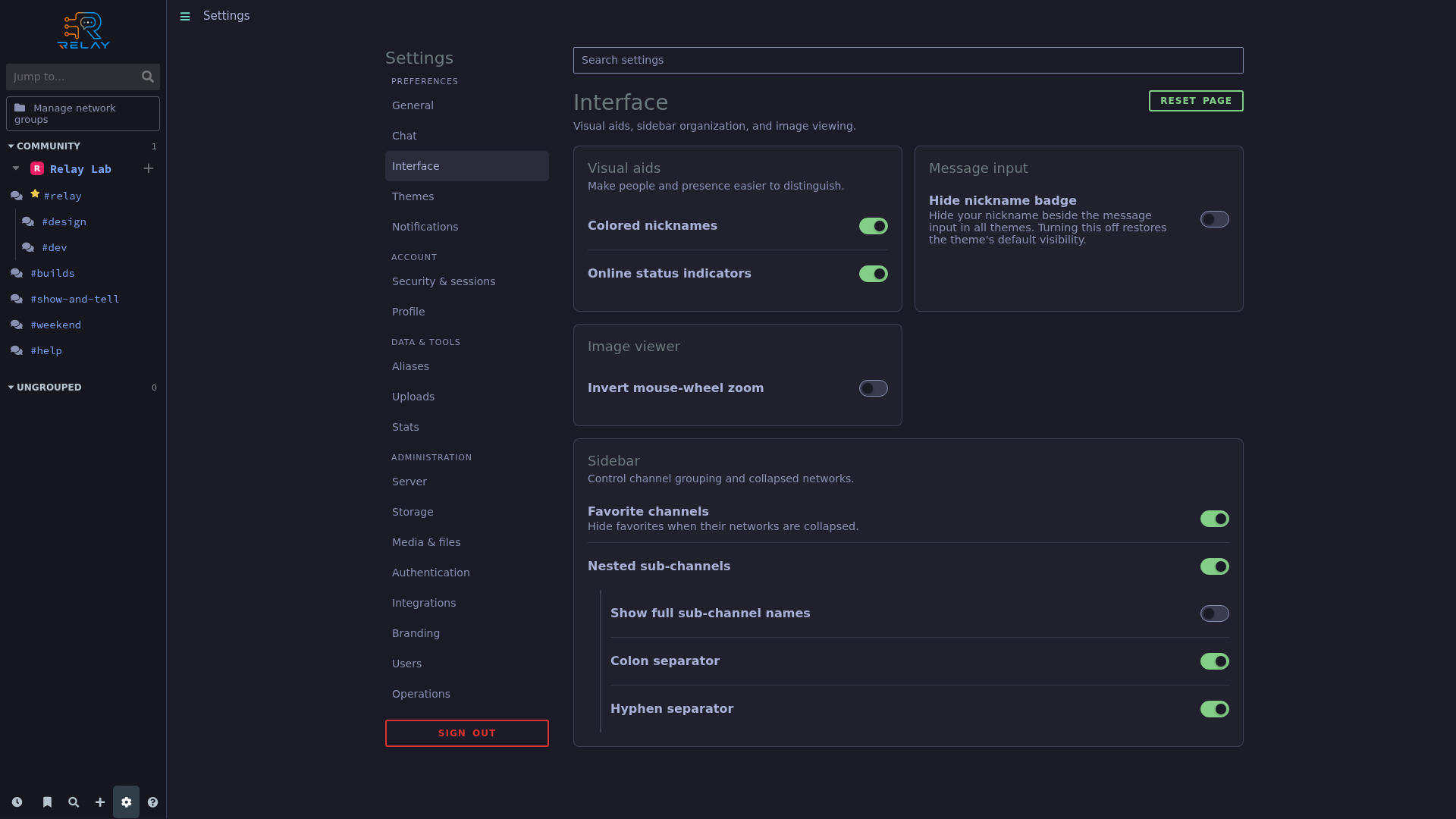
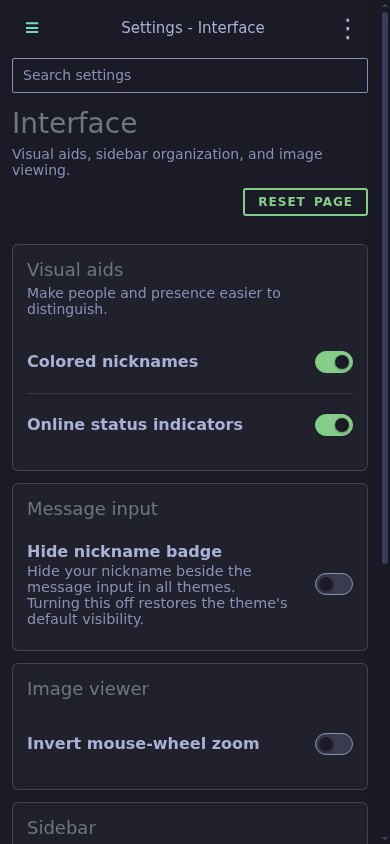
Interface settings control visual aids and channel organization.
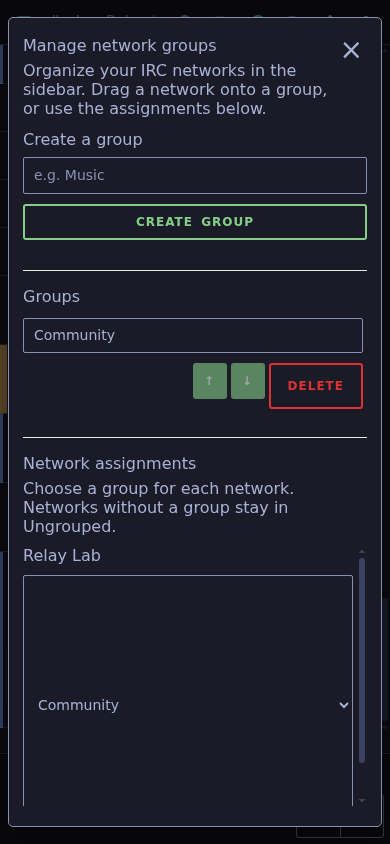
The group dialog shows the Community group and Relay Lab assignment.
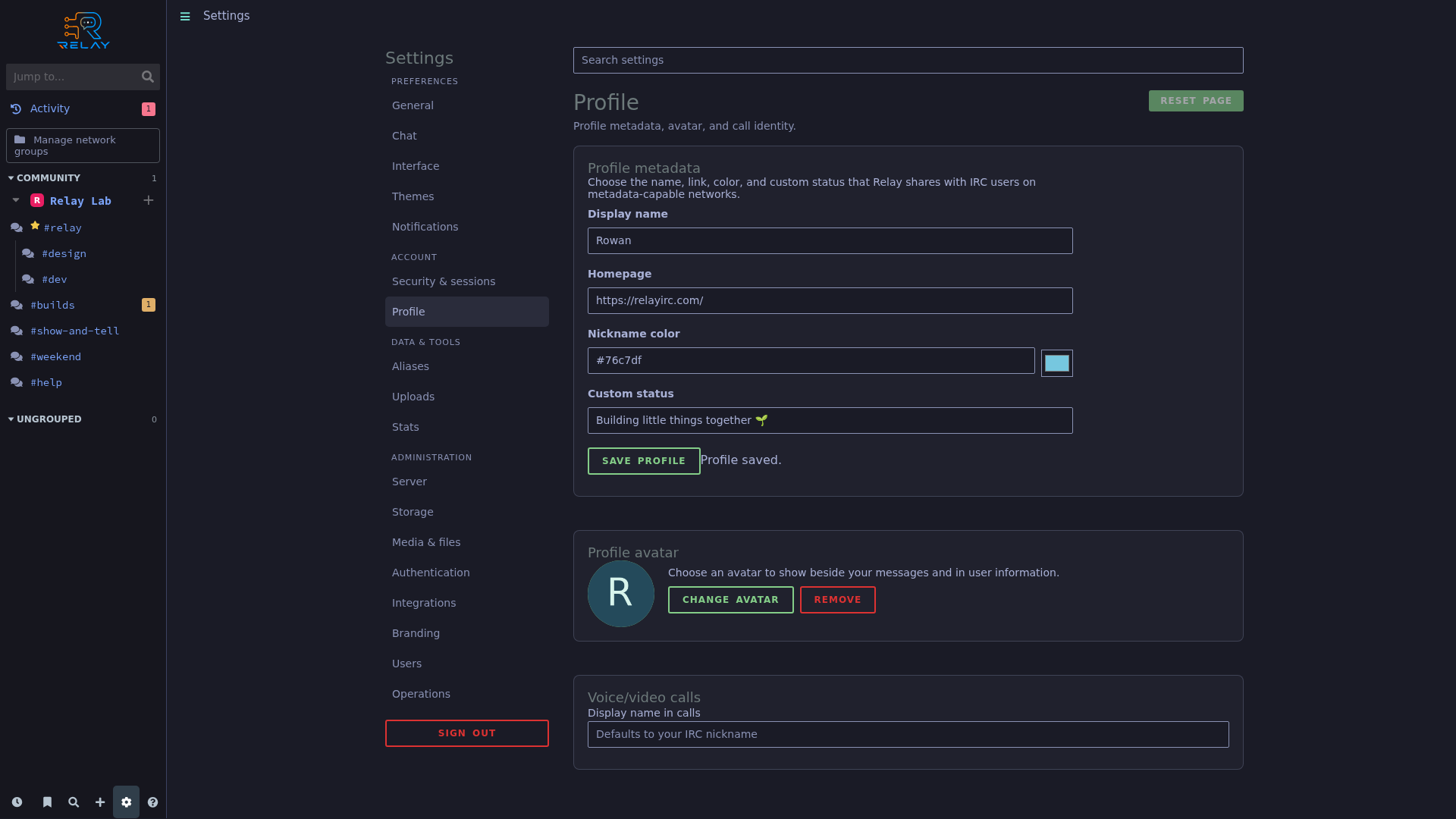
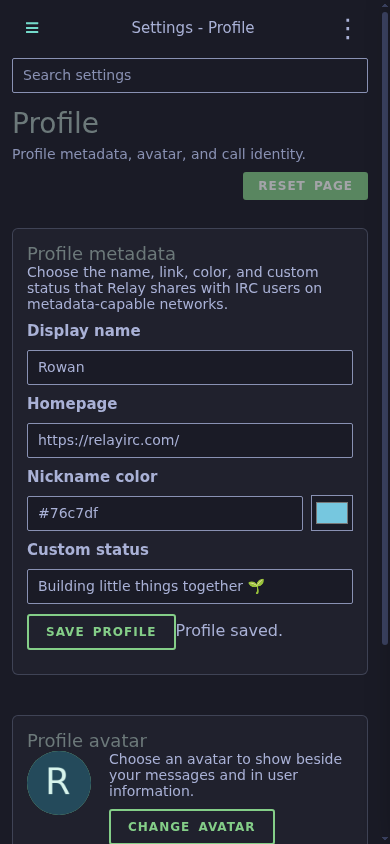
Rowan’s profile editor contains a name, project link, custom status, and uploaded avatar.
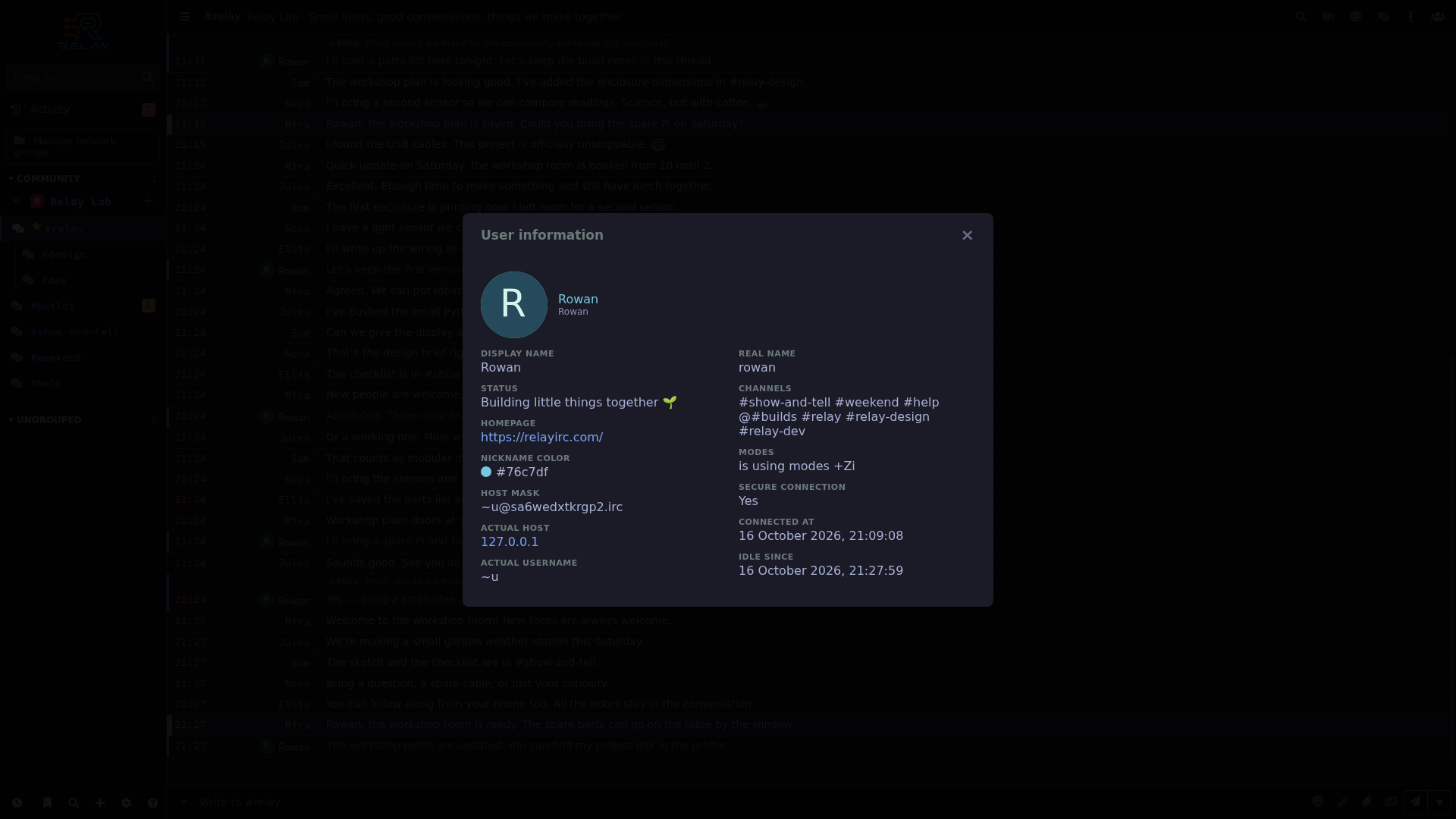
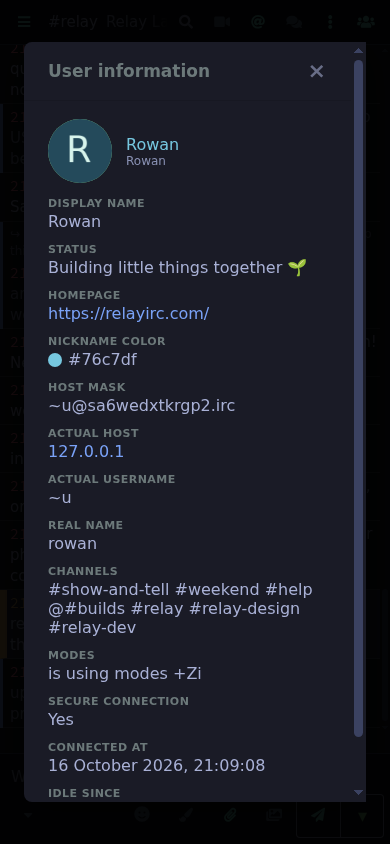
Rowan’s user information shows profile metadata and the uploaded avatar.
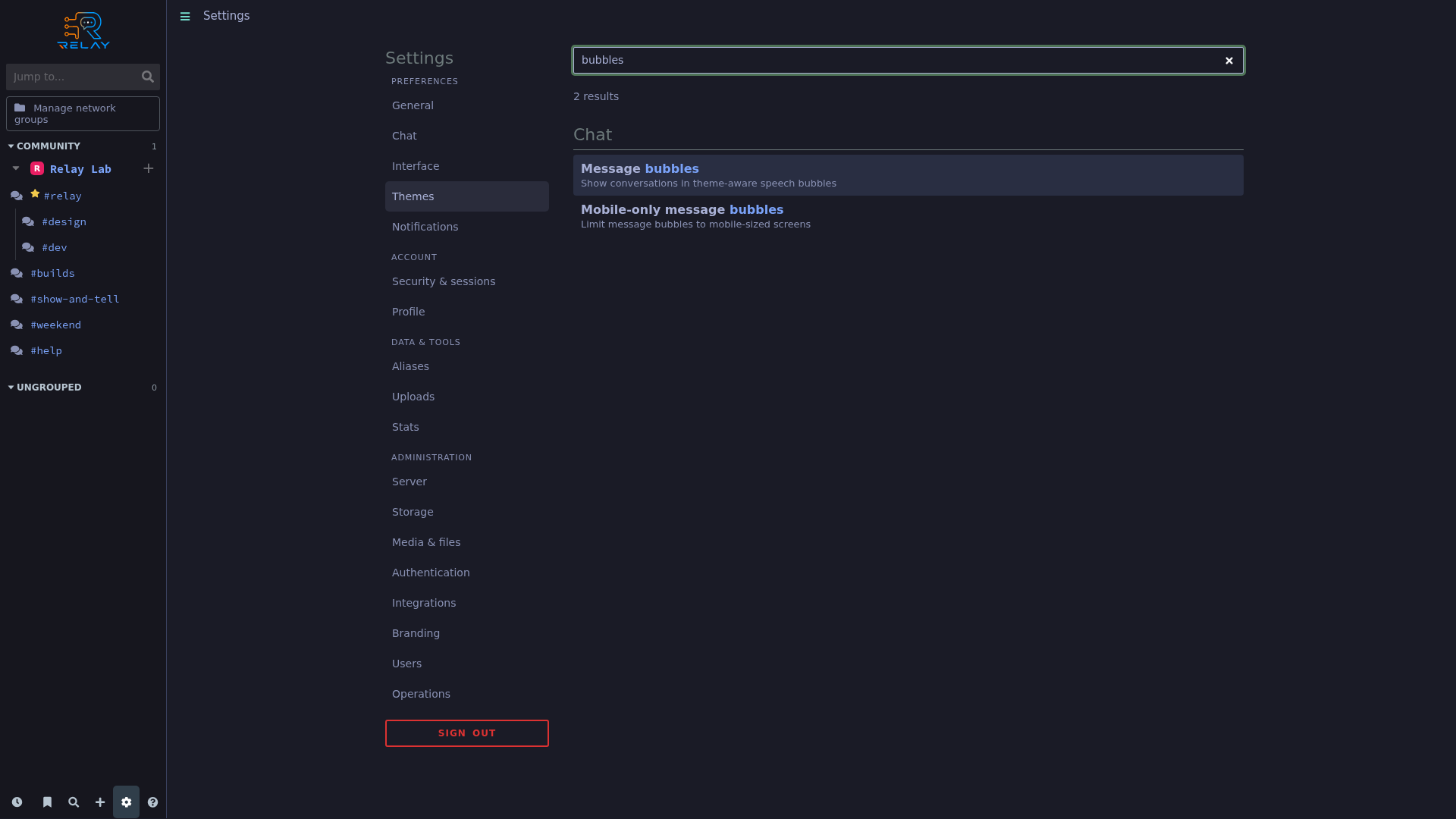
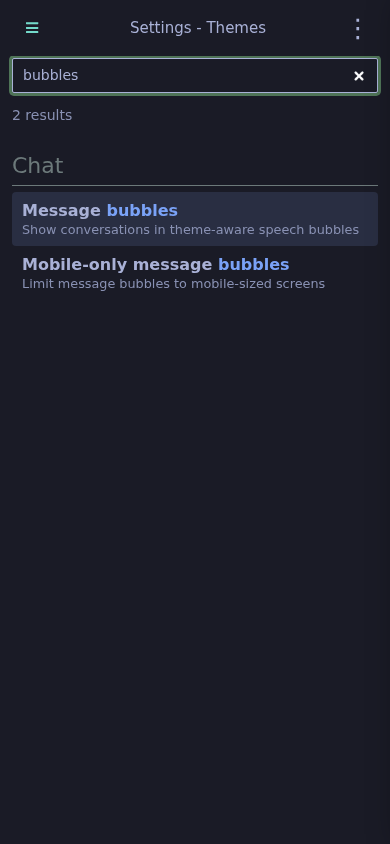
Searching for bubbles locates the corresponding appearance options.
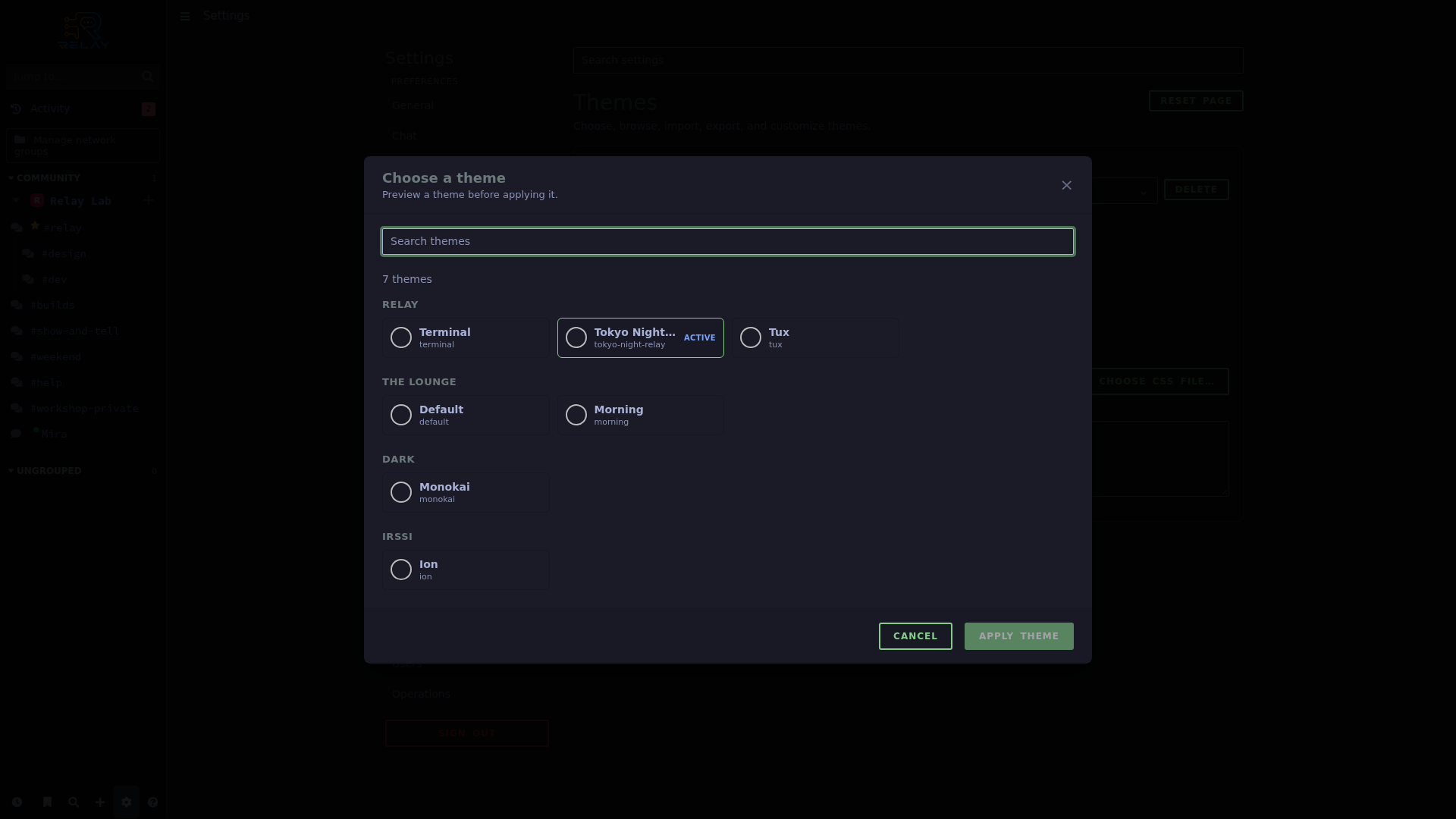
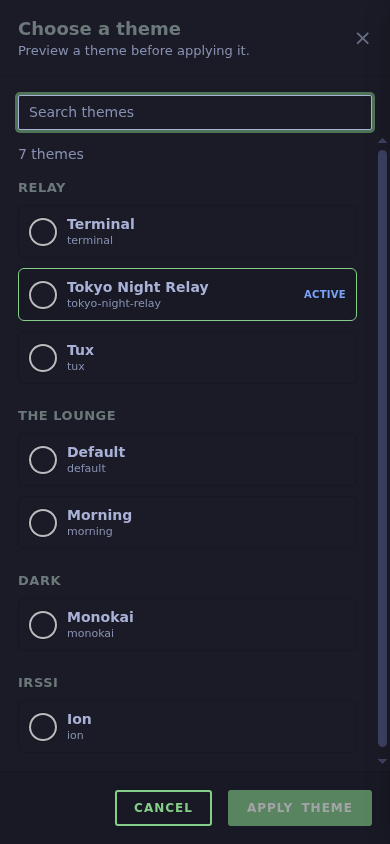
The installed-theme picker groups available themes by source.
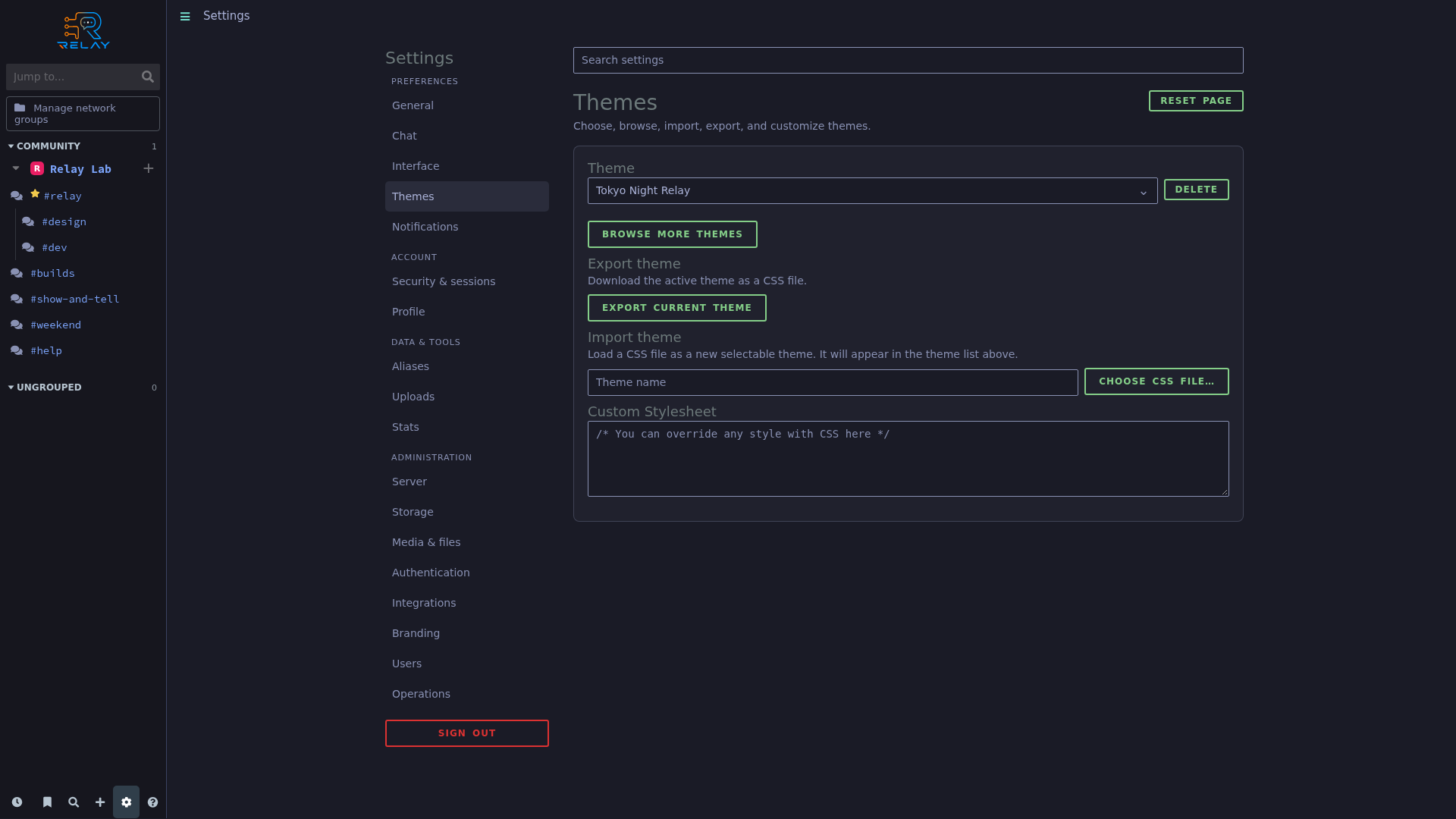
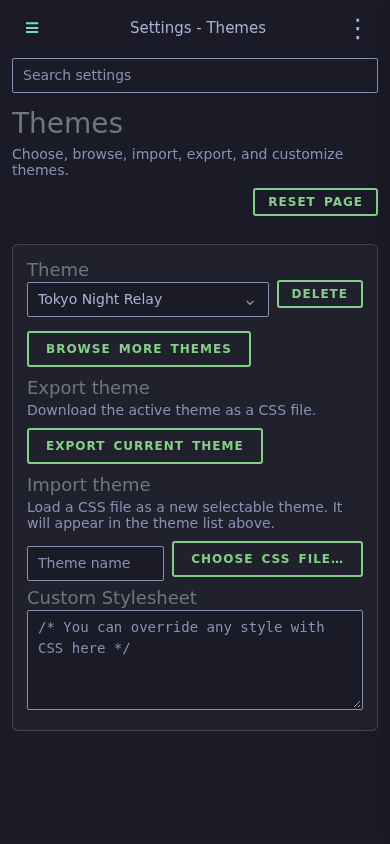
Theme settings provide selection, catalog, import, export, and custom stylesheet controls.
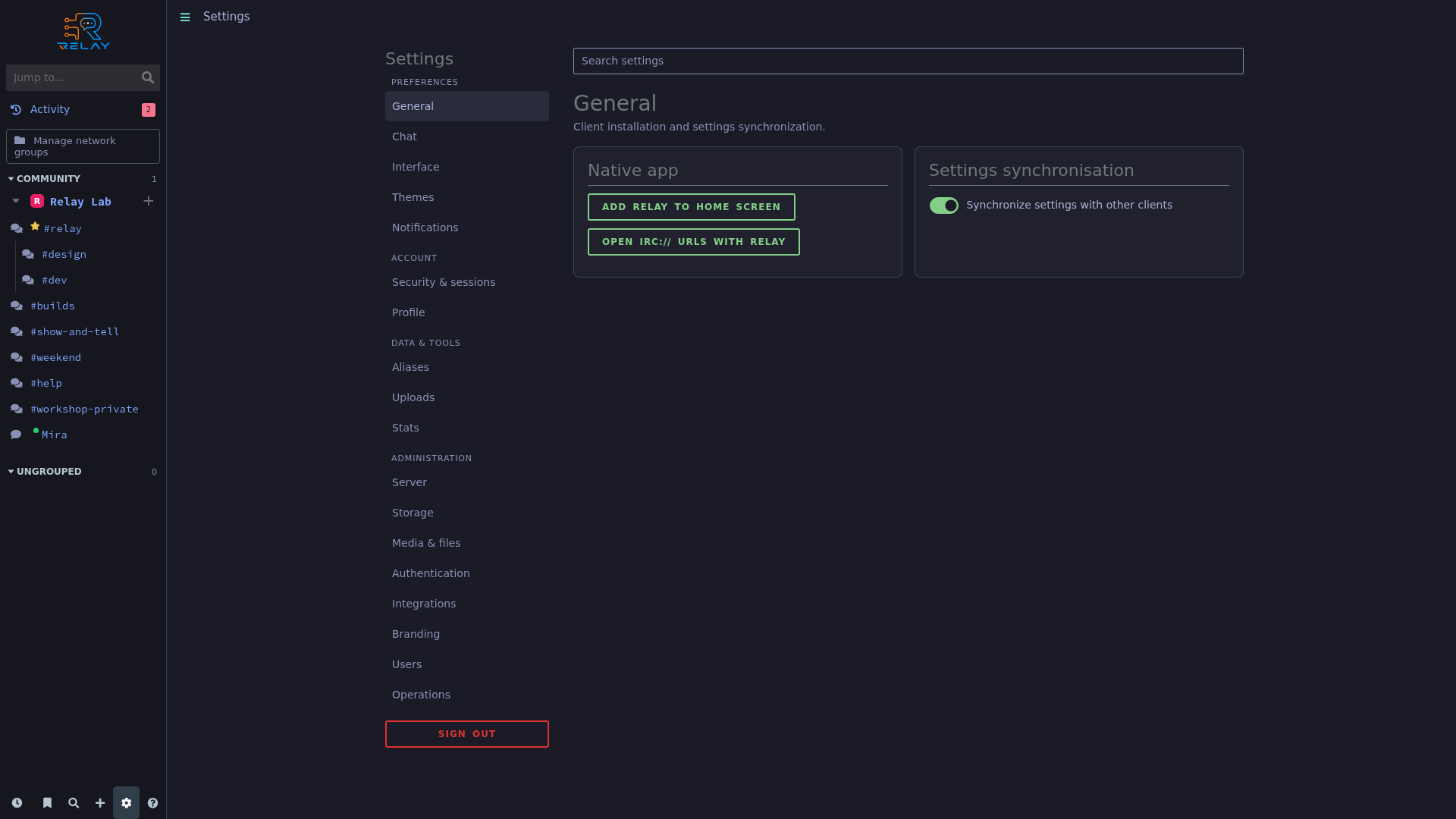
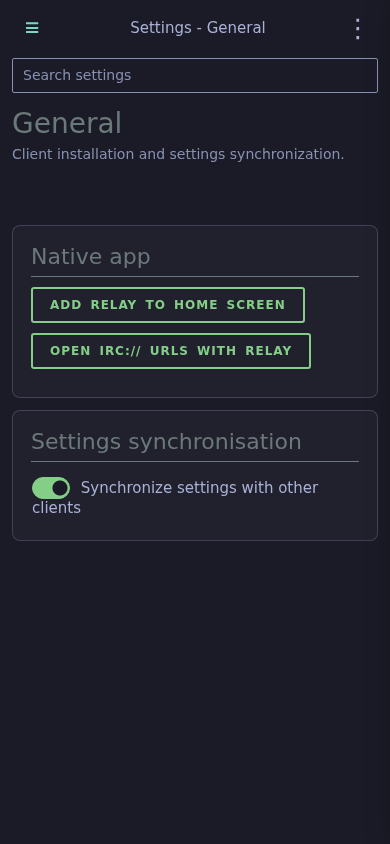
General settings show the browser installation and IRC URL controls when supported, alongside settings synchronization.
Manage sessions, sign-in factors, network security, and protected conversations.
A real disposable authenticator is enrolled; setup secrets and recovery codes are closed before capture.
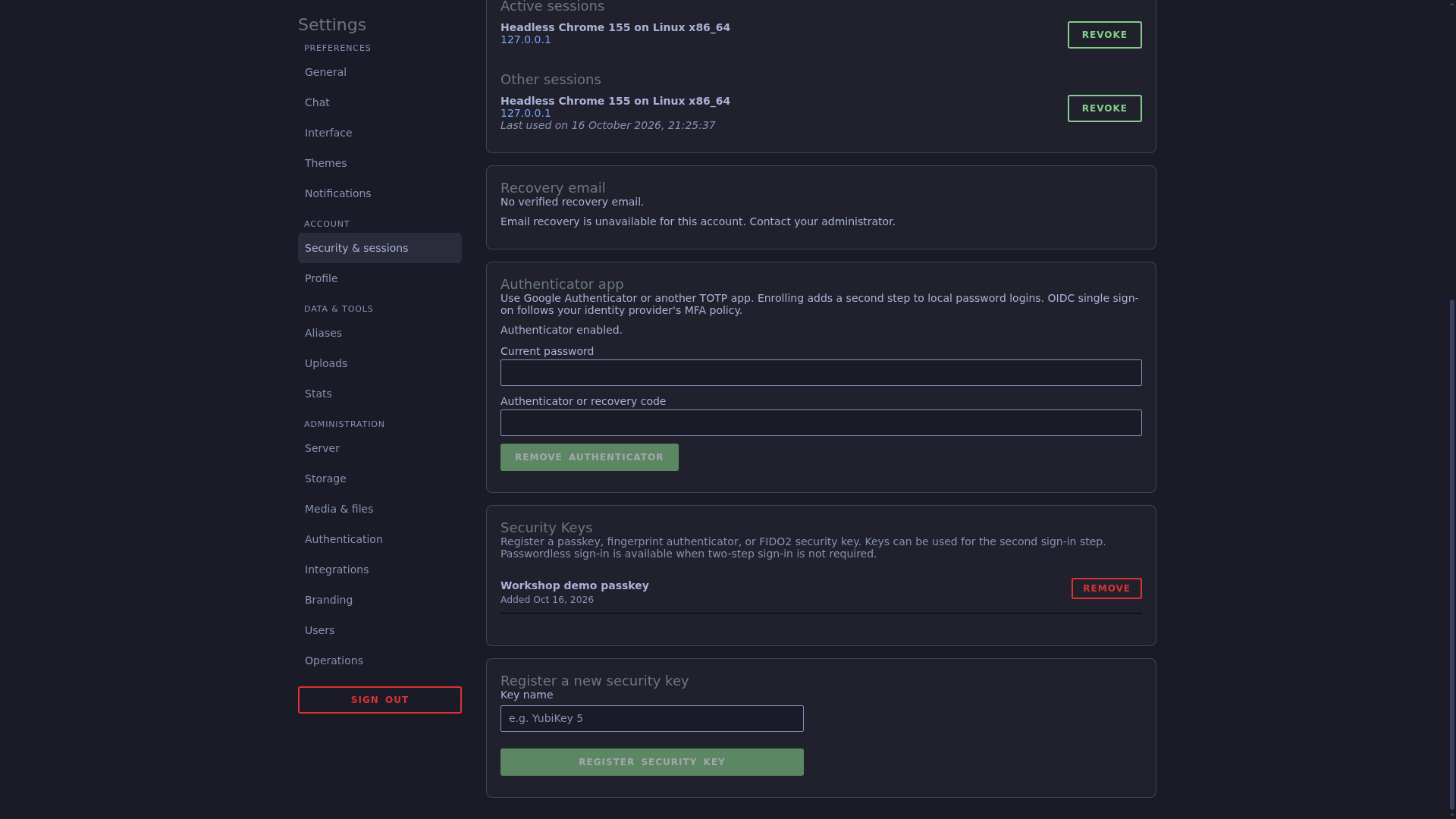
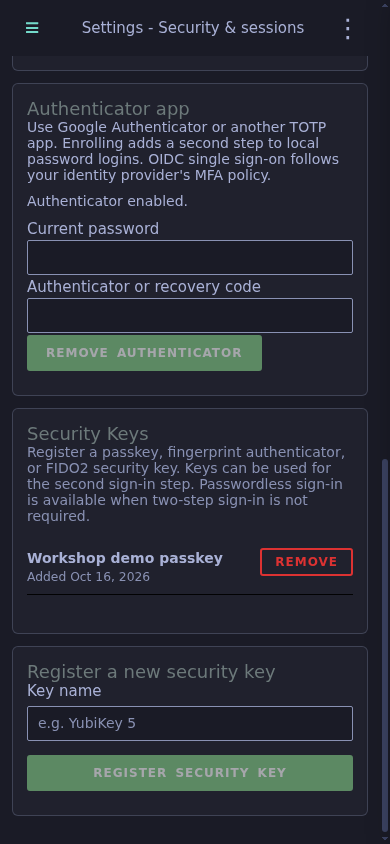
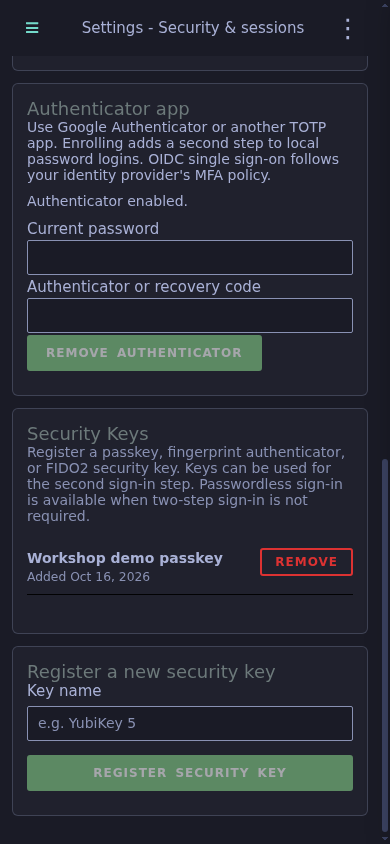
The account lists a passkey registered through Chromium’s virtual authenticator.
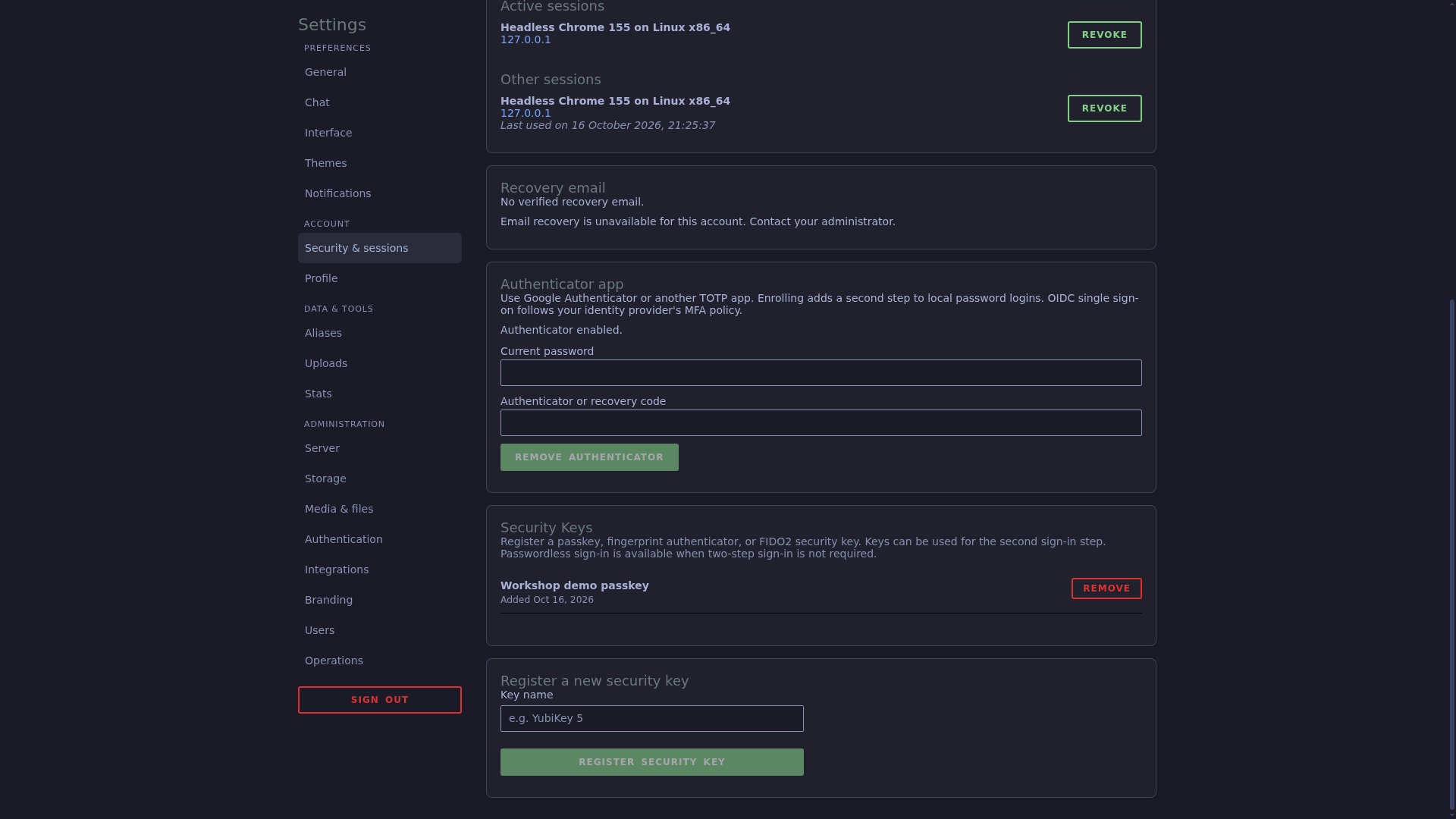
The account session list includes the separately authenticated demo browser sessions.
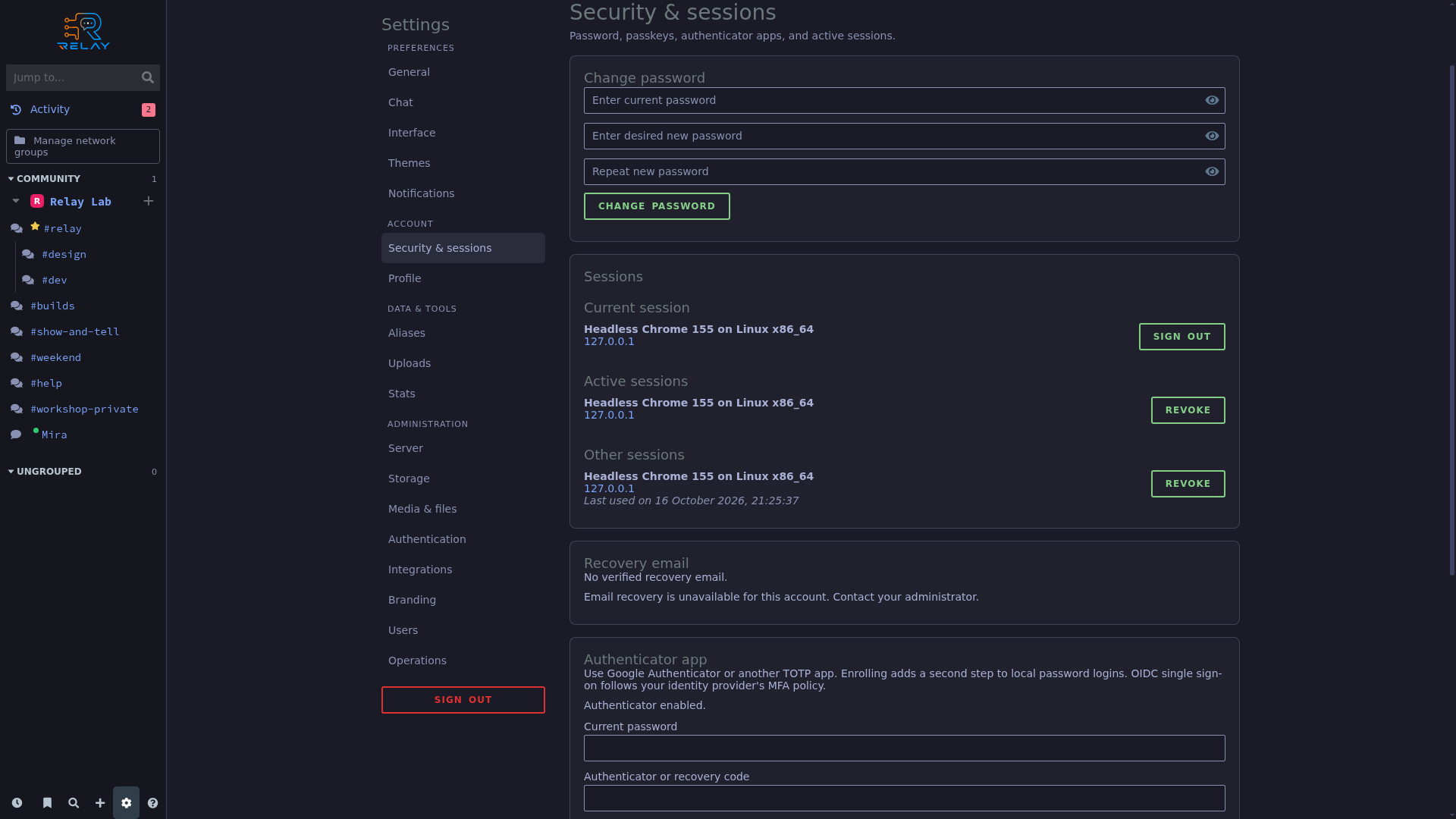
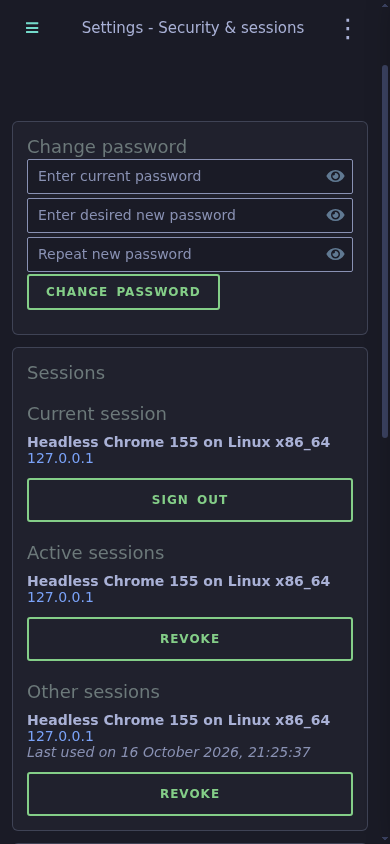
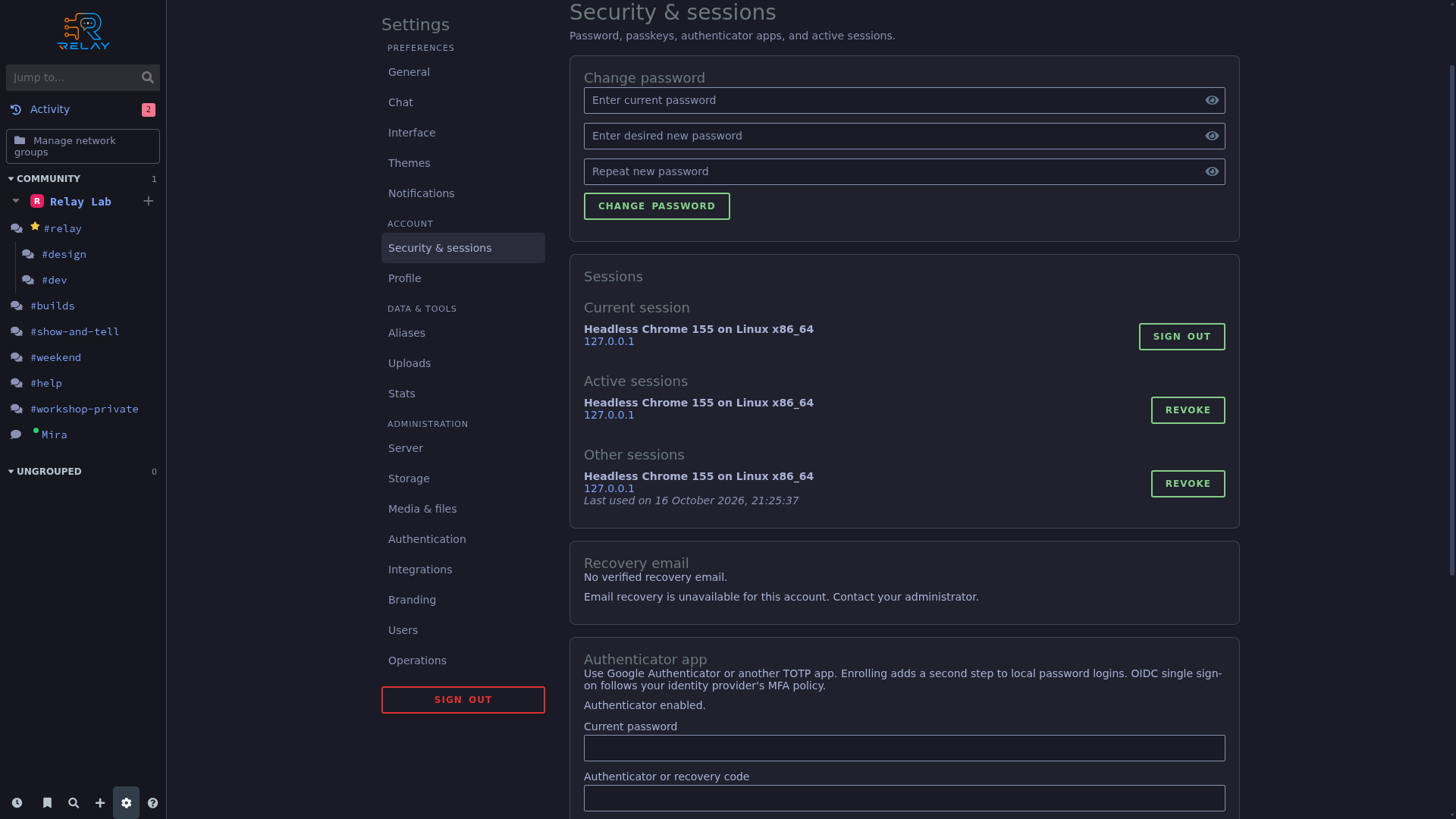
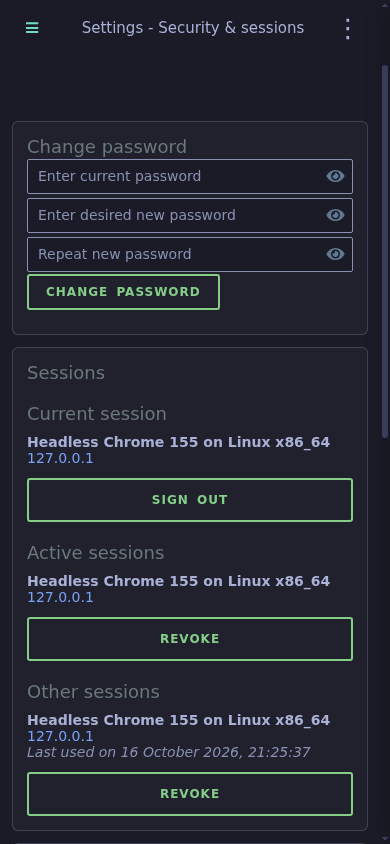
Password and session controls appear in the account security workspace.
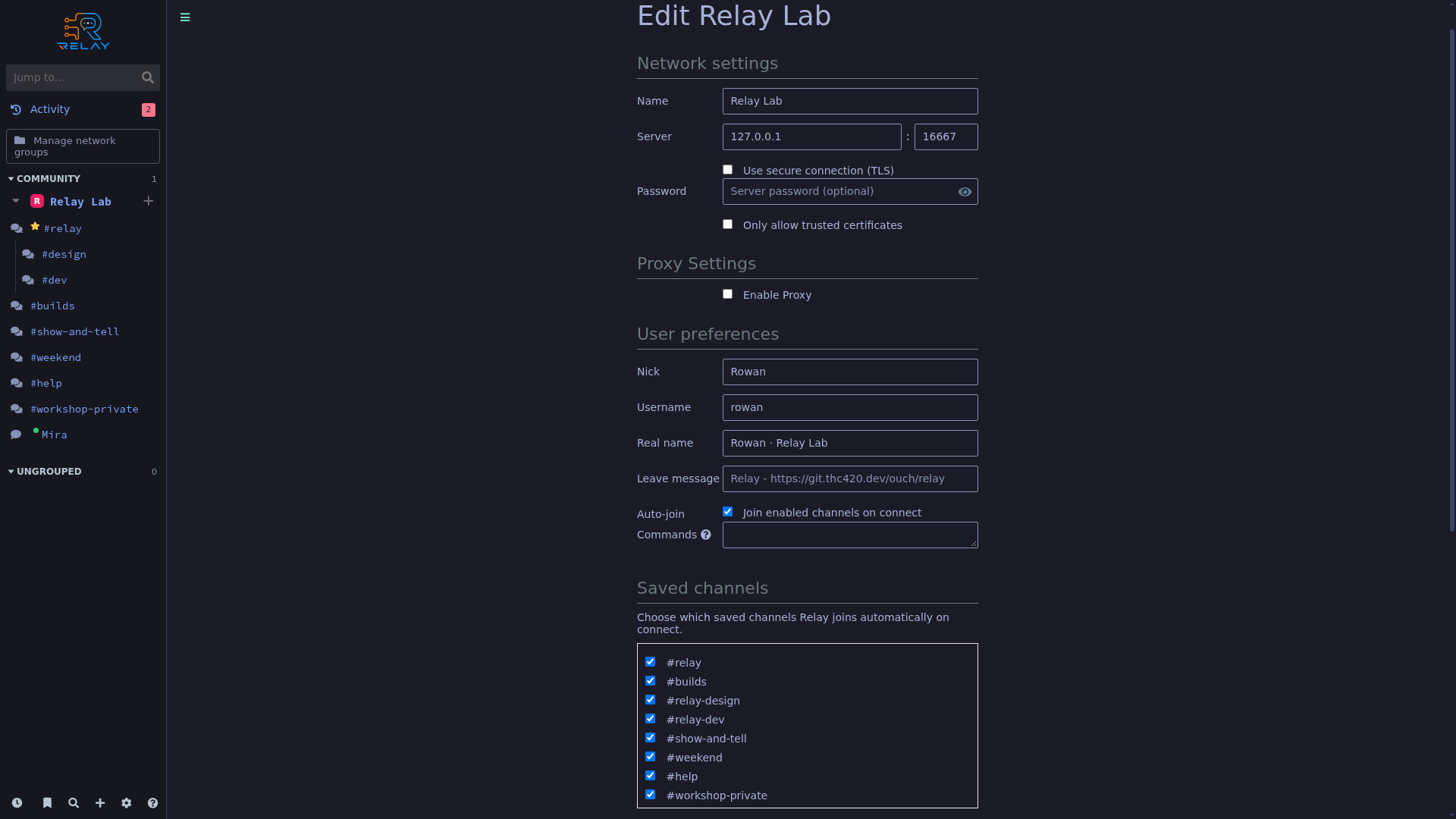
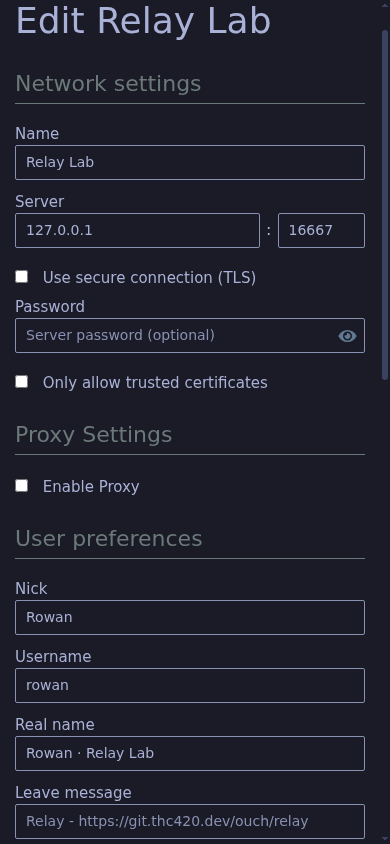
The actual demo network editor exposes TLS, certificate, and proxy options; the isolated demo IRC connection uses loopback plaintext.
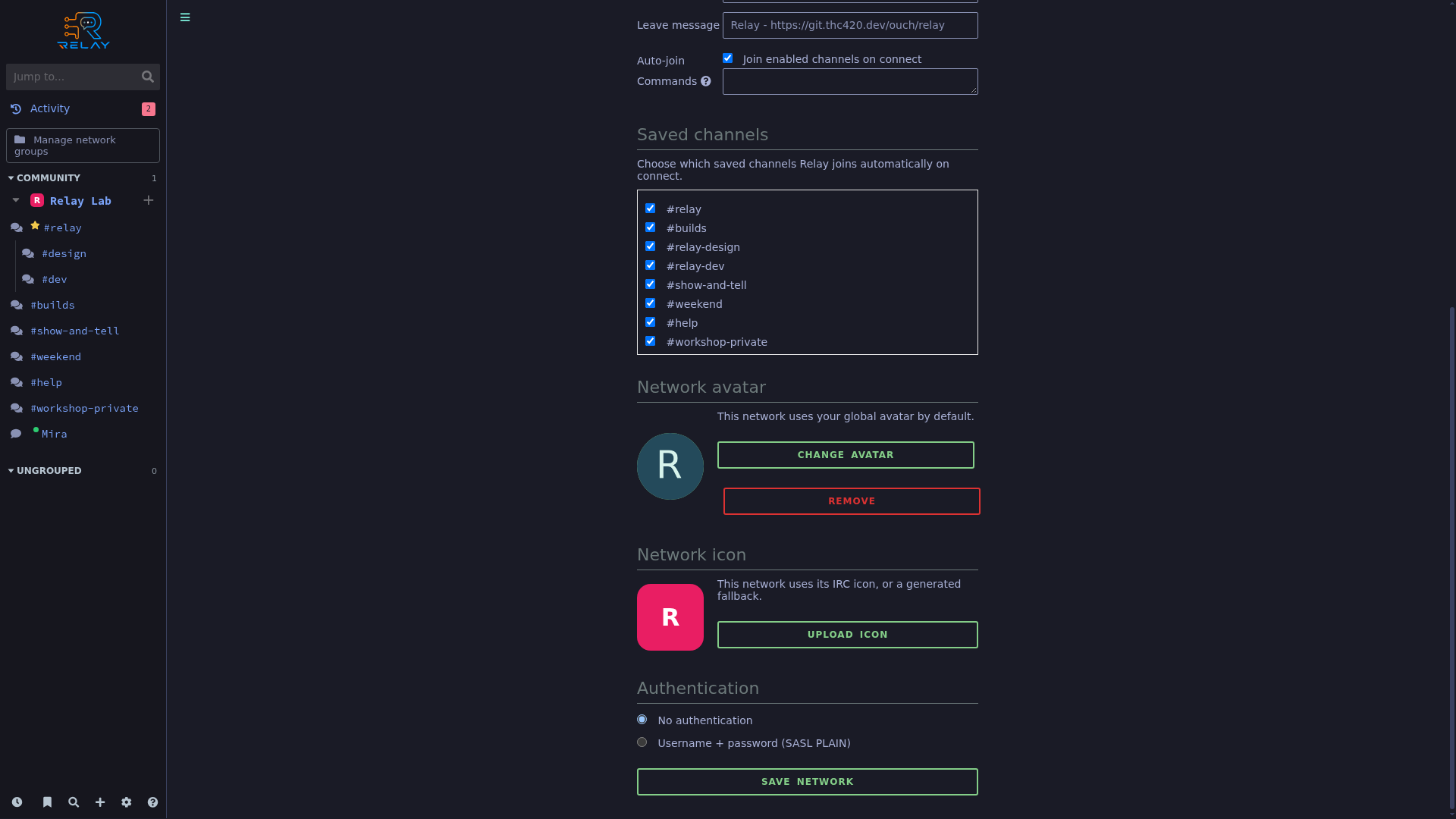
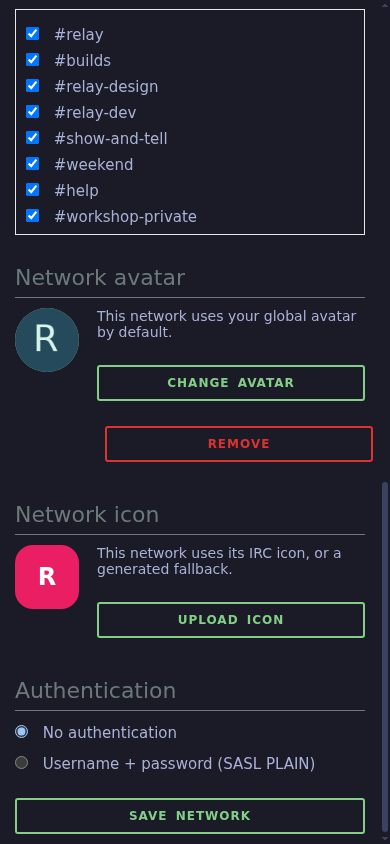
The network editor offers SASL authentication settings without exposing credentials.
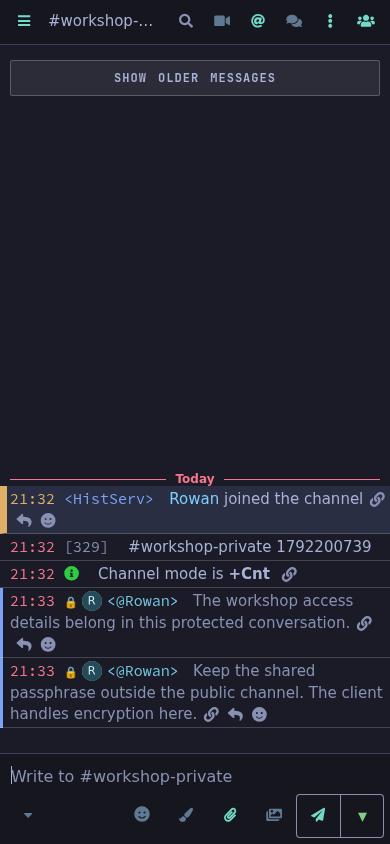
Messages in the workshop-private channel are sent with Relay’s configured IRC encryption.
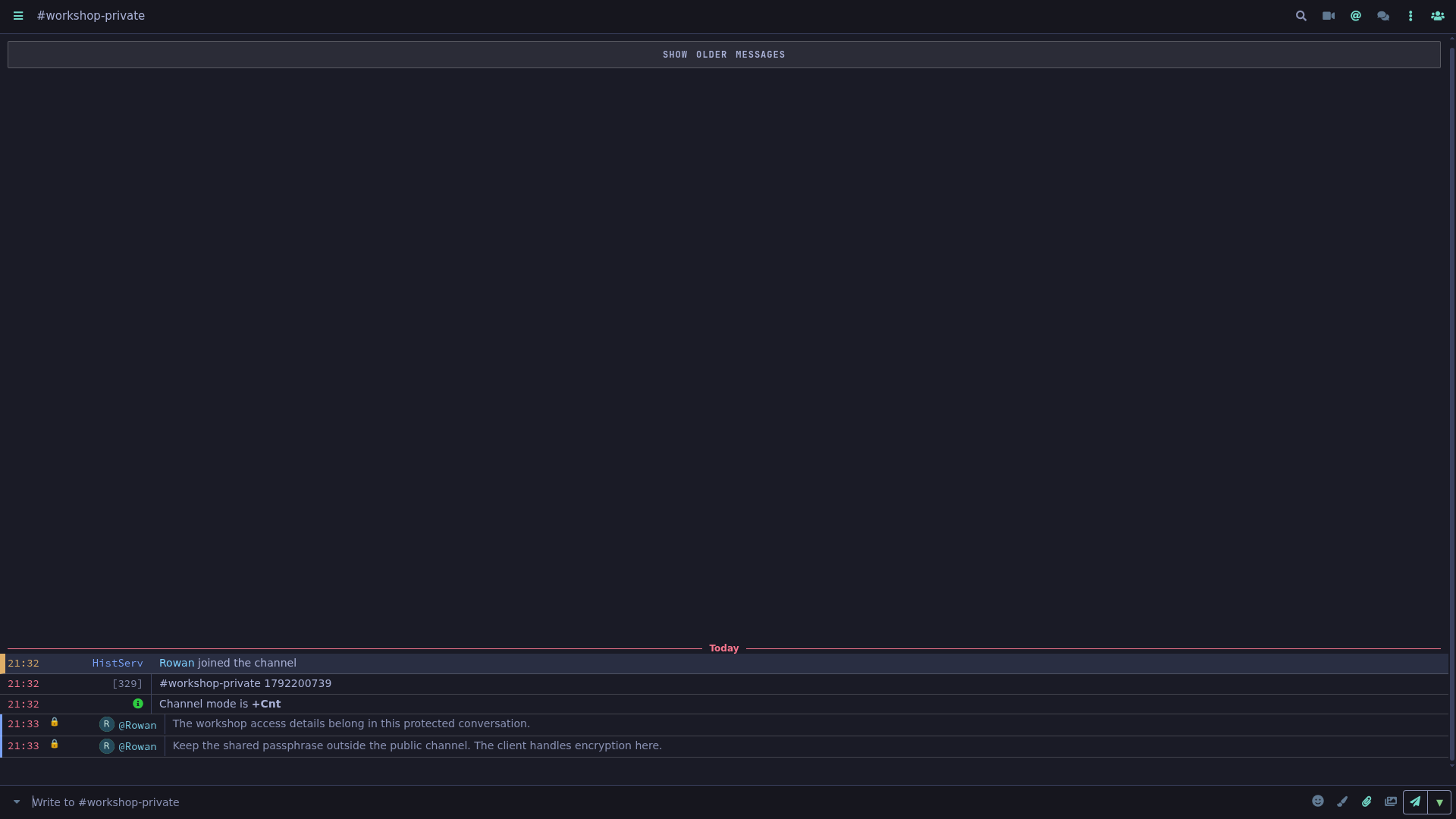
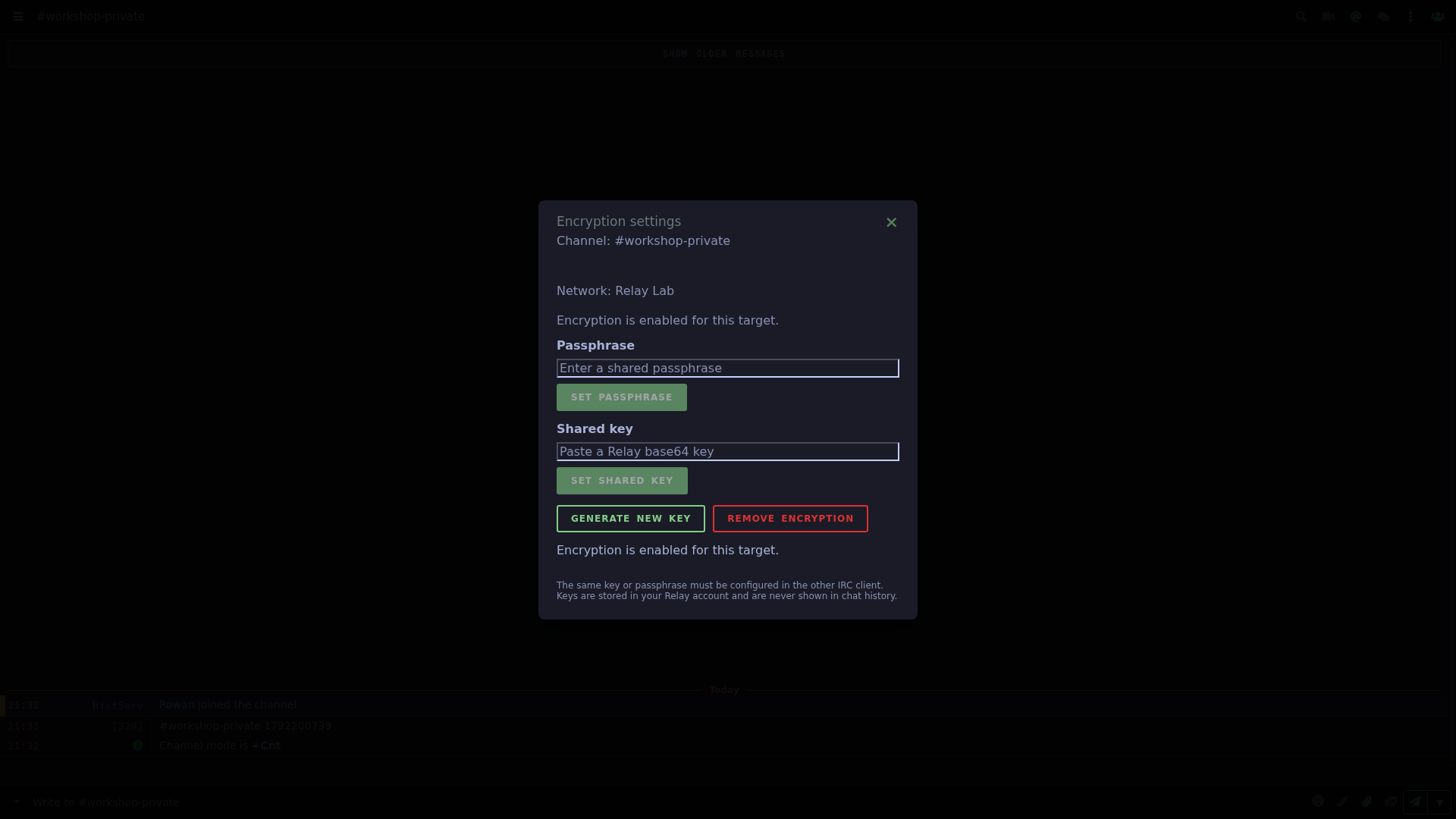
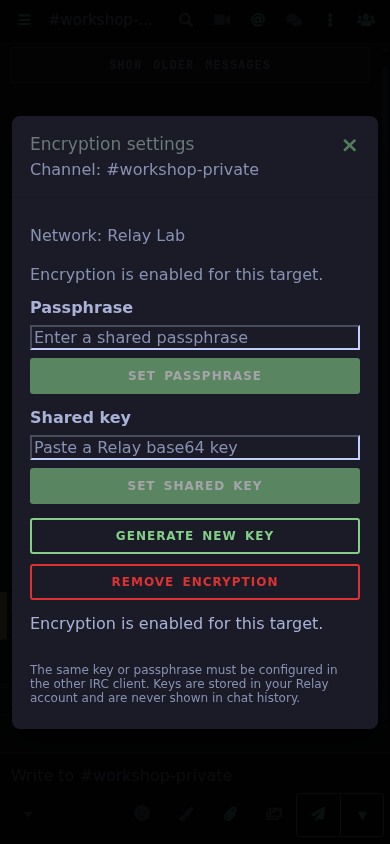
The conversation’s encryption settings report that encryption is enabled; keys and passphrases are not displayed.
Actual server controls and diagnostics; integration examples show configuration, not completed external sign-ins.
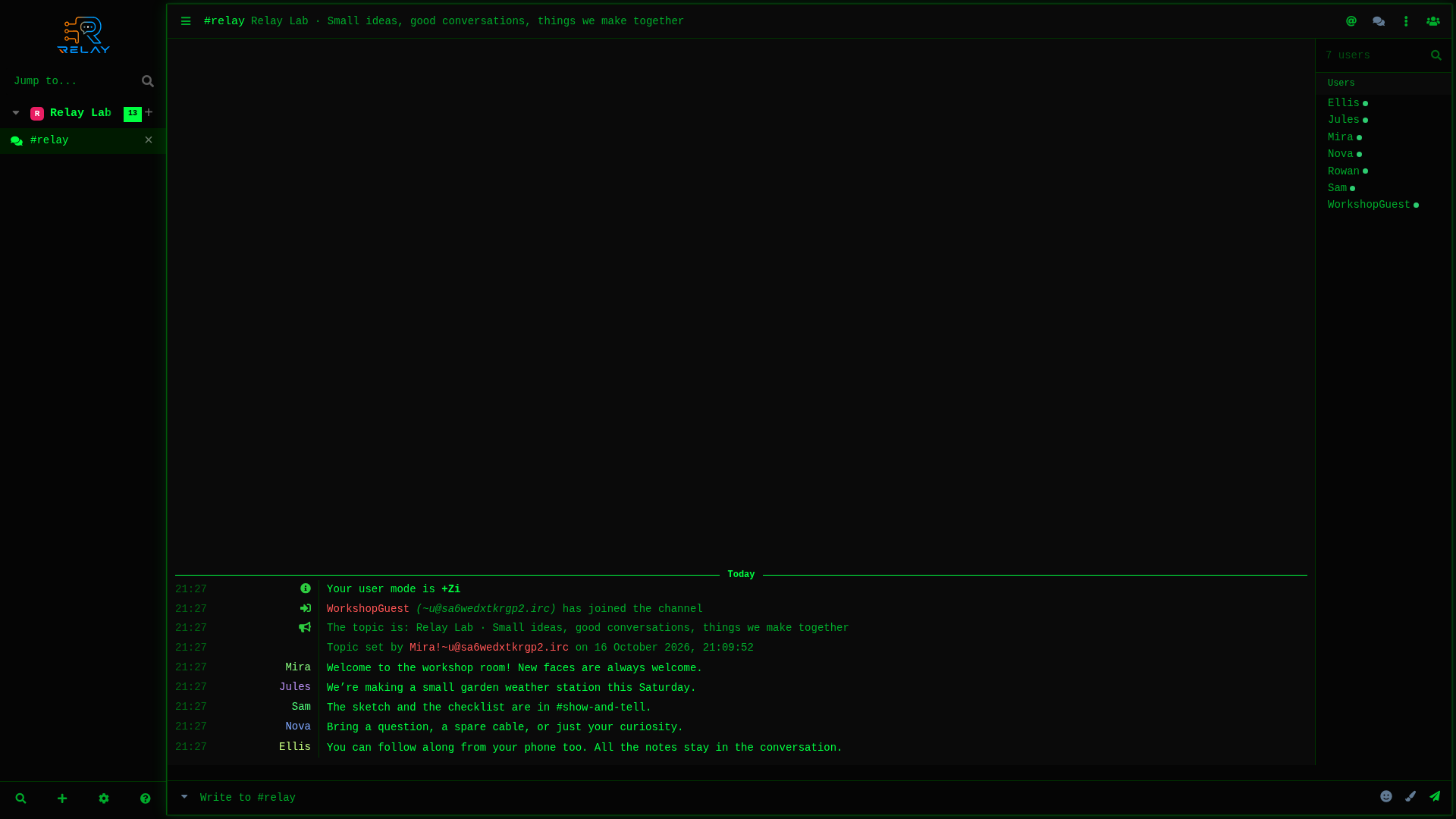
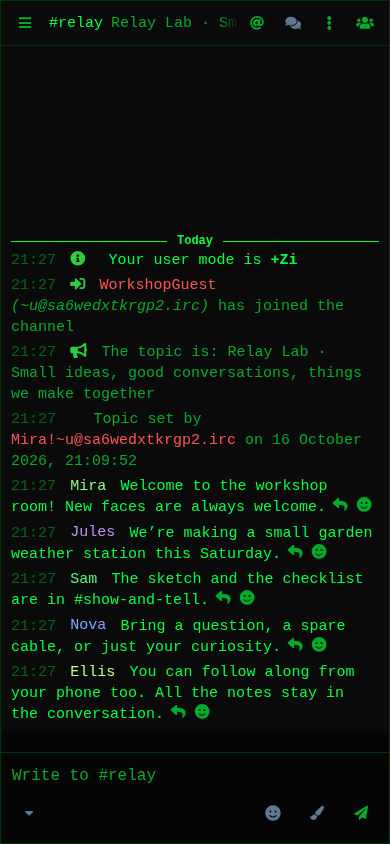
A fresh guest connection to the administrator-selected private demo network; no account sign-in is required.
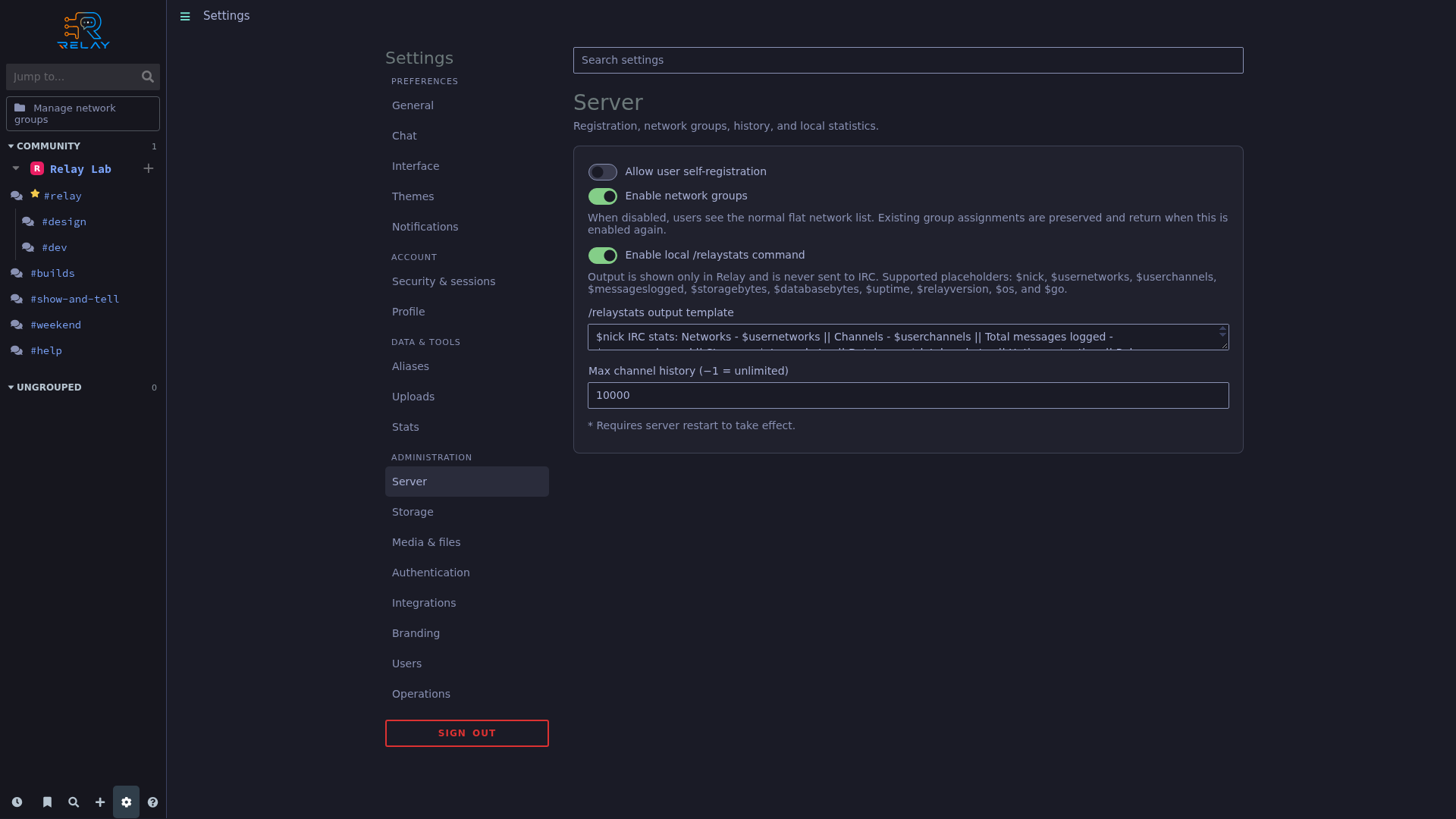
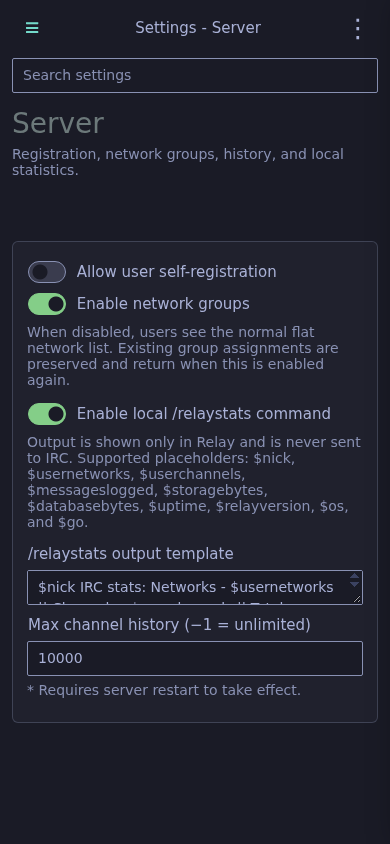
The server workspace controls account registration, network groups, statistics, and history.
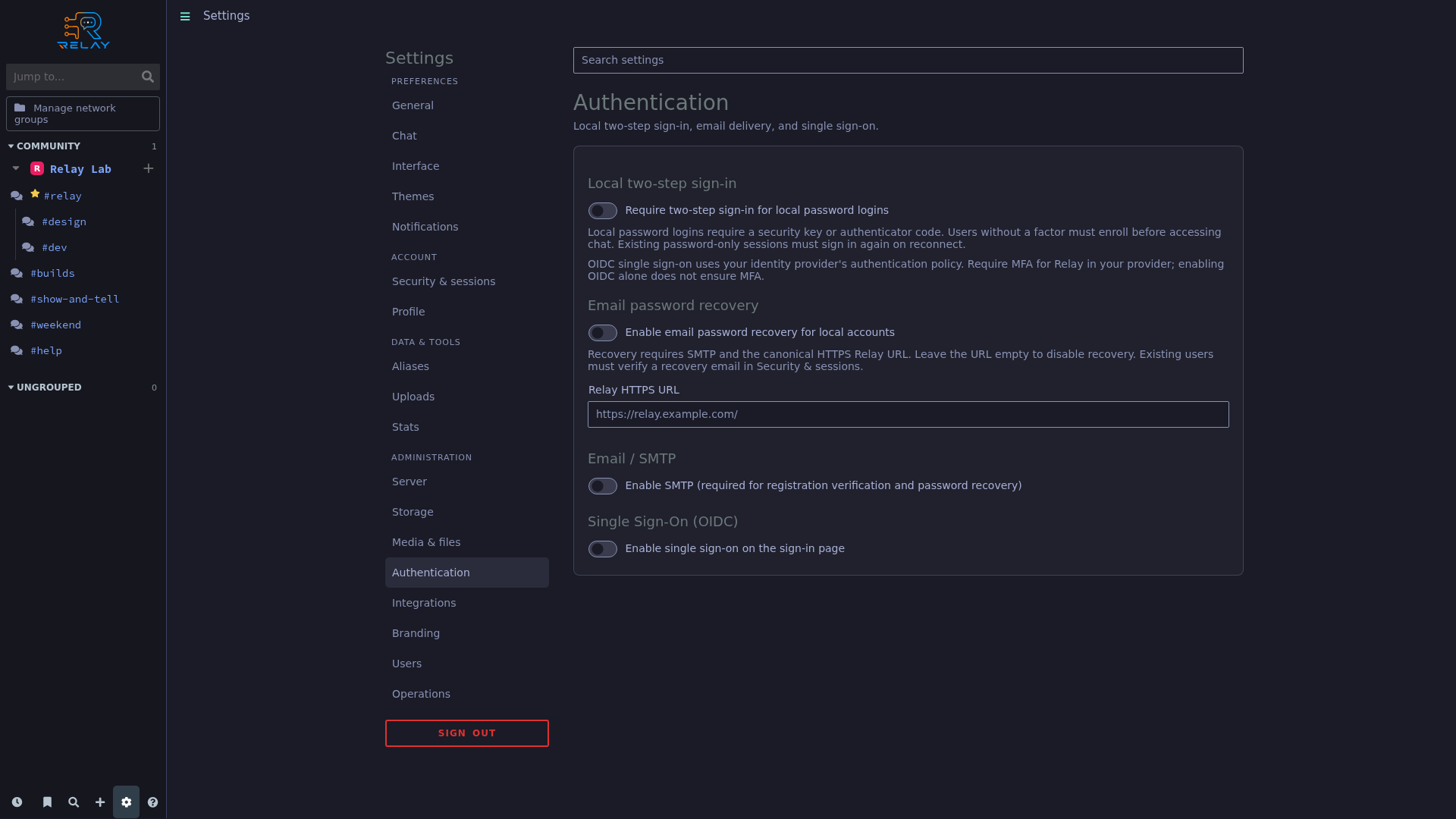
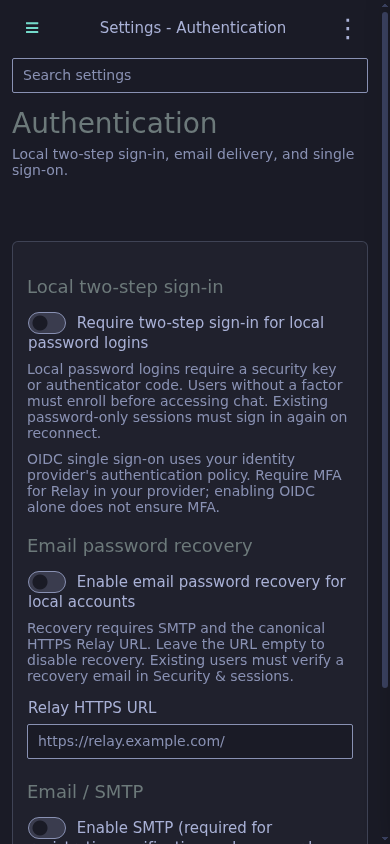
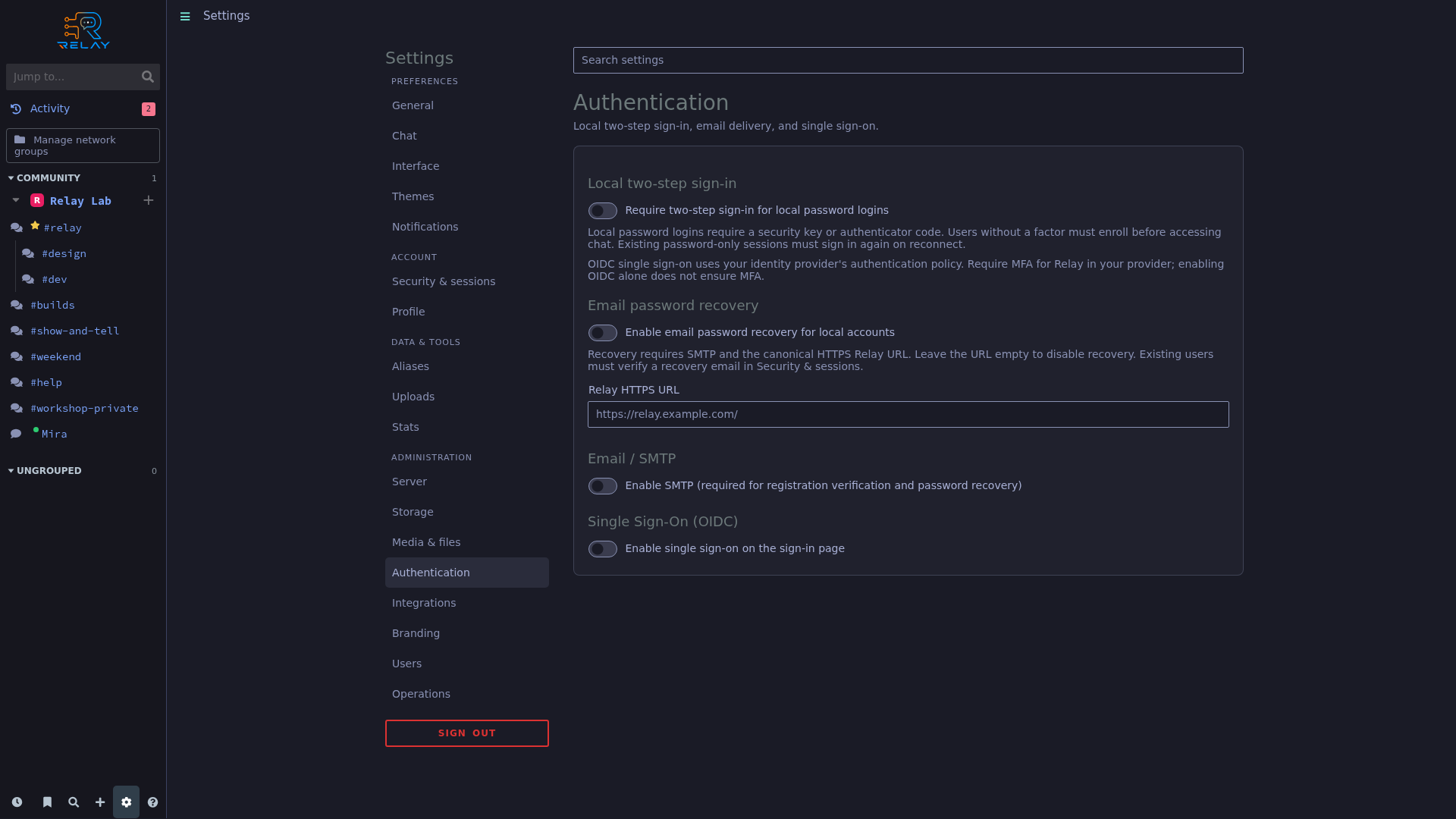
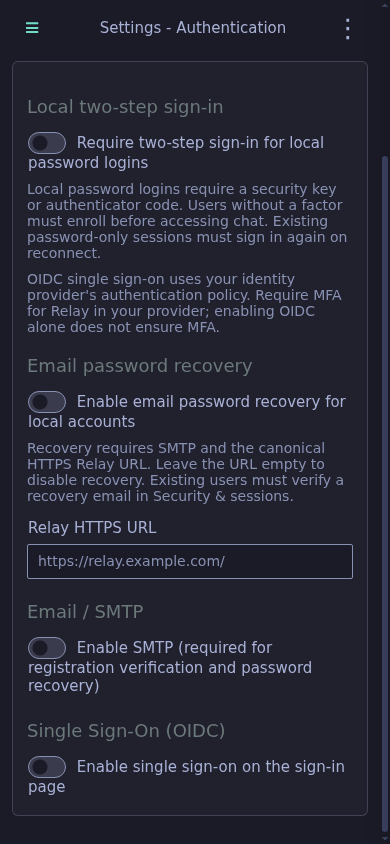
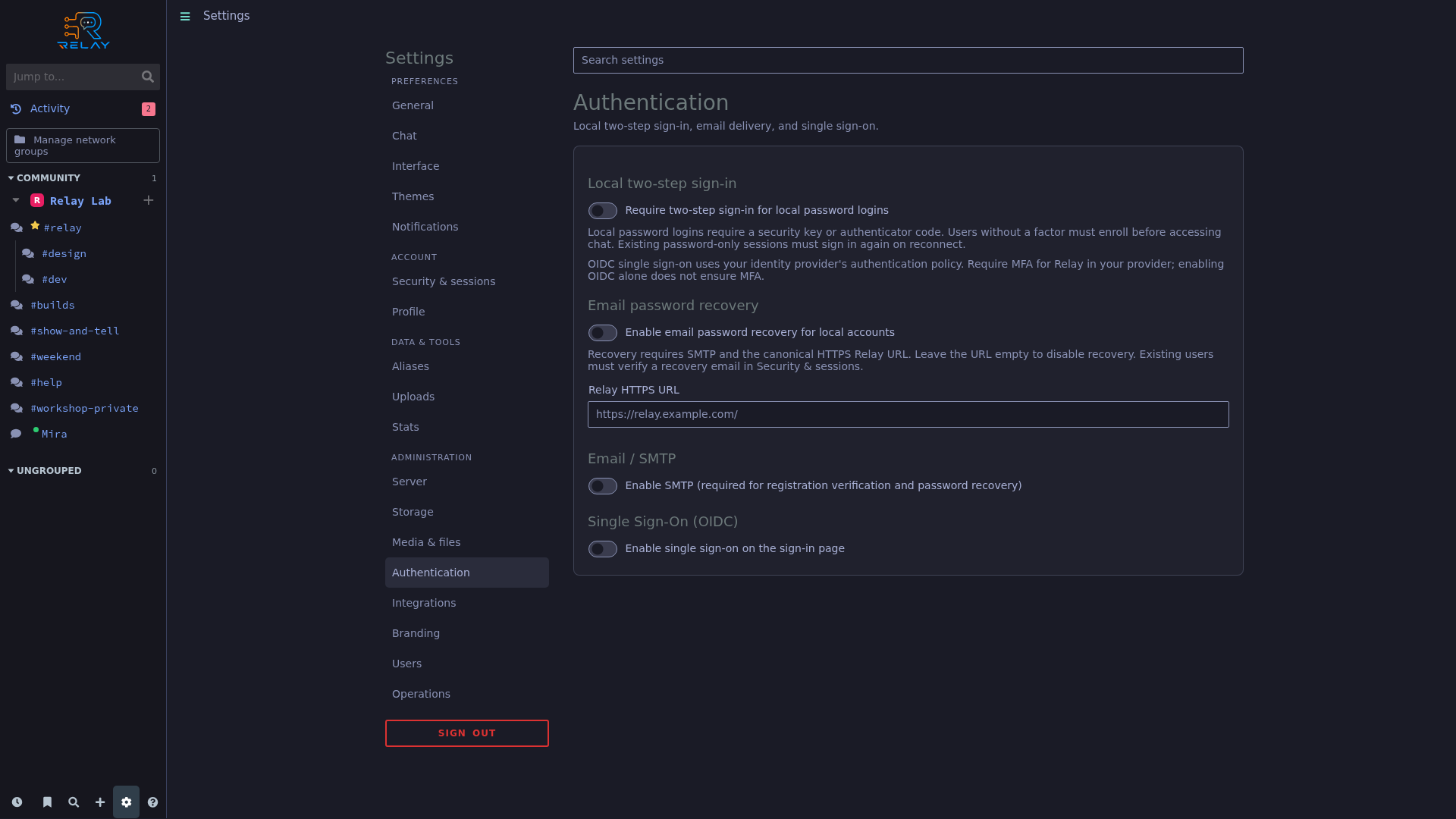
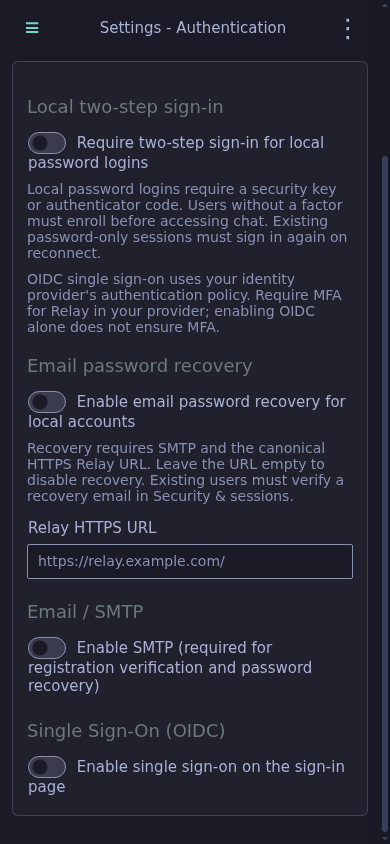
Administration controls local two-step sign-in, optional recovery, and provider authentication.
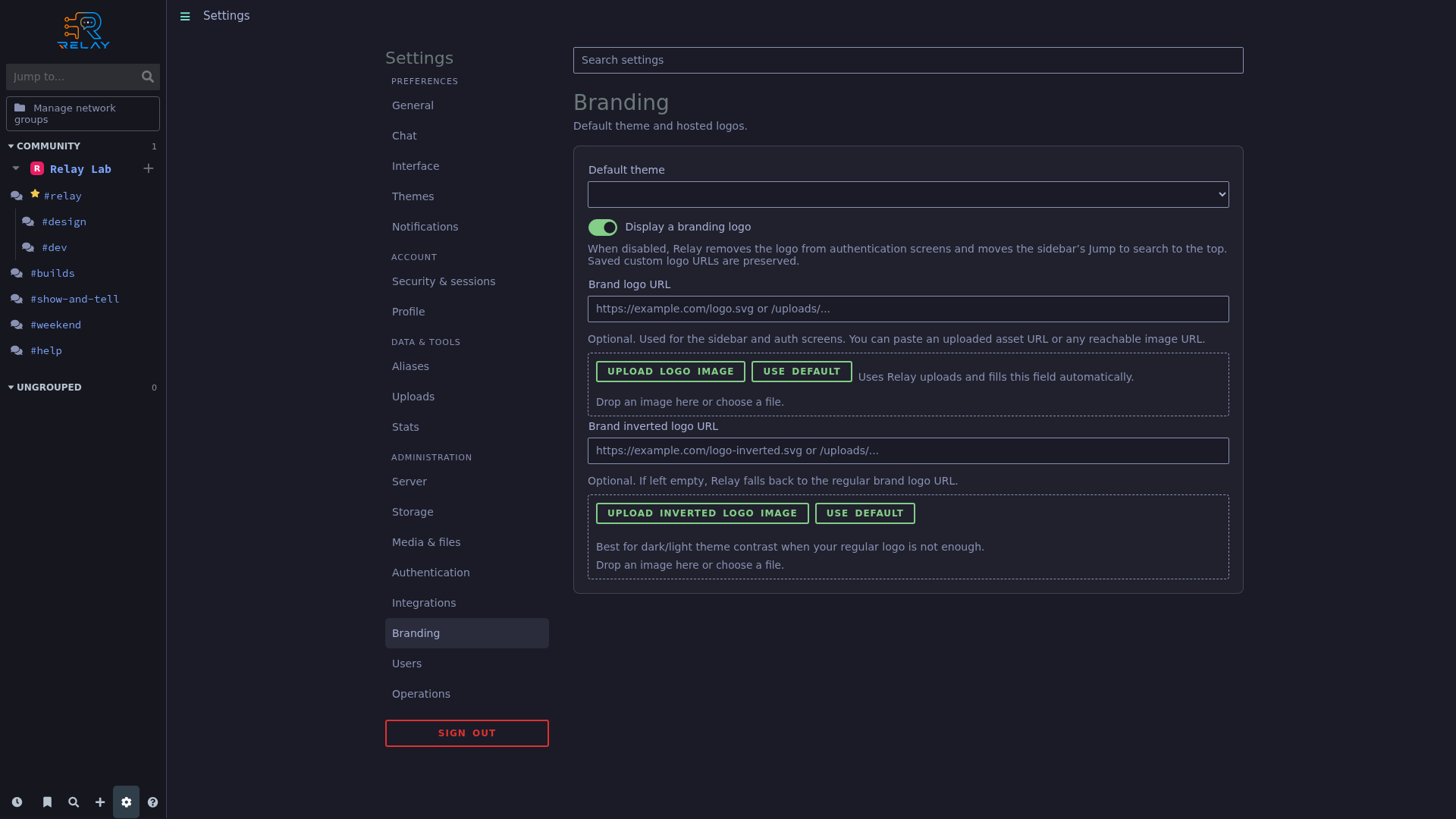
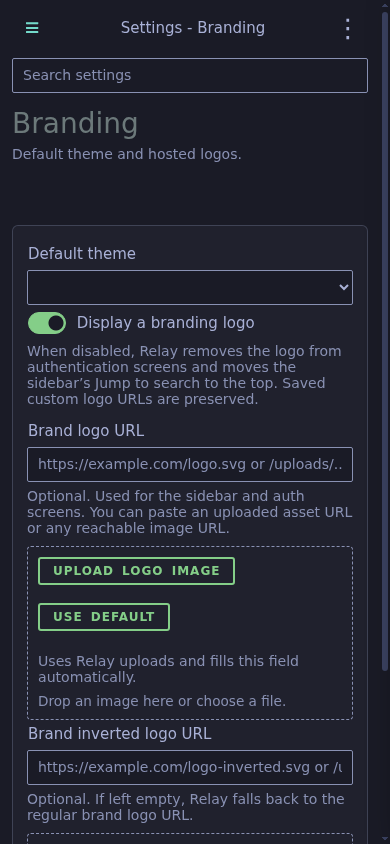
Choose the default theme and official branding behavior.
Configuration controls for email recovery are shown; no email delivery or recovery round trip is demonstrated.
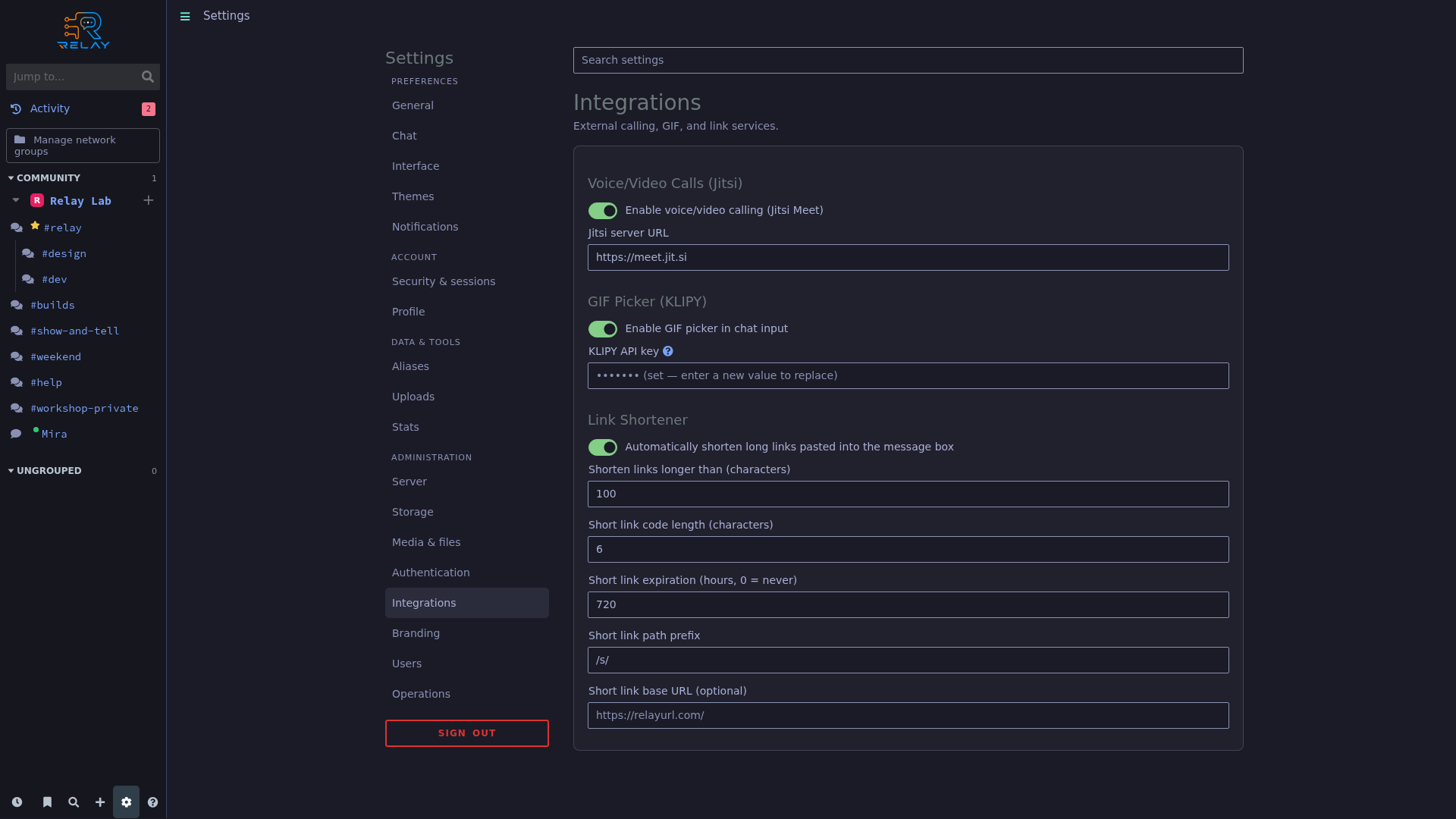
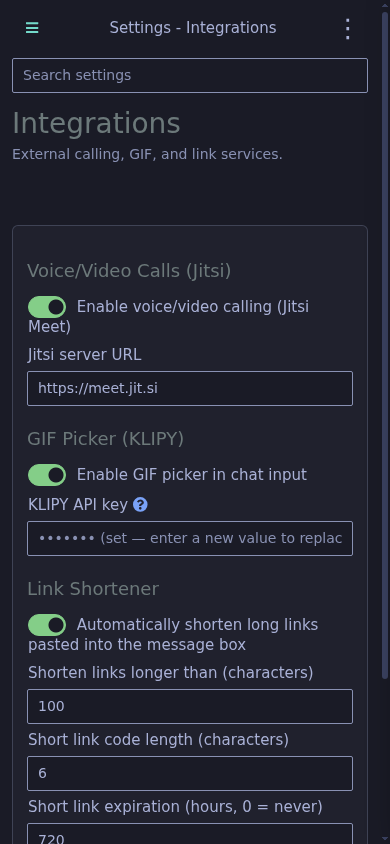
Administration exposes Jitsi, KLIPY, and link-shortening controls; the API key stays server-side.
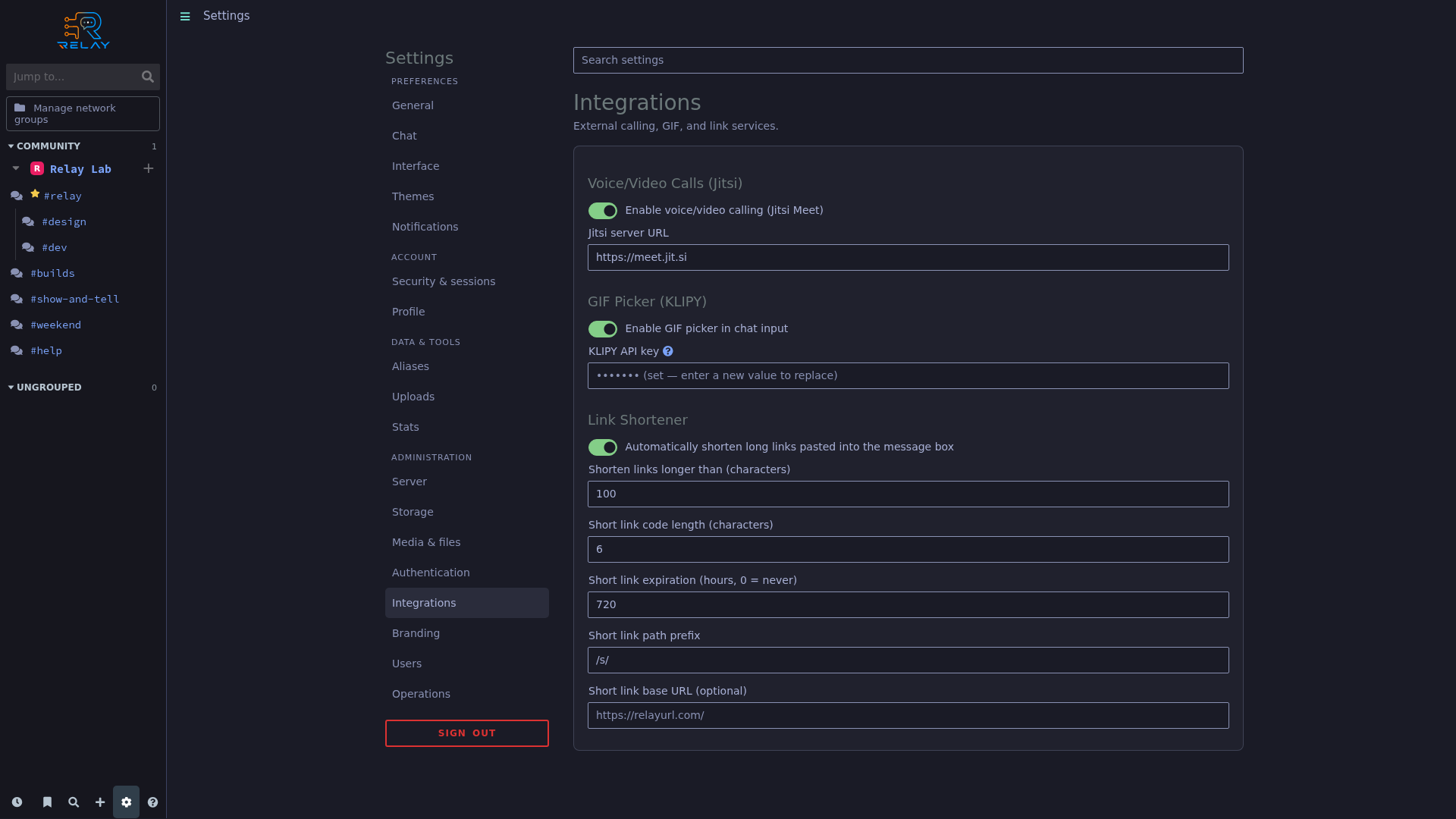
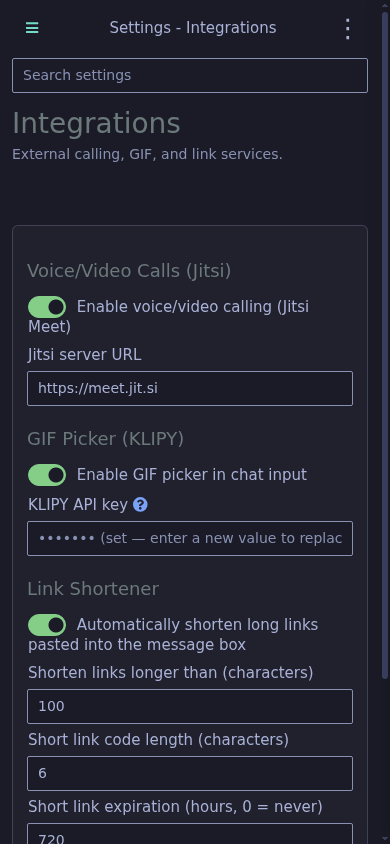
The integration page controls shortened-link length, paths, and expiry.
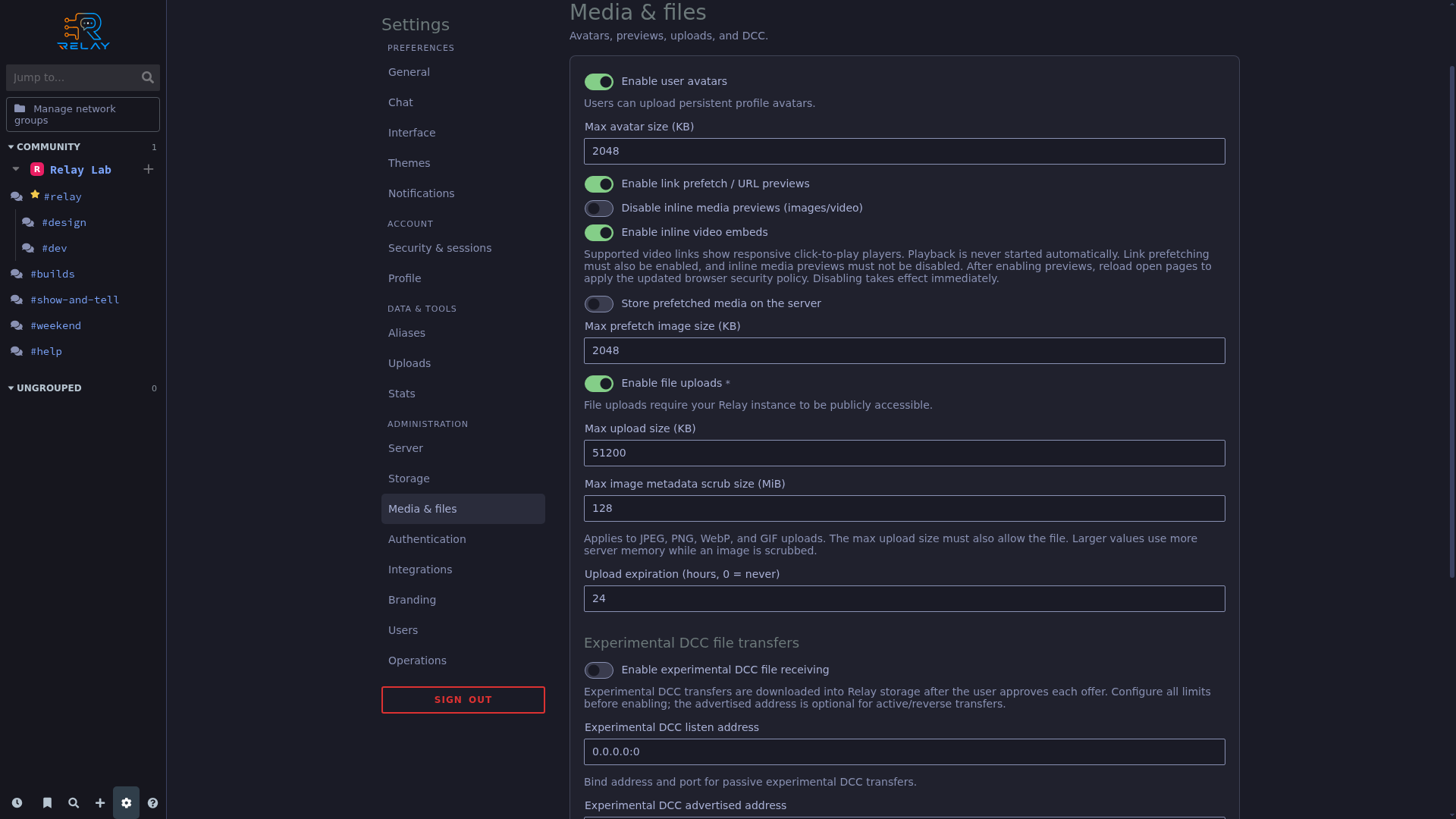
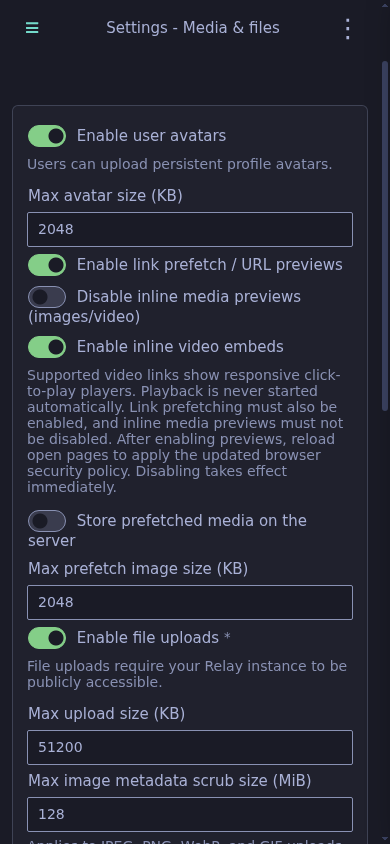
Administration controls media previews, uploads, and their limits.
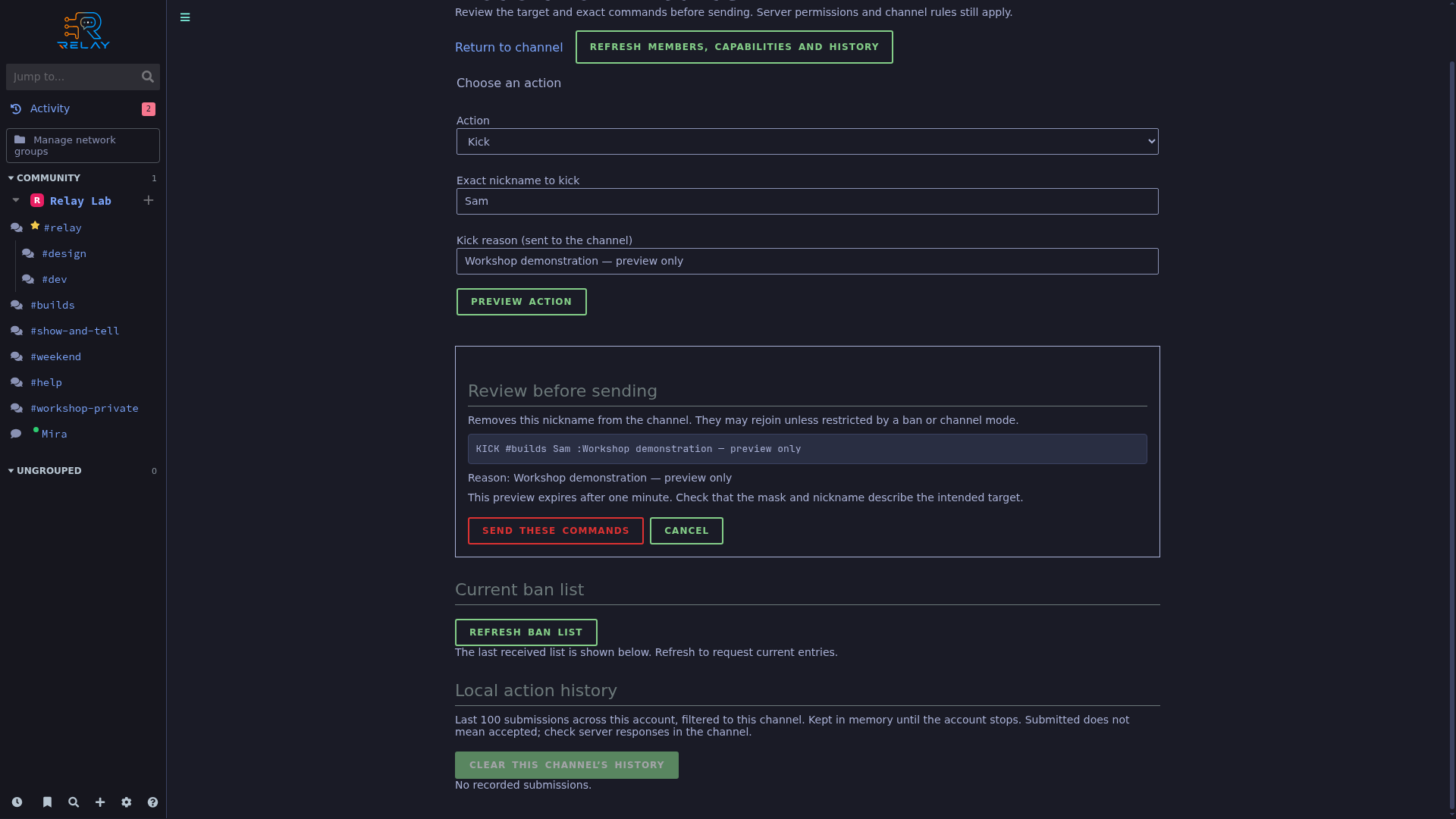
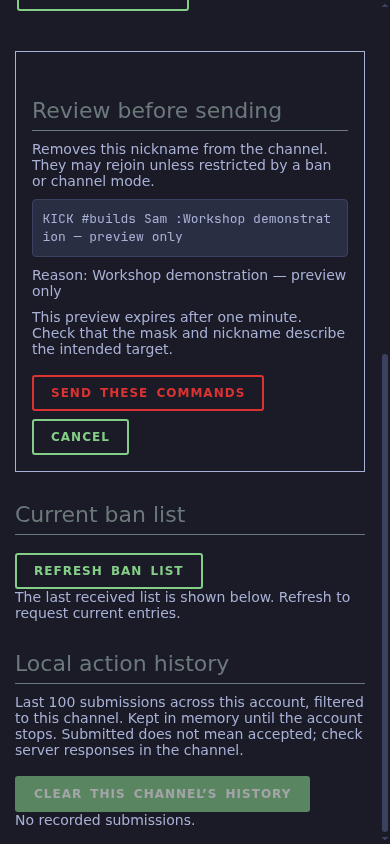
A real kick-command preview is displayed for the fictional workshop participant; no command is submitted.
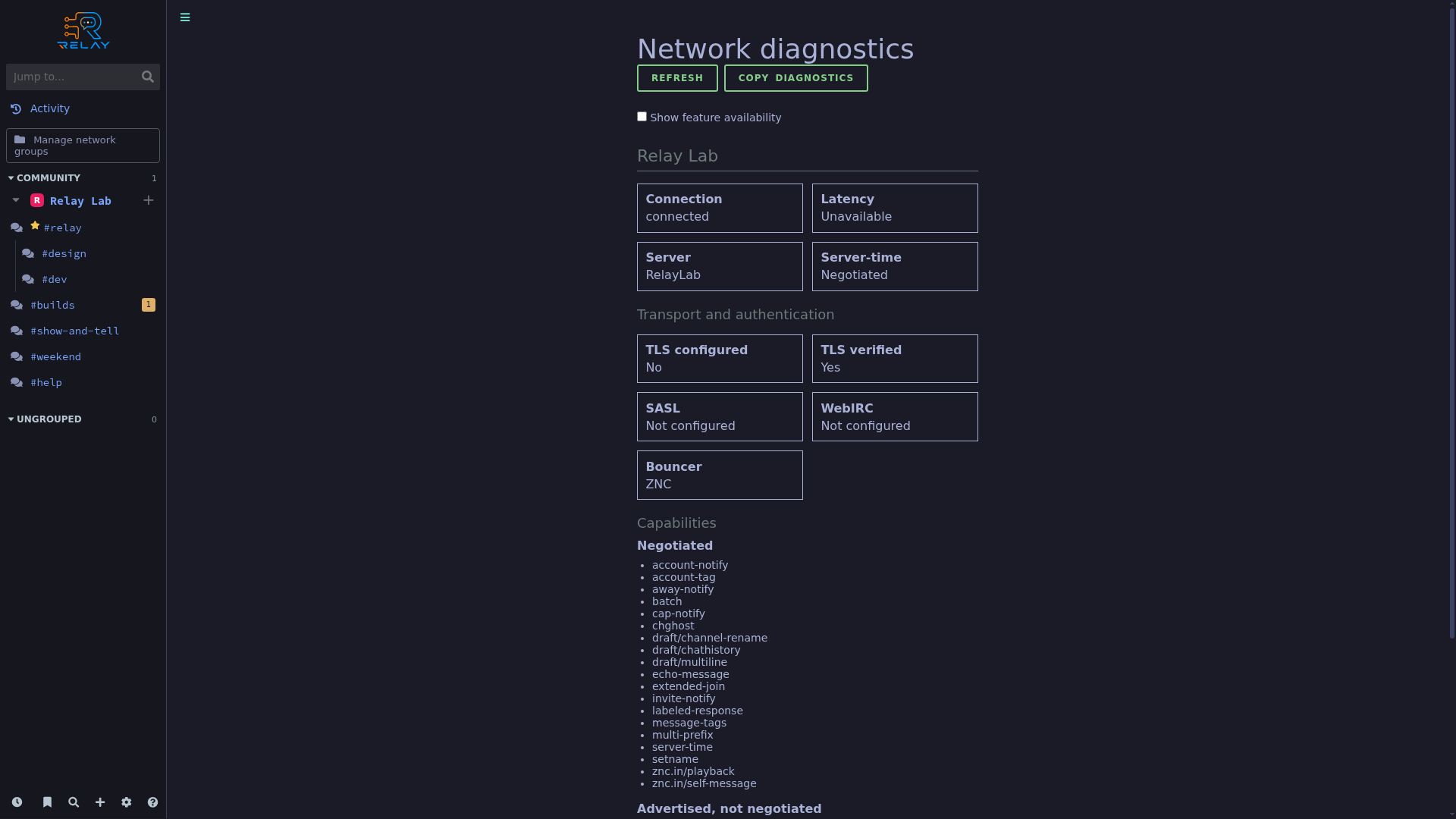
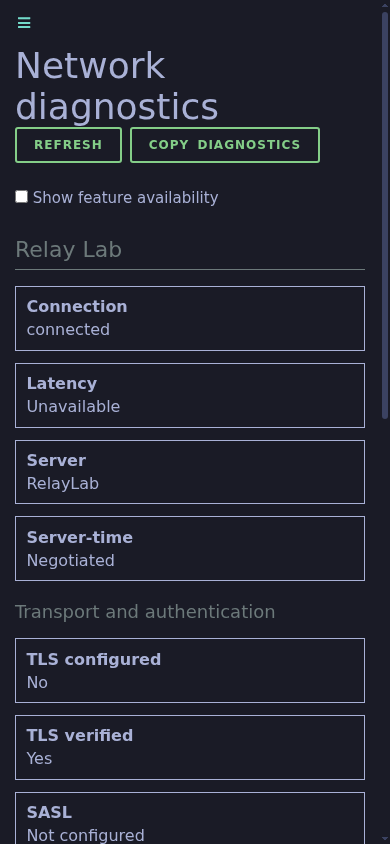
Live diagnostics report connection state, capabilities, and transport and authentication information.
The OIDC configuration control is shown; no external identity-provider sign-in is demonstrated.
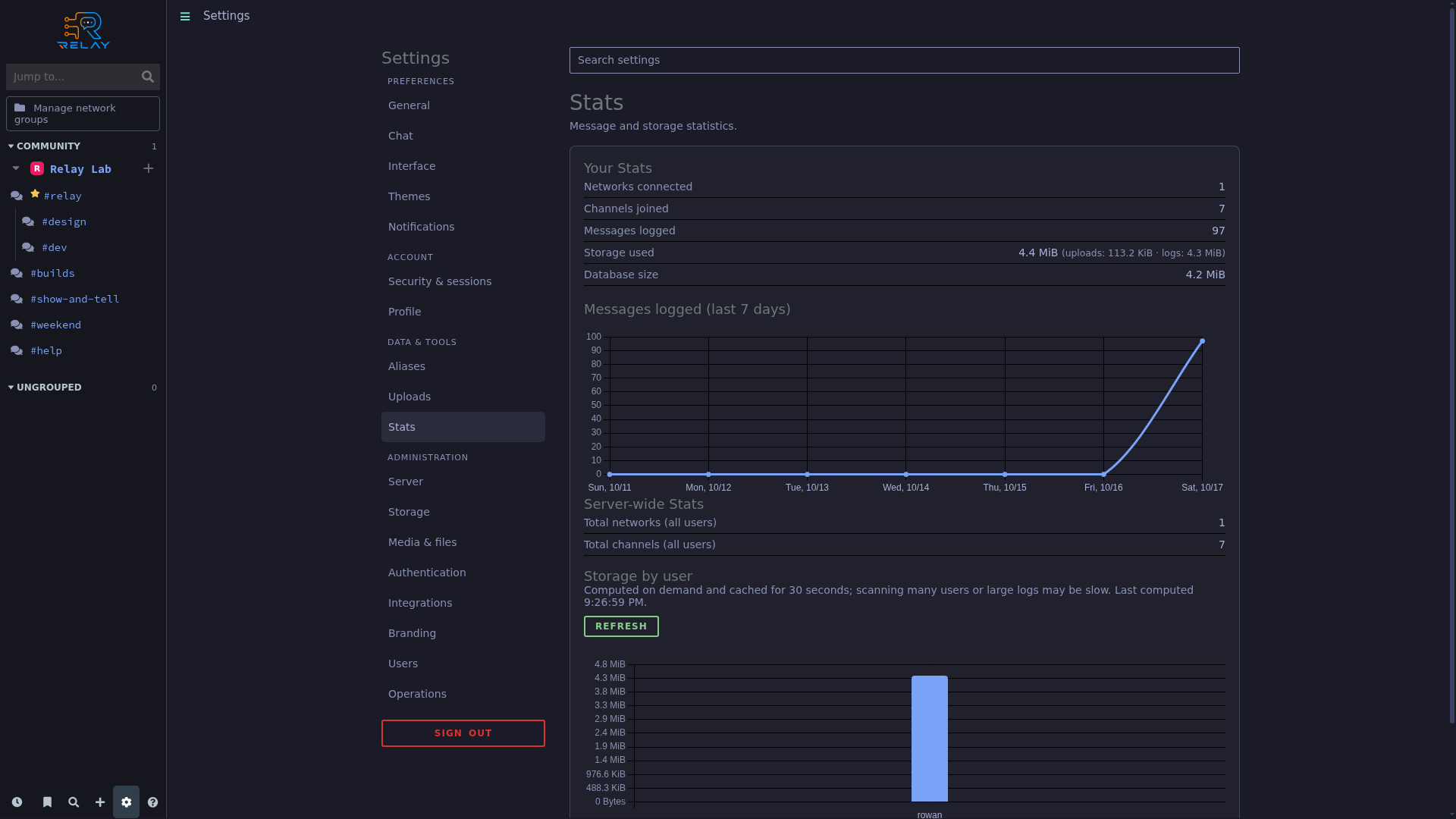
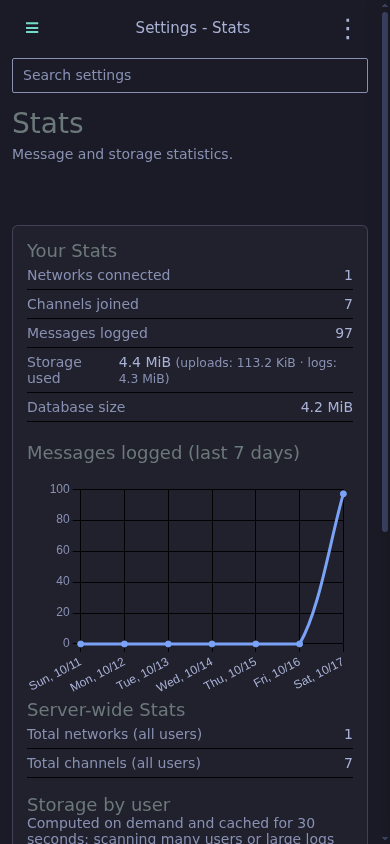
Statistics come from the actual self-hosted Go instance and its demo account.
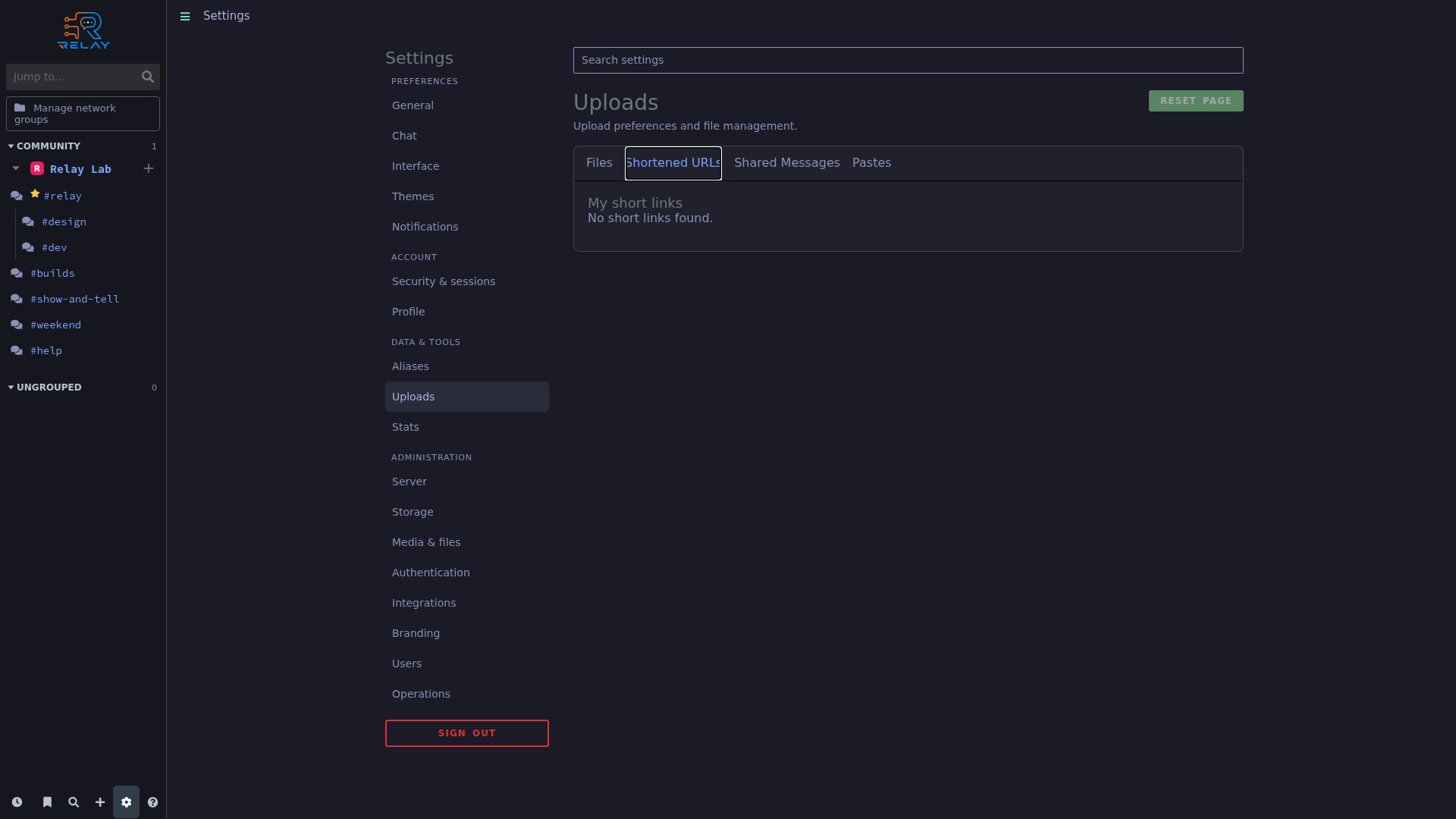
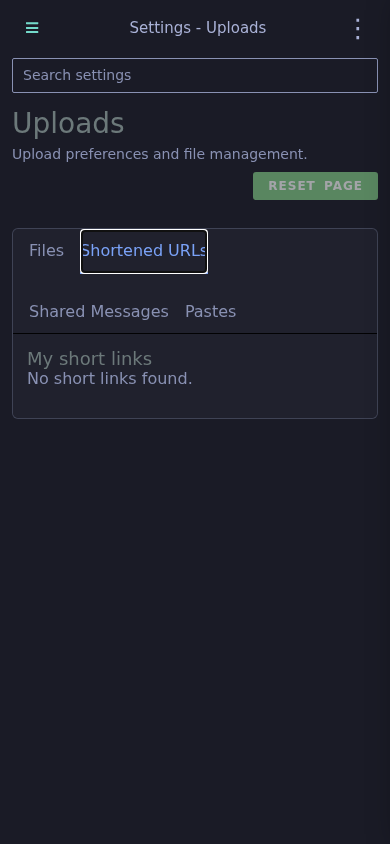
The short-link management workspace lists stored shortened URLs when available.
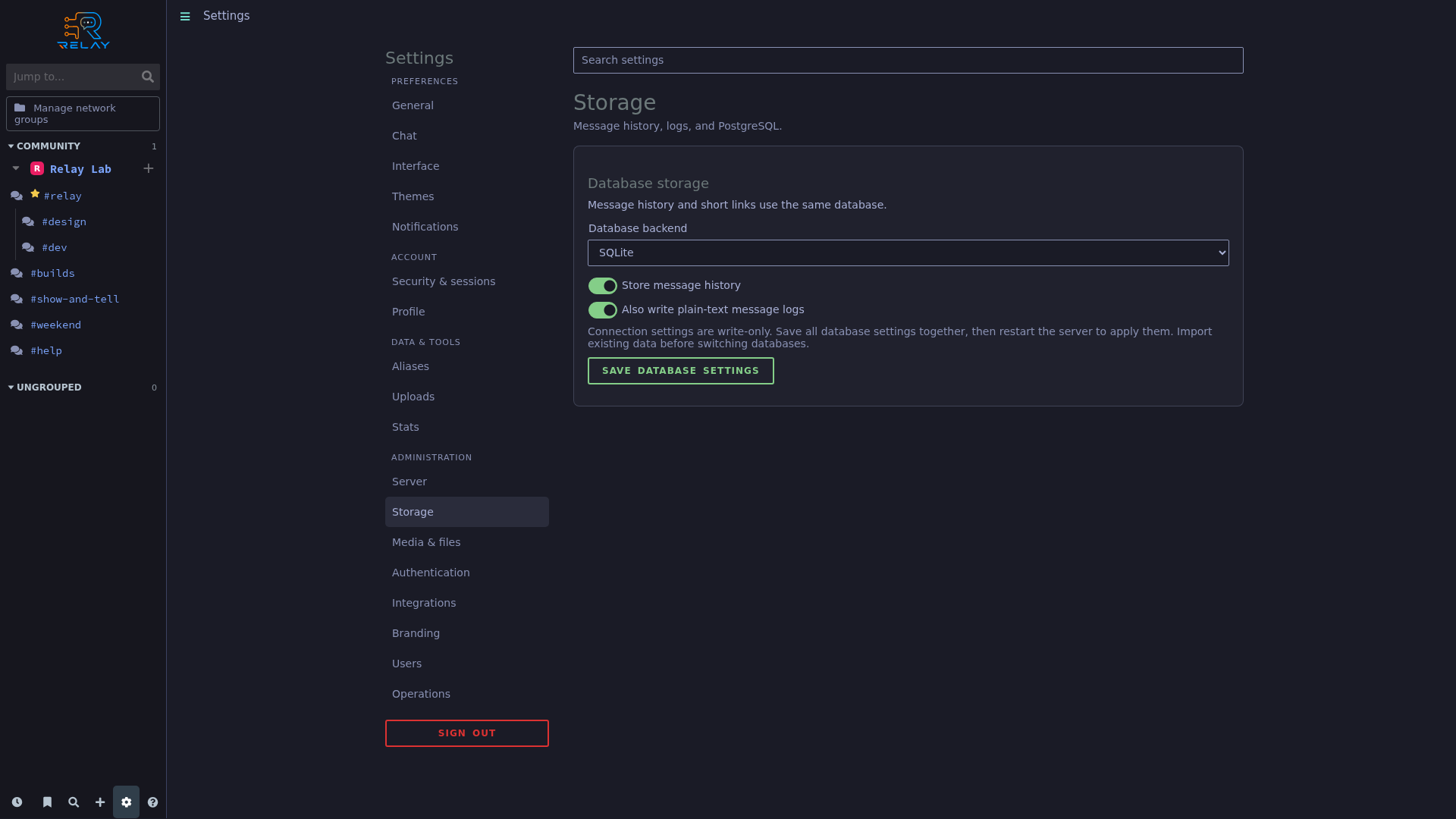
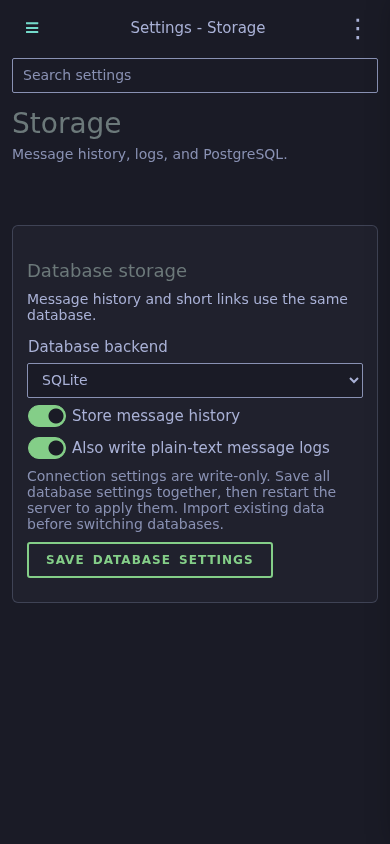
The running demo uses SQLite; the administration page controls database history and text logs.
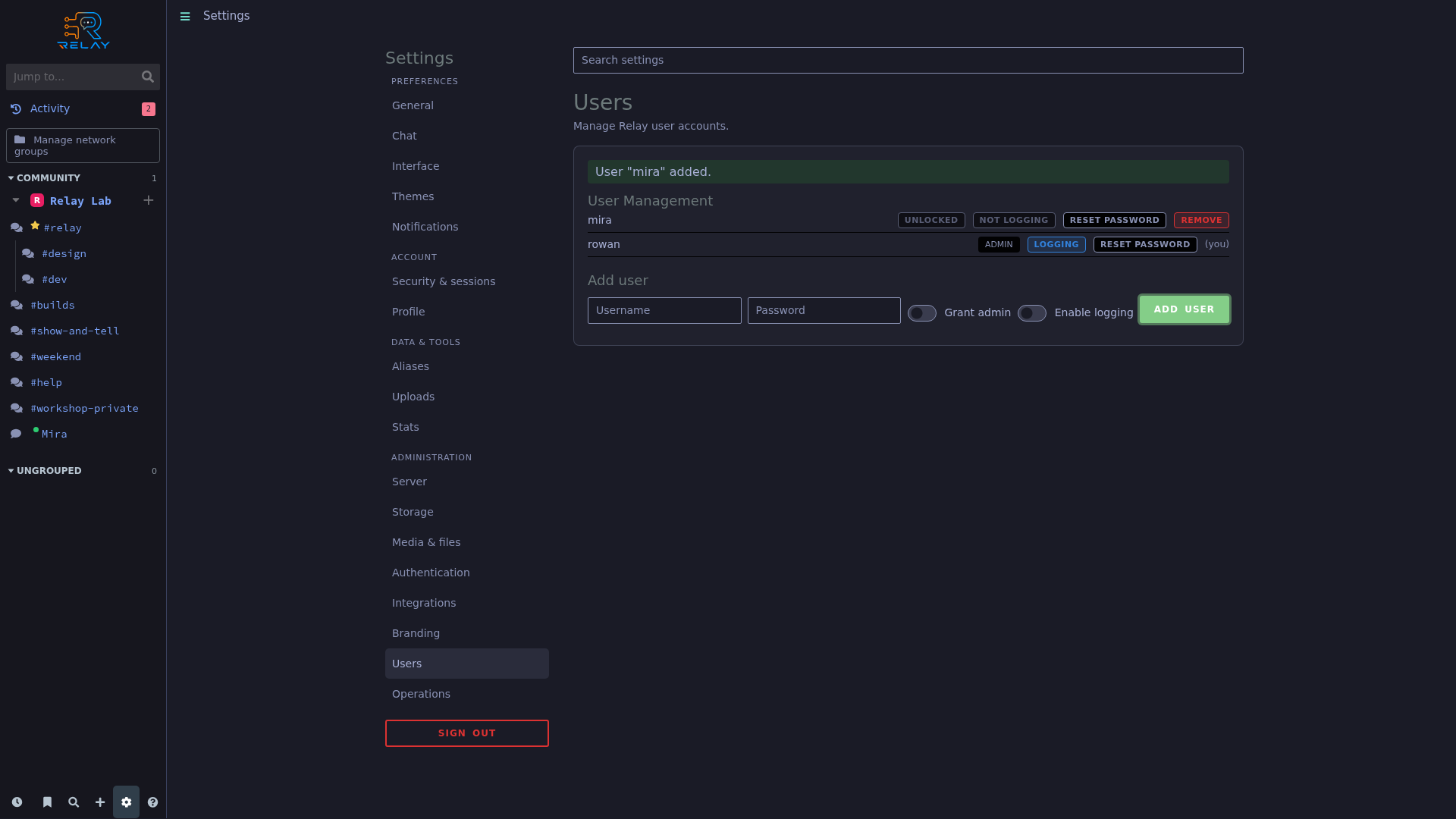
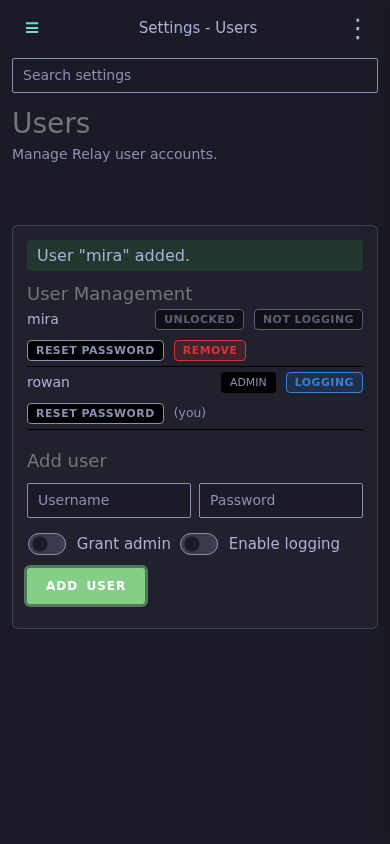
The actual demo account list includes administrator Rowan and the newly created Mira account.
The same standard message layout in bundled and catalog themes.
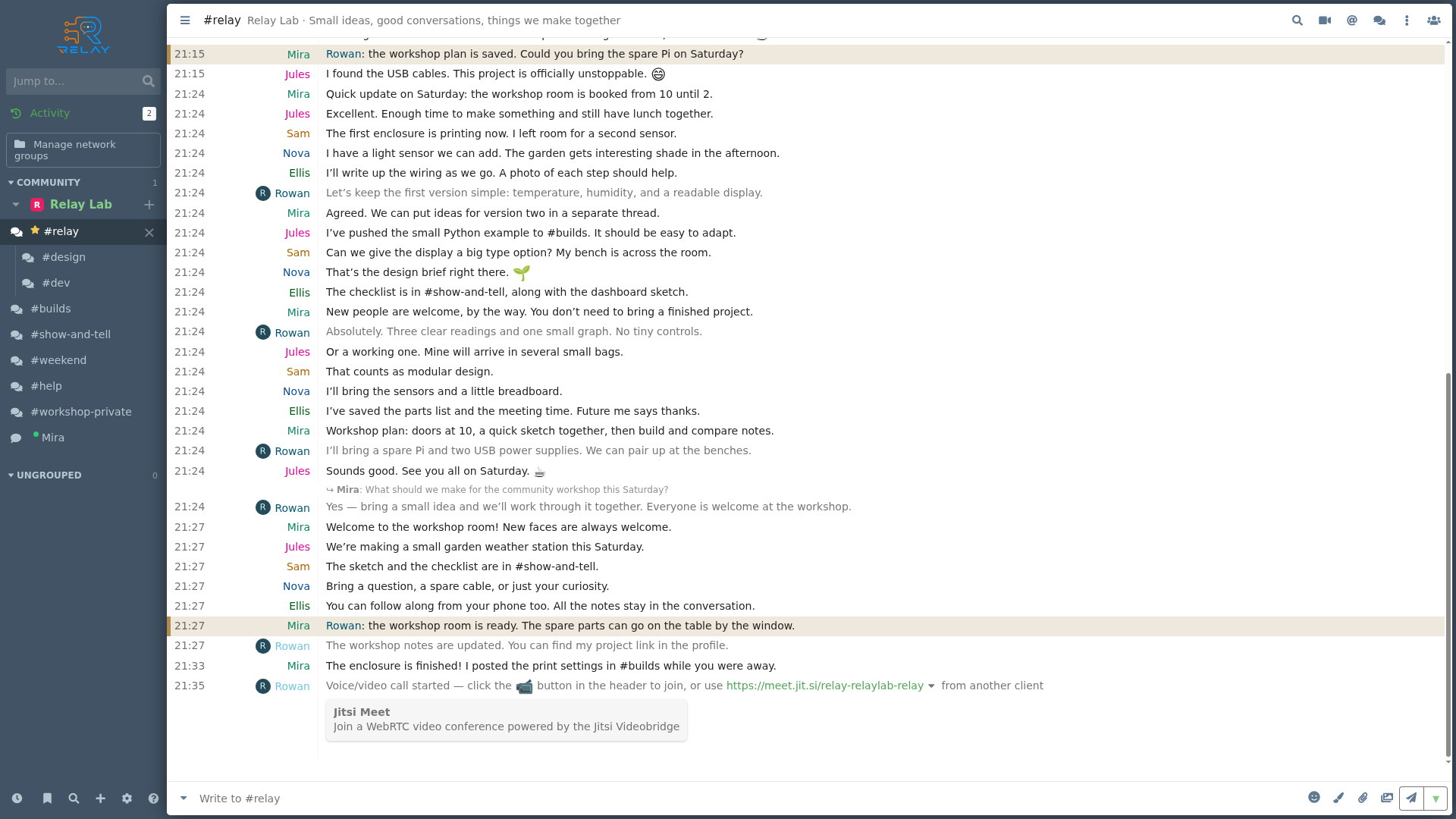
The workshop conversation in the Default theme, using standard message rows.
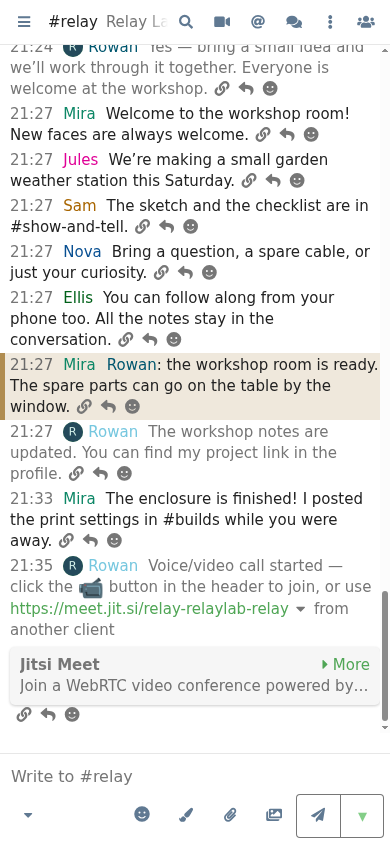
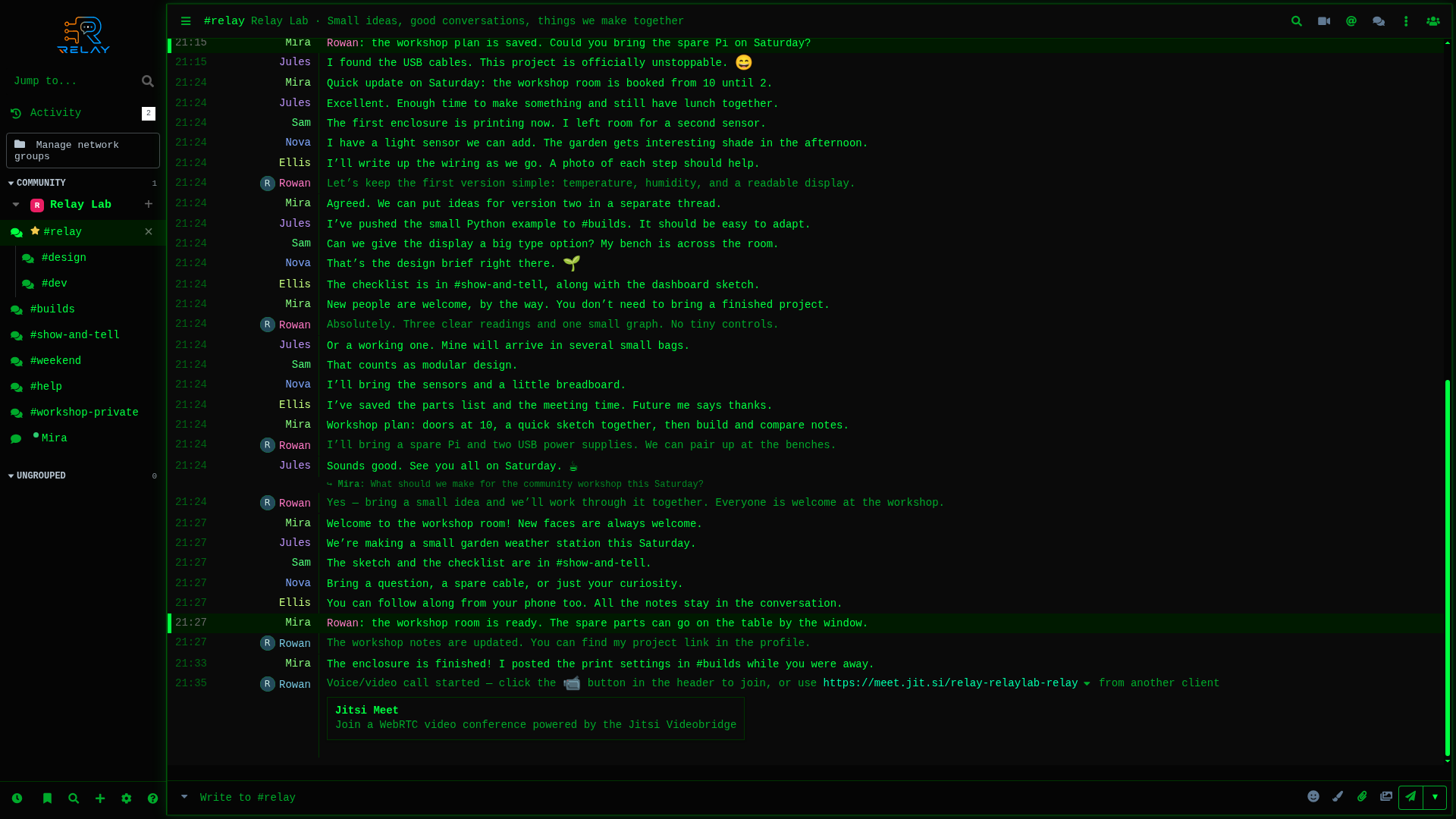
The workshop conversation in the Terminal theme, using standard message rows.
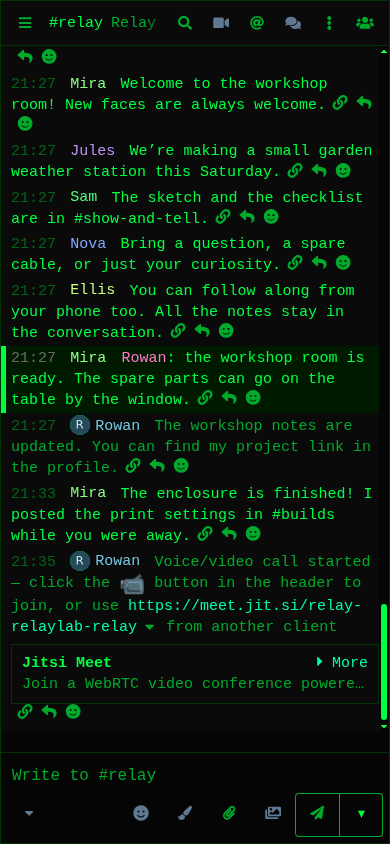
The workshop conversation in the Tux theme, using standard message rows.
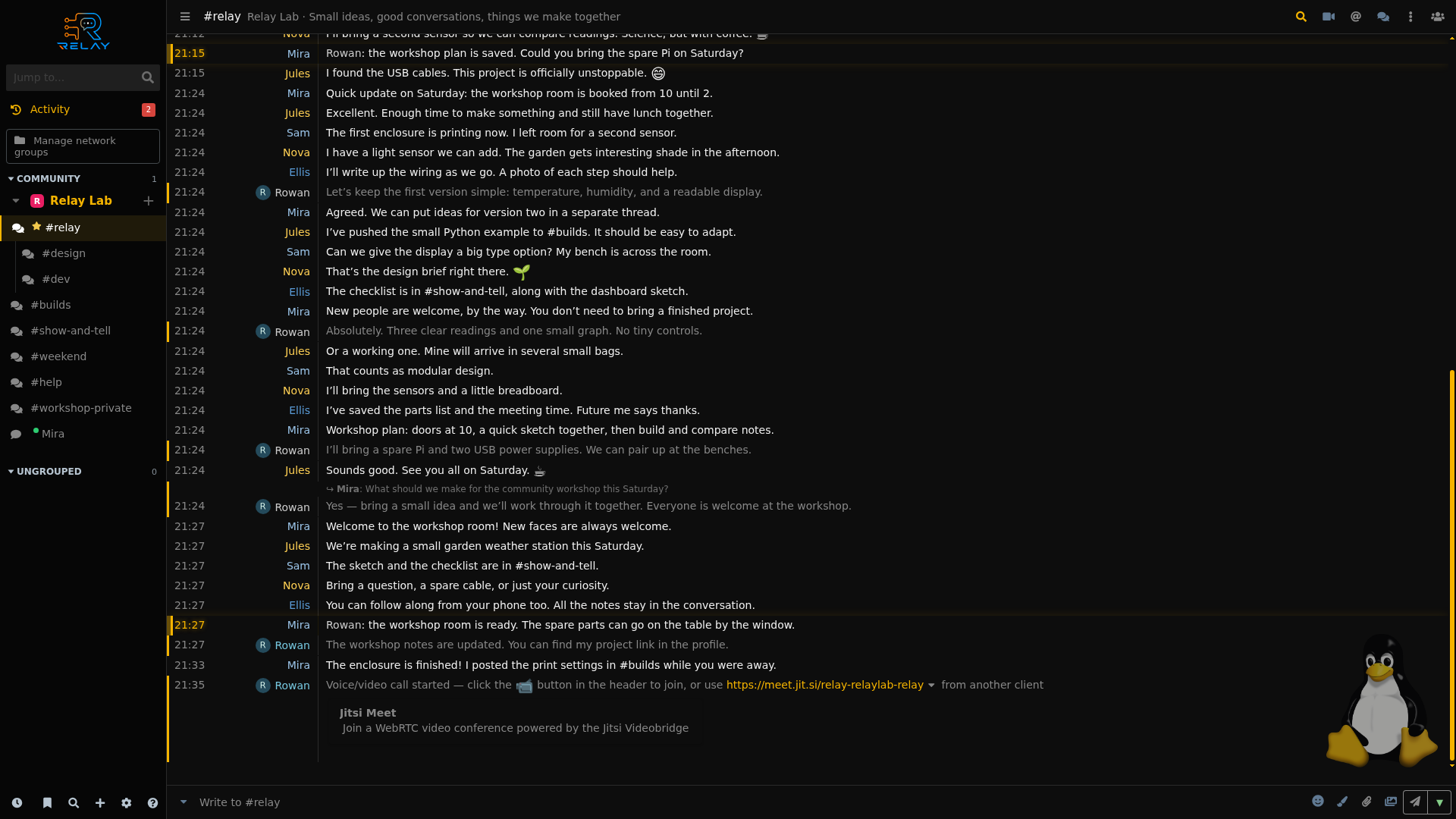
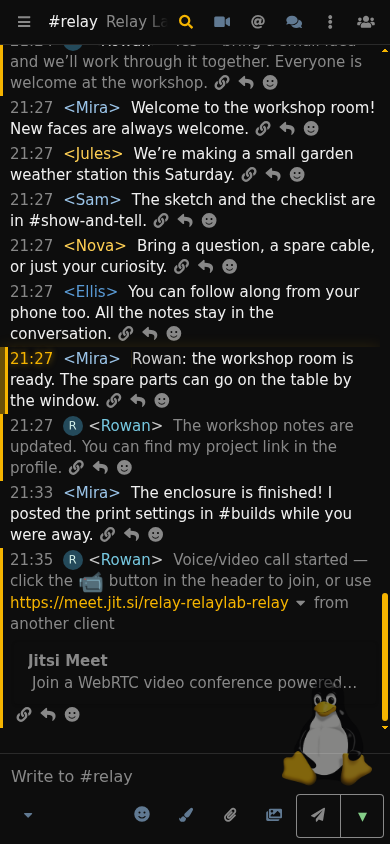
The workshop conversation in the Ion theme, using standard message rows.
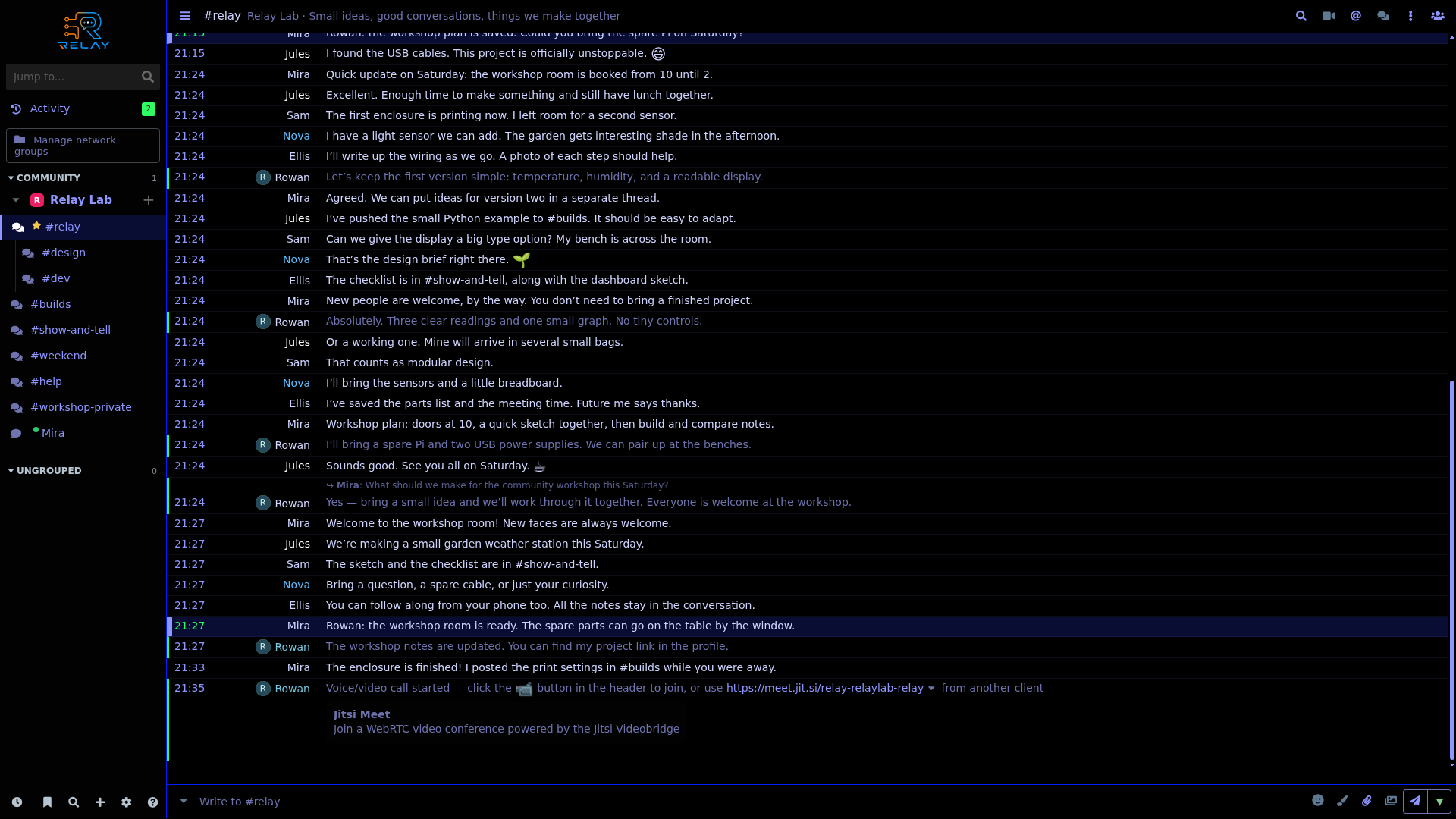
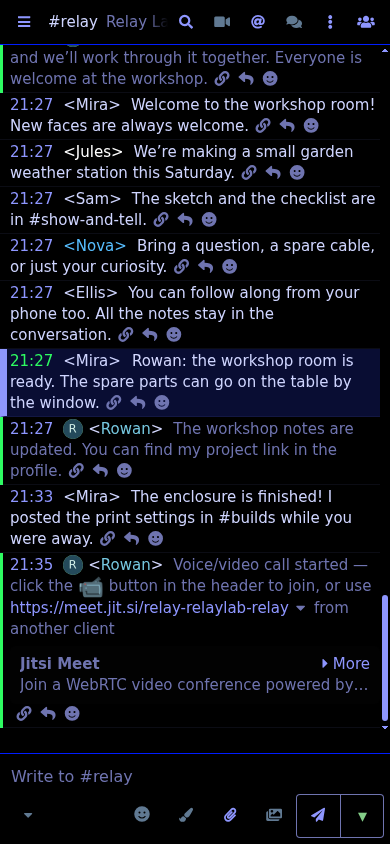
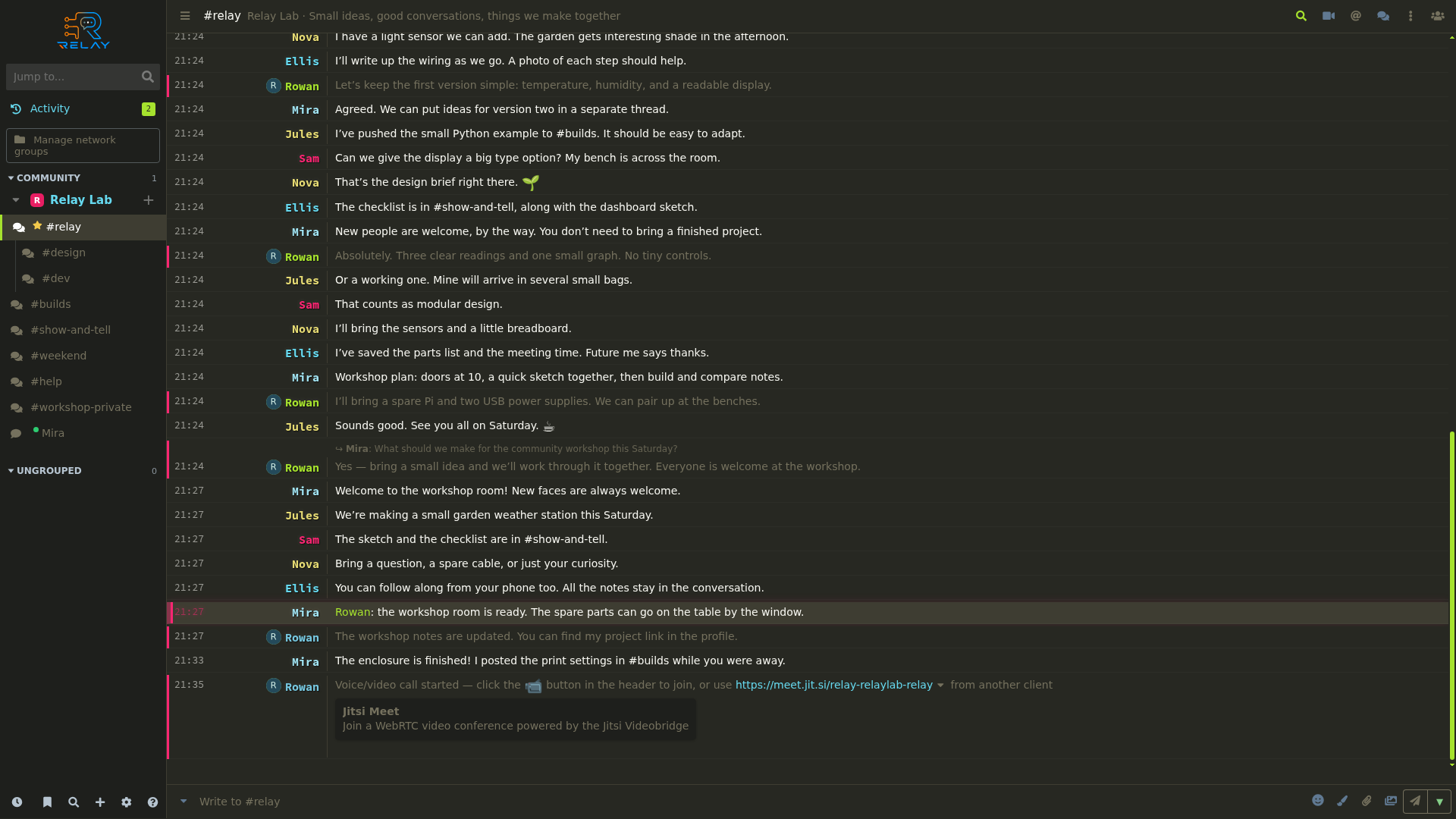
The workshop conversation in the Monokai theme, using standard message rows.
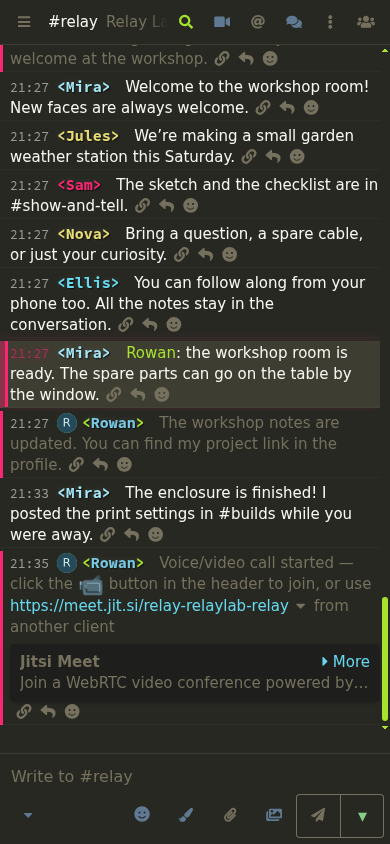
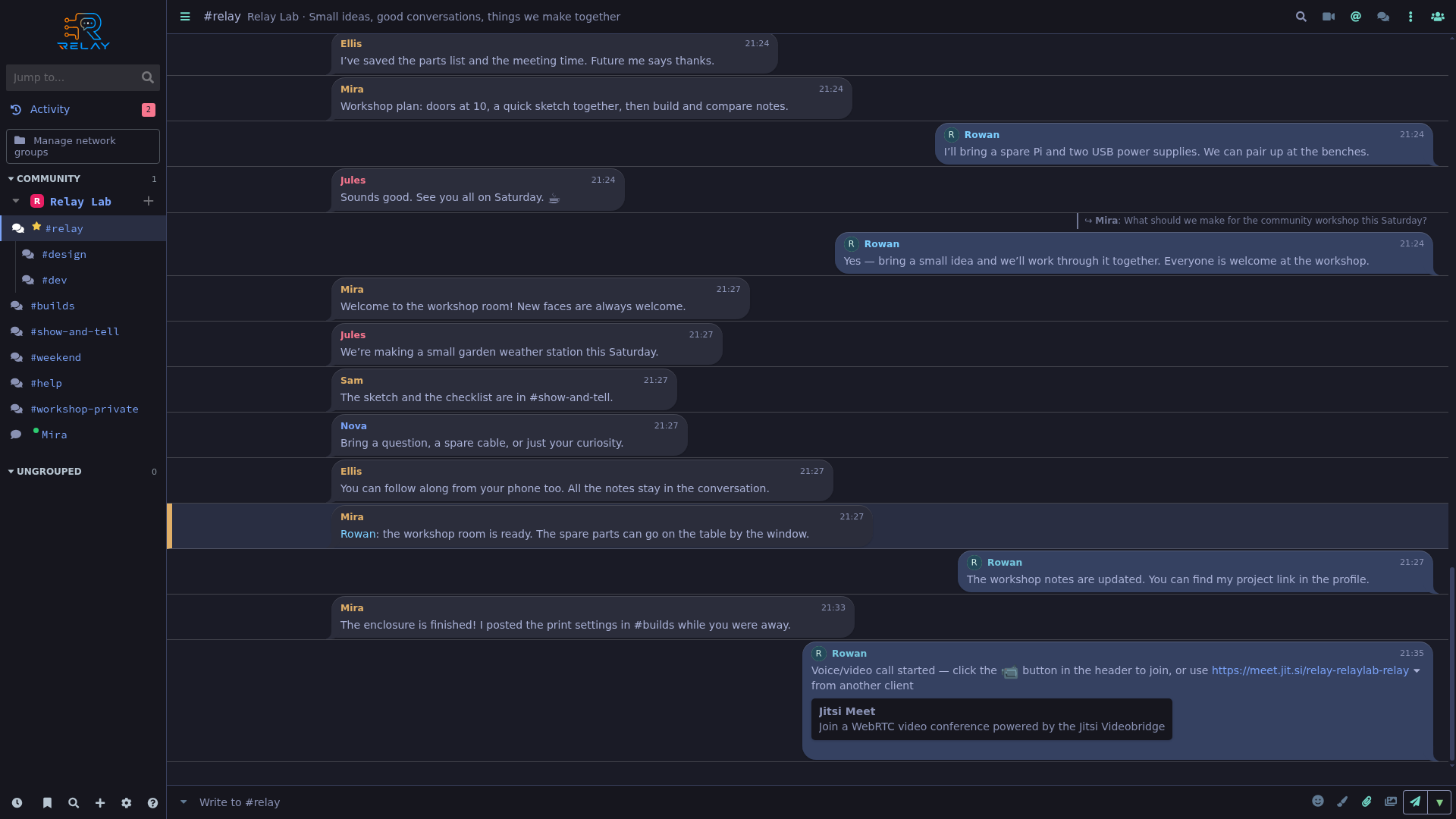
One dedicated comparison for people who prefer bubbles.
The same workshop conversation with message bubbles explicitly enabled.
Explore Relay
Every feature in the catalog links to its desktop and phone examples.
Browse features